
Using Certbot with your own ACME server

In the last blog post Running your own ACME Server we have successfully installed our own PKI with an ACME provisioner. In this blog post we want to look at the client side and automatically obtain and renew a client certificate for a web server.

NGINX

From an ACME point of view the type of web server doesn’t matter at all. In this example we will use NGINX as a web server, because it is lightweight and popular.

andreas@testclient ➜  ~ sudo pkg install nginx

As we want NGINX to run as a service we will append one line to our /etc/rc.conf and then start the service.

andreas@testclient ➜  ~ sudo sh -c 'echo nginx_enable=\"YES\" >> /etc/rc.conf'
andreas@testclient ➜  ~ sudo service nginx start                              
Performing sanity check on nginx configuration:
nginx: the configuration file /usr/local/etc/nginx/nginx.conf syntax is ok
nginx: configuration file /usr/local/etc/nginx/nginx.conf test is successful
Starting nginx.

Now we apply a pattern that extracts web server configuration and contents into separate file system locations. Each web server (or virtual domain) will get its own content folder. In our case we want to put all content into a testclient folder.

andreas@testclient ➜  ~ sudo mkdir -p /usr/local/www/sites/testclient/html

We will create a simple html file at /usr/local/www/sites/testclient/html/index.html with the following content.

<html>
    <head>
        <title>TESTCLIENT</title>
    </head>
    <body>
        <h1>Hello World!</h1>
    </body>
</html>

The webserver configuration will be put into a .conf file the follows the same name. Although we only need one webserver in our example we will still create a sites subfolder for good housekeeping.

andreas@testclient ➜  ~ sudo mkdir /usr/local/etc/nginx/sites
andreas@testclient ➜  ~ sudo touch /usr/local/etc/nginx/sites/testclient.conf

Our site configuration at /usr/local/etc/nginx/sites/testclient.conf will have the following content.

server {
        listen       80;
        server_name  testclient;

        access_log /var/log/nginx/testclient.access.log;
        error_log /var/log/nginx/testclient.error.log;

        location / {
            root   /usr/local/www/sites/testclient/html;
            index  index.html;
        }
}

At last we clean up /usr/local/etc/nginx/nginx.conf by removing the complete server section as we don’t need it anymore. Instead we will add an include statement before the last { of the http section. That will make sure our /usr/local/etc/nginx/sites/testclient.conf configuration file will be parsed.

Based on a fresh installation the config file would most likely look like the following.

# This default error log path is compiled-in to make sure configuration parsing
# errors are logged somewhere, especially during unattended boot when stderr
# isn't normally logged anywhere. This path will be touched on every nginx
# start regardless of error log location configured here. See
# https://trac.nginx.org/nginx/ticket/147 for more info. 
#
#error_log  /var/log/nginx/error.log;
#

#pid        logs/nginx.pid;


events {
    worker_connections  1024;
}


http {
    include       mime.types;
    default_type  application/octet-stream;

    #log_format  main  '$remote_addr - $remote_user [$time_local] "$request" '
    #                  '$status $body_bytes_sent "$http_referer" '
    #                  '"$http_user_agent" "$http_x_forwarded_for"';

    #access_log  logs/access.log  main;

    sendfile        on;
    #tcp_nopush     on;

    #keepalive_timeout  0;
    keepalive_timeout  65;

    #gzip  on;

    include "sites/*.conf";
}

Now we check the configuration and reload the config.

andreas@testclient ➜  ~ sudo nginx -t                                      
nginx: the configuration file /usr/local/etc/nginx/nginx.conf syntax is ok
nginx: configuration file /usr/local/etc/nginx/nginx.conf test is successful
andreas@testclient ➜  ~ sudo service nginx reload                          
Performing sanity check on nginx configuration:
nginx: the configuration file /usr/local/etc/nginx/nginx.conf syntax is ok
nginx: configuration file /usr/local/etc/nginx/nginx.conf test is successful

Adding our own Root Certificate to the trust store

To make things easier we will add our own root certificate into the trust store of our client. we will copy the certificate into the /usr/share/certs/trusted folder and then apply a rehash operation that is limited to only the one certificate we just copied.

andreas@testclient ➜  ~ openssl x509 -hash -noout -in /usr/share/certs/trusted/tinkivity.pem 
97efb5b5
andreas@testclient ➜  ~ sudo ln -s /usr/share/certs/trusted/tinkivity.pem /etc/ssl/certs/97efb5b5.0

We can see if we have been successful if openssl’s s_client command can verify the certificate from our ACME server.

andreas@testclient ➜  ~ openssl s_client -connect acme.local:8443 --quiet      
depth=1 C = DE, ST = Saxony, O = Tinkivity, OU = Tinkivity Intermediate Certificate Authority, CN = Smallstep Intermediate CA, emailAddress = xxx@xxx.com
verify return:1
depth=0 CN = Step Online CA
verify return:1

Certbot

Now, as we have setup a new web server, we can install Certbot and have it obtain a certificate from our ACME server. The first step is installing the packages for Certbot itself and its NGINX plugin.

andreas@testclient ➜  ~ sudo pkg install py37-certbot py37-certbot-nginx

Before we move on to the next step of registration of our domain at the ACME server we need to find out if python can successfully integrate the trust store. We issue a simple python command to check SSL verification.

andreas@testclient ➜  ~ python3.7 -c "import requests; print(requests.get('https://acme.local:8443').text)"
404 page not found

If we receive real HTML content (above 404 page not found is actually HTML and thus success), we are good for ‘regular’ Certbot usage. If we receive a lengthy exception that somewhere contains a line like below, our python installation doesn’t include the trust store correctly and we will need to operate Certbot with the –no-verify-ssl option for further requests.

requests.exceptions.SSLError: HTTPSConnectionPool(host='acme.local', port=8443): Max retries exceeded with url: / (Caused by SSLError(SSLError("bad handshake: Error([('SSL routines', 'tls_process_server_certificate', 'certificate verify failed')])")))

Above error happens on FreebSD 12.2-RC3 with python3.7 and seems to be a deeper issue, because python claims to look at the correct trust store location:

andreas@testclient ➜  ~ python3.7 -c "import ssl; print(ssl.get_default_verify_paths())"                                                         
DefaultVerifyPaths(cafile='/etc/ssl/cert.pem', capath='/etc/ssl/certs', openssl_cafile_env='SSL_CERT_FILE', openssl_cafile='/etc/ssl/cert.pem', openssl_capath_env='SSL_CERT_DIR', openssl_capath='/etc/ssl/certs')

The next step already is the registration of our domain at the ACME server. We use the following command:

andreas@testclient ➜  ~ sudo certbot --nginx --agree-tos --non-interactive --no-verify-ssl --email xxx@xxx.com --server https://acme.local:8443/acme/acme-smallstep/directory --domain testclient
Saving debug log to /var/log/letsencrypt/letsencrypt.log
Plugins selected: Authenticator nginx, Installer nginx
/usr/local/lib/python3.7/site-packages/urllib3/connectionpool.py:988: InsecureRequestWarning: Unverified HTTPS request is being made to host 'acme.local'. Adding certificate verification is strongly advised. See: https://urllib3.readthedocs.io/en/latest/advanced-usage.html#ssl-warnings
  InsecureRequestWarning,
/usr/local/lib/python3.7/site-packages/urllib3/connectionpool.py:988: InsecureRequestWarning: Unverified HTTPS request is being made to host 'acme.local'. Adding certificate verification is strongly advised. See: https://urllib3.readthedocs.io/en/latest/advanced-usage.html#ssl-warnings
  InsecureRequestWarning,
/usr/local/lib/python3.7/site-packages/urllib3/connectionpool.py:988: InsecureRequestWarning: Unverified HTTPS request is being made to host 'acme.local'. Adding certificate verification is strongly advised. See: https://urllib3.readthedocs.io/en/latest/advanced-usage.html#ssl-warnings
  InsecureRequestWarning,
Obtaining a new certificate
/usr/local/lib/python3.7/site-packages/urllib3/connectionpool.py:988: InsecureRequestWarning: Unverified HTTPS request is being made to host 'acme.local'. Adding certificate verification is strongly advised. See: https://urllib3.readthedocs.io/en/latest/advanced-usage.html#ssl-warnings
  InsecureRequestWarning,
/usr/local/lib/python3.7/site-packages/urllib3/connectionpool.py:988: InsecureRequestWarning: Unverified HTTPS request is being made to host 'acme.local'. Adding certificate verification is strongly advised. See: https://urllib3.readthedocs.io/en/latest/advanced-usage.html#ssl-warnings
  InsecureRequestWarning,
Performing the following challenges:
http-01 challenge for testclient
Using default address 80 for authentication.
nginx: [warn] conflicting server name "testclient" on 0.0.0.0:80, ignored
Waiting for verification...
/usr/local/lib/python3.7/site-packages/urllib3/connectionpool.py:988: InsecureRequestWarning: Unverified HTTPS request is being made to host 'acme.local'. Adding certificate verification is strongly advised. See: https://urllib3.readthedocs.io/en/latest/advanced-usage.html#ssl-warnings
  InsecureRequestWarning,
/usr/local/lib/python3.7/site-packages/urllib3/connectionpool.py:988: InsecureRequestWarning: Unverified HTTPS request is being made to host 'acme.local'. Adding certificate verification is strongly advised. See: https://urllib3.readthedocs.io/en/latest/advanced-usage.html#ssl-warnings
  InsecureRequestWarning,
Cleaning up challenges
/usr/local/lib/python3.7/site-packages/urllib3/connectionpool.py:988: InsecureRequestWarning: Unverified HTTPS request is being made to host 'acme.local'. Adding certificate verification is strongly advised. See: https://urllib3.readthedocs.io/en/latest/advanced-usage.html#ssl-warnings
  InsecureRequestWarning,
/usr/local/lib/python3.7/site-packages/urllib3/connectionpool.py:988: InsecureRequestWarning: Unverified HTTPS request is being made to host 'acme.local'. Adding certificate verification is strongly advised. See: https://urllib3.readthedocs.io/en/latest/advanced-usage.html#ssl-warnings
  InsecureRequestWarning,
/usr/local/lib/python3.7/site-packages/urllib3/connectionpool.py:988: InsecureRequestWarning: Unverified HTTPS request is being made to host 'acme.local'. Adding certificate verification is strongly advised. See: https://urllib3.readthedocs.io/en/latest/advanced-usage.html#ssl-warnings
  InsecureRequestWarning,
Could not automatically find a matching server block for testclient. Set the `server_name` directive to use the Nginx installer.

IMPORTANT NOTES:
 - Unable to install the certificate
 - Congratulations! Your certificate and chain have been saved at:
   /usr/local/etc/letsencrypt/live/testclient/fullchain.pem
   Your key file has been saved at:
   /usr/local/etc/letsencrypt/live/testclient/privkey.pem
   Your cert will expire on 2020-12-01. To obtain a new or tweaked
   version of this certificate in the future, simply run certbot again
   with the "certonly" option. To non-interactively renew *all* of
   your certificates, run "certbot renew"
 - Your account credentials have been saved in your Certbot
   configuration directory at /usr/local/etc/letsencrypt. You should
   make a secure backup of this folder now. This configuration
   directory will also contain certificates and private keys obtained
   by Certbot so making regular backups of this folder is ideal.

Although the ACME part worked completely fine, we still get an error from Certbot’s NGINX plugin. It turns out that the plugin cannot locate the server_name directive in our NGINX configuration. That is driven by the fact that we have extracted parts of the NGINX configuration into a separate configuration file (/usr/local/etc/nginx/sites/testclient.conf). We have two options now:

  1. go back to a single NGINX configuration file
  2. manually enter the Certbot configuration snippets into our separate NGINX configuration file

We will go with the latter option and put in the Certbot configuration snippets ourselves. The configuration at /usr/local/etc/nginx/sites/testclient.conf will now look as follows.

server {
#       listen       80;
        listen       443 ssl;
        server_name  testclient;

        access_log /var/log/nginx/testclient.access.log;
        error_log /var/log/nginx/testclient.error.log;

        location / {
            root   /usr/local/www/sites/testclient/html;
            index  index.html;
        }

        ssl_certificate /usr/local/etc/letsencrypt/live/testclient/fullchain.pem;
        ssl_certificate_key /usr/local/etc/letsencrypt/live/testclient/privkey.pem;
        include /usr/local/etc/letsencrypt/options-ssl-nginx.conf;
        ssl_dhparam /usr/local/etc/letsencrypt/ssl-dhparams.pem;
}

server {
        if ($host = testclient) {
            return 301 https://$host$request_uri;
        }

        listen       80;
        server_name  testclient;
        return 404;
}
  1. our existing server block has been updated to not listen on port 80 any more, but on port 443 via SSL instead
  2. the locations for the certificate obtained from the ACME server, the private key, ssl options (cipher suite etc.) as well as Diffie-Hellman parameters have been included into the configuration
  3. a new server block has with the goal of listening on port 80 and redirection to port 443 SSL has been added

In order to apply the configuration changes, we have to reload the NGINX configuration.

andreas@testclient ➜  ~ sudo service nginx reload                                 
Performing sanity check on nginx configuration:
nginx: the configuration file /usr/local/etc/nginx/nginx.conf syntax is ok
nginx: configuration file /usr/local/etc/nginx/nginx.conf test is successful

Auto Renew

Last but not least we need to insert a cron task so that Certbot will automatically renew the certificate on a regular schedule.

andreas@testclient ➜  ~ echo "0       0,12    *       *       *       root    python3.7 -c 'import random; import time; time.sleep(random.random() * 3600)' && certbot renew --no-verify-ssl --quiet" | sudo tee -a /etc/crontab > /dev/null

Above entry will run Certbot’s renew command at midnight and high noon. Without further parameters (i.e. domain) above command will renew all certificates managed by Certbot. If you want to see which certificates are being managed by Certbot you can run the following command.

andreas@testclient ➜  ~ sudo certbot certificates
Saving debug log to /var/log/letsencrypt/letsencrypt.log
Cannot extract OCSP URI from /usr/local/etc/letsencrypt/live/testclient/cert.pem

- - - - - - - - - - - - - - - - - - - - - - - - - - - - - - - - - - - - - - - -
Found the following certs:
  Certificate Name: testclient
    Serial Number: 8a98c881442ed7de1d460dee5a97fb6
    Domains: testclient
    Expiry Date: 2020-12-02 18:51:33+00:00 (VALID: 23 hour(s))
    Certificate Path: /usr/local/etc/letsencrypt/live/testclient/fullchain.pem
    Private Key Path: /usr/local/etc/letsencrypt/live/testclient/privkey.pem
- - - - - - - - - - - - - - - - - - - - - - - - - - - - - - - - - - - - - - - -

That’s it. If you put your web browser onto http://testclient in your local network, you should see a Hello World page with a valid certificate.
Running your own ACME Server

While some of us might have heard from Let’s Encrypt and how it uses ACME for complete automation of certificate management, a few of us might even ask themselves: ‘Can I also run my own private ACME server in my home network?‘. The basic answer is yes, because ACME is a standardized and open protocol. As in many ‘make vs. buy‘ decisions a more detailed look will reveal that writing your own implementation of ACME is a lot of effort and thus not the right approach for a home project. Luckily there is smallstep – a company from in the bay area that provides an open-source certificate authority & PKI toolkit that we can use.

Installing step-certificates

There are two packages you need to install in order to start working: the step-certificates package provides the certificate authority (server) and the step-cli package provides a command line client.

andreas@acme ➜  ~ sudo pkg install step-certificates step-cli

After installation there will be a service script available.

andreas@acme ➜  ~ ls -lah /usr/local/etc/rc.d/step-ca
-rwxr-xr-x  1 root  wheel   2.5K Oct  5 10:56 /usr/local/etc/rc.d/step-ca

Looking into the service script that will reveal a number of interesting findings:

  1. the rcvar we need to add to our /etc/rc.conf for service management has a value of step_ca_enable
  2. the directory that will contain all configuration (including the password) defaults to /usr/local/etc/step and after fresh installation this directory is completely empty
  3. the actual configuration file defining our step ca will be /usr/local/etc/step/config/ca.json
  4. the master password will be stored in plain text under /usr/local/etc/step/password.txt
  5. the service script implements a start_precmd that will interact with the command line in order to initialize a template config and password upon service start

First Time (Auto) Setup

We will append the step_ca_enable rcvar into our /etc/rc.conf so that we can use the service command to start and stop the step-ca service.

# Enable Step CA
step_ca_enable="YES"

Now, what we need to understand is that the start_precmd section of the service script (see last finding in above list) will simply call the step ca init command and then interactively collect a password for storing it in the password.txt file. Having said that, we will make use of that mechanism and let the command line guide us through creation of our PKI.

andreas@acme ➜  ~ sudo service step-ca start
No configured Step CA found.
Creating new one....
✔ What would you like to name your new PKI? (e.g. Smallstep): acme
✔ What DNS names or IP addresses would you like to add to your new CA? (e.g. ca.smallstep.com[,1.1.1.1,etc.]): acme.local,192.168.1.2
✔ What address will your new CA listen at? (e.g. :443): :8443
✔ What would you like to name the first provisioner for your new CA? (e.g. you@smallstep.com): firstprovisioner
✔ What do you want your password to be? [leave empty and we'll generate one]: 

Generating root certificate... 
all done!

Generating intermediate certificate... 
all done!

✔ Root certificate: /usr/local/etc/step/ca/certs/root_ca.crt
✔ Root private key: /usr/local/etc/step/ca/secrets/root_ca_key
✔ Root fingerprint: 97f4728d915d001e51ceaab3e7343a60807625ca5d5d588c52b739b202fb0164
✔ Intermediate certificate: /usr/local/etc/step/ca/certs/intermediate_ca.crt
✔ Intermediate private key: /usr/local/etc/step/ca/secrets/intermediate_ca_key
✔ Database folder: /usr/local/etc/step/ca/db
✔ Default configuration: /usr/local/etc/step/ca/config/defaults.json
✔ Certificate Authority configuration: /usr/local/etc/step/ca/config/ca.json

Your PKI is ready to go. To generate certificates for individual services see 'step help ca'.

FEEDBACK 😍 🍻
      The step utility is not instrumented for usage statistics. It does not
      phone home. But your feedback is extremely valuable. Any information you
      can provide regarding how you’re using `step` helps. Please send us a
      sentence or two, good or bad: feedback@smallstep.com or join
      https://gitter.im/smallstep/community.
Step CA Password file for auto-start not found
Creating it....
Please enter the Step CA Password:

Starting step_ca.
step_ca is running as pid 58450.

Obviously a template config that is ready to go has been created and the service already has been started. Let’s have a look at the directory structure in place, so we can better understand what has been done here.

andreas@acme ➜  ~ sudo tree /usr/local/etc/step
/usr/local/etc/step
├── ca
│   ├── certs
│   │   ├── intermediate_ca.crt
│   │   └── root_ca.crt
│   ├── config
│   │   ├── ca.json
│   │   └── defaults.json
│   ├── db
│   │   ├── 000000.vlog
│   │   ├── LOCK
│   │   └── MANIFEST
│   ├── secrets
│   │   ├── intermediate_ca_key
│   │   └── root_ca_key
│   └── templates
└── password.txt

6 directories, 10 files

The certs subfolder contains a root certificate as well as an intermediate certificate, which the keys for both are stored in the secrets subfolder. Both keys are encrypted with the same password that we’ve interactively provided at the command line when running our initial service start. That password has been stored as plain text in the password.txt file.

The config subfolder contains two json files. One file (ca.json) contains a list of all provisioners and the other file (defaults.json) contains some general information as to where the step ca can be reached and where the root certificate is located.

The db folder contains a NoSQL database with meta information on issued certificates.

The secrets folder contains the private keys for at least the intermediate certificate.

The templates folder will be empty upon initial setup but can be filled later on with certificate templates (very useful later on!).

Running a quick test

Of course we want to find out if our PKI is really running and visible from the outside. On a local command line (not the actual server running the PKI) we use openssl’s s_client command to check things out.

andreas@laptop ➜  ~ openssl s_client -connect acme.local:8443 -showcerts
CONNECTED(00000005)
depth=1 CN = myownlittleca Intermediate CA
verify error:num=20:unable to get local issuer certificate
verify return:0
---
Certificate chain
 0 s:/CN=Step Online CA
   i:/CN=myownlittleca Intermediate CA
-----BEGIN CERTIFICATE-----
MIIB2DCCAX+gAwIBAgIRAP9nSxkc+5TzPw9R3mUwtfIwCgYIKoZIzj0EAwIwKDEm
MCQGA1UEAxMdbXlvd25saXR0bGVjYSBJbnRlcm1lZGlhdGUgQ0EwHhcNMjAxMTI2
MTAzNzQzWhcNMjAxMTI3MTAzODQzWjAZMRcwFQYDVQQDEw5TdGVwIE9ubGluZSBD
QTBZMBMGByqGSM49AgEGCCqGSM49AwEHA0IABO7yVcVv1KLZ7e1QntLaSqPuFtGf
8aDuvYuoeP3KAsmcSGYbuukdIcXdL5VhRn10lXOIwGDnAxv+EzirHa94X46jgZgw
gZUwDgYDVR0PAQH/BAQDAgeAMB0GA1UdJQQWMBQGCCsGAQUFBwMBBggrBgEFBQcD
AjAdBgNVHQ4EFgQUtiU+/65AZJE7CAgRDK4QK/F6YgowHwYDVR0jBBgwFoAUQyq5
oSctWu9k7KSnAz2P5rtKz9UwJAYDVR0RBB0wG4ITYWNtZS50aW5raXZpdHkuaG9t
ZYcEwKgcDzAKBggqhkjOPQQDAgNHADBEAiABBBGCV2x2zKm/6ja3inn9/u8QKx+G
BTuCkGcj1XZzEwIgTO+r7KTh2nuaN+uQsJOb51ASqLD2GDfH47CKBfd03Wo=
-----END CERTIFICATE-----
 1 s:/CN=myownlittleca Intermediate CA
   i:/CN=myownlittleca Root CA
-----BEGIN CERTIFICATE-----
MIIBrTCCAVOgAwIBAgIRAKn1KuHAPtPlKVmfI0G8NQMwCgYIKoZIzj0EAwIwIDEe
MBwGA1UEAxMVbXlvd25saXR0bGVjYSBSb290IENBMB4XDTIwMTEyNjEwMzgzMVoX
DTMwMTEyNDEwMzgzMVowKDEmMCQGA1UEAxMdbXlvd25saXR0bGVjYSBJbnRlcm1l
ZGlhdGUgQ0EwWTATBgcqhkjOPQIBBggqhkjOPQMBBwNCAARYANusH97/11XzMIYf
7pgI1LEY8UpWVBiVF4/1m5rsaFg//kvkFklI7FjZ4nR4Ard7mqlrCDc16lseVMKl
mFNPo2YwZDAOBgNVHQ8BAf8EBAMCAQYwEgYDVR0TAQH/BAgwBgEB/wIBADAdBgNV
HQ4EFgQUQyq5oSctWu9k7KSnAz2P5rtKz9UwHwYDVR0jBBgwFoAUhArGpAX7JUjc
tn/PGaEkJkJ1tOMwCgYIKoZIzj0EAwIDSAAwRQIgbF/kVS7j+TFTZYpIoA3El+ty
rxRsD61qcT/UHEQSNSgCIQDFhRXerzwvQYz4BbpST2NfCdMvJaFVxrU99wTf4eUQ
bA==
-----END CERTIFICATE-----
---
Server certificate
subject=/CN=Step Online CA
issuer=/CN=myownlittleca Intermediate CA
---

...

Next, we could install a server somewhere and use acme.sh or certbot or similar to automatically retrieve SSL certificates. However, at this point we don’t want to do this because the auto generated setup is not exactly what we want (or need).

Custom Setup

As stated above, we do not want to use the auto-generated certificate authorities. We already have our own CA in place that we’d like to use. Also, we will issue an exclusive intermediate CA for our PKI off-band and import that. In addition we want to have multiple provisioners with different policies as to how long certificates issued are valid.

In this article I will not describe what a Root CA is and how it is being created, but just assume that we have setup one already that is ready for import. Still, if you want to learn more about how to setup a CA please read here.

Importing our own Root CA

What we need to do is to import our existing root certificate. The same holds true for the Intermediate CA. We can either put that into the certs folder or have our configuration point to a central location.

In either event we will not need the private key for from our Root CA!

In this example we will copy our root certificate into a central location under /etc/ssl and make it readable for everybody via a quick chmod 444 command.

andreas@acme ➜  ~ sudo ls -lah /etc/ssl/
total 45
drwxr-xr-x   2 root  wheel     5B Nov 26 19:26 .
drwxr-xr-x  27 root  wheel   109B Nov 26 11:35 ..
lrwxr-xr-x   1 root  wheel    43B Oct 17 03:09 cert.pem -> ../../usr/local/share/certs/ca-root-nss.crt
-rw-r--r--   1 root  wheel    11K Jun 12 20:29 openssl.cnf
-r--r--r--   1 root  wheel   2.2K Nov 26 19:26 tinkivity.pem

For the next step, we need the 32-bit fingerprint from our certificate. Obviously the fingerprint below is redacted and you will not get any of the xx values as a reply on your command line.

andreas@acme ➜  ~ openssl x509 -fingerprint -sha256 -noout -in /etc/ssl/tinkivity.pem                       
SHA256 Fingerprint=00:xx:xx:xx:xx:xx:xx:xx:xx:xx:xx:xx:xx:xx:xx:xx:xx:xx:xx:xx:xx:xx:xx:xx:xx:xx:xx:xx:xx:xx:xx:99

We need to update /usr/local/etc/step/ca/config/defaults.json configuration file to reflect the fingerprint of our new root certificate. Please make sure to remove all colons (“:”) from the fingerprint in your defaults.json config. Again, below fingerprint is redacted and instead of the 30 pairs of xx you need to put the middle-30 actual bytes from your actual fingerprint. Also, make sure to update the location of the root certificate accordingly.

{
   "ca-url": "https://acme.local:8443",
   "ca-config": "/usr/local/etc/step/ca/config/ca.json",
   "fingerprint": "01xxxxxxxxxxxxxxxxxxxxxxxxxxxxxxxxxxxxxxxxxxxxxxxxxxxxxxxxxxxx99",
   "root": "/etc/ssl/tinkivity.pem"
}

The other configuration we need to update is /usr/local/etc/step/ca/config/ca.json as it also needs to know where our root certificate lives. The attribute for the root certificate location is most likely the first attribute at the top of the json configuration.

{
   "root": "/etc/ssl/tinkivity.pem",
   "federatedRoots": [],
...

Importing our Intermediate CA

Again, we have created our Intermediate CA off-band and only import it into our ACME server environment in this step. As our Intermediate CA will actually be used to issue certificates, we need both the x509 certificate as well as the RSA private key for the Intermediate CA. We will delete possibly existing certificates and keys from the certs and secrets folder and import our Intermediate CA instead.

andreas@acme ➜  ~ sudo tree /usr/local/etc/step            
/usr/local/etc/step
├── ca
│   ├── certs
│   │   └── intermediate.cert.pem
│   ├── config
│   │   ├── ca.json
│   │   └── defaults.json
│   ├── db
│   │   ├── 000000.vlog
│   │   ├── LOCK
│   │   └── MANIFEST
│   ├── secrets
│   │   └── intermediate.key.pem
│   └── templates
└── password.txt

6 directories, 8 files

The x509 certificate (the public part) shall only be readable, but doesn’t need to be restricted. Thus, it is ok if everybody can read the file.

andreas@acme ➜  ~ sudo ls -lah /usr/local/etc/step/ca/certs/intermediate.cert.pem
-r--r--r--  1 step  step   2.2K Nov 28 14:39 /usr/local/etc/step/ca/certs/intermediate.cert.pem

The RSA private key on the other hand should be restricted. Nobody other the our step ca service user shall be allowed to read its contents.

andreas@acme ➜  ~ sudo ls -lah /usr/local/etc/step/ca/secrets/intermediate.key.pem
-r--------  1 step  step   3.2K Nov 28 14:37 /usr/local/etc/step/ca/secrets/intermediate.key.pem

Another and even more important line of defense is the passphrase that encrypts the RSA key. Even though somebody would come into possession of the RSA key file it couldn’t be decrypted without the proper passphrase. At the same time, the step ca service user needs to know that passphrase in order to sign new certificates. We have two options how to provide the passphrase to the step ca service:

  1. interactive command line prompt upon service start
  2. persistence in a text file

Obviously only the latter option allows unattended service starts (i.e. b/c of reboot) and we will use that option. The location for the password.txt file is manifested in the service script and by default points to the step ca root folder. In any case we must make sure that nobody else but the step ca service user can read the contents of that file.

andreas@acme ➜  ~ sudo ls -lah /usr/local/etc/step/password.txt
-rw-------  1 step  step    12B Nov 29 12:56 /usr/local/etc/step/password.txt

The last step for setup of our Intermediate CA is to configure its location in the /usr/local/etc/step/ca/config/ca.json configuration.

{
   "root": "/etc/ssl/tinkivity.pem",
   "federatedRoots": [],
   "crt": "/usr/local/etc/step/ca/certs/intermediate.cert.pem",
   "key": "/usr/local/etc/step/ca/secrets/intermediate.key.pem",
...

Delete existing provisioners

When running the automatically guided setup in the beginning, we also created a provisioner named firstprovisioner which we actually don’t want to have any more. There is a step command that allows to manage provisioners – including listing of those.

andreas@acme ➜  ~ sudo step ca provisioner list --ca-url https://acme.local:8443 --root /etc/ssl/tinkivity.pem
[
   {
      "type": "JWK",
      "name": "firstprovisioner",
      "key": {
         "use": "sig",
         "kty": "EC",
         "kid": "TRmwwSxlqIBSPDj6K5pAYrbcbCbkKPIWvPwDhuuqeWI",
         "crv": "P-256",
         "alg": "ES256",
         "x": "EgXHqunMX0k3GbPkbCcrCN44wKcYgHaIKx6TZvGwAXk",
         "y": "iGb2ToEVDC6yBgRxZoNa1MG1RAZUDrFokvim8Ugj9fg"
      },
      "encryptedKey": "eyJhbGciOiJQQkVTMi1IUzI1NitBMTI4S1ciLCJjdHkiOiJqd2sranNvbiIsImVuYyI6IkEyNTZHQ00iLCJwMmMiOjEwMDAwMCwicDJzIjoiWTdTU2kxaTJJRGpMQkY2cF9lNkFrQSJ9.6BhnTrakC_yUC1AMwIJ0pVW_spZode1Np8mba3ONk9NwCTErGb8upQ.tBP0pRs8ha6lijLz.pKHgHq6VChULDNvNWvHBYQMBeeGEJSOrVDU-9gA-soETOf4eLqjqy8OATp3pP3_TQ6y00E2ZziEnfJk58f3cbLT1lldas1yP0XYkc3gHitEwTfbFxppyp9ptjRzIPGby5ucVOzj0j9O8QiIetOc6Cri7rq9bpuTMyazAQlKJ84x1CeZz_hqBf3vxwHZHYODPaxG3u2nsWmjhFA8uJXPSHyic_sgZBi-sc5JGPVa2_4rG8EzM1yx2l0mUZLdVprAFZ0ciWvKRdqObXcbO_DiLn3p6aECFnLfEnvi0T8deoHhU0t5F28T4GNV_E9aq9h46A0O4rcLrXi9kgqs2g_k.eItQ0VITv702y3bFFkNnFQ"
   }
]

More or less the command only dumps out the provisioner section of the configuration at /usr/local/etc/step/ca/config/ca.json which doesn’t seem very helpful when listing existing provisioners. However, the command becomes more helpful when modifying provisioners. First we will delete our existing provisioner. We can use the step ca provisioner command to do this.

andreas@acme ➜  ~ sudo step ca provisioner remove firstprovisioner --ca-config /usr/local/etc/step/ca/config/ca.json
Success! Your `step-ca` config has been updated. To pick up the new configuration SIGHUP (kill -1 <pid>) or restart the step-ca process.

As an alternative to the above command we can directly edit the configuration file at /usr/local/etc/step/ca/config/ca.json and replace the provisioners section by a NULL statement.

Below is the complete /usr/local/etc/step/ca/config/ca.json file matching our current progress.

{
        "root": "/etc/ssl/tinkivity.pem",
        "federatedRoots": [],
        "crt": "/usr/local/etc/step/ca/certs/intermediate.cert.pem",
        "key": "/usr/local/etc/step/ca/secrets/intermediate.key.pem",
        "address": ":8443",
        "dnsNames": [
                "acme.local",
                "192.168.1.2"
        ],
        "logger": {
                "format": "text"
        },
        "db": {
                "type": "badger",
                "dataSource": "/usr/local/etc/step/ca/db",
                "badgerFileLoadingMode": ""
        },
        "authority": {
                "provisioners": null
        },
        "tls": {
                "cipherSuites": [
                        "TLS_ECDHE_ECDSA_WITH_CHACHA20_POLY1305",
                        "TLS_ECDHE_ECDSA_WITH_AES_128_GCM_SHA256"
                ],
                "minVersion": 1.2,
                "maxVersion": 1.2,
                "renegotiation": false
        }
}

Configuring a separate log facility

Let’s configure a separate log facility that logs to /var/log/step.log so that we have an easier job in following the log activities (other than to filter /var/log/messages all the time). We start by inserting the following two lines into the /etc/syslog.conf configuration.

...
# !devd
# *.>=notice                                    /var/log/devd.log
!step_ca
*.*                                             /var/log/step.log
!ppp
*.*                                             /var/log/ppp.log
!*
include                                         /etc/syslog.d
include                                         /usr/local/etc/syslog.d

Next we create an empty log file under /var/log/step.log and make sure it has the same ownership and permissions than other log files under /var/log.

andreas@acme ➜  ~ sudo ls -lah /var/log/messages
-rw-r--r--  1 root  wheel    14K Nov 29 14:35 /var/log/messages
andreas@acme ➜  ~ sudo touch /var/log/step.log
andreas@acme ➜  ~ sudo ls -lah /var/log/step.log
-rw-r--r--  1 root  wheel     0B Nov 29 15:46 /var/log/step.log

Now, we restart the syslog daemon so that the new configuration is applied.

andreas@acme ➜  ~ sudo service syslogd restart
Stopping syslogd.
Waiting for PIDS: 38133.
Starting syslogd.

Finally, we can (re)start the step ca service and make sure the newly configured log file is being used. Assuming we have not made any errors in our configuration approach so far, our step ca should start without errors and be responsive at port 8443 already.

andreas@acme ➜  ~ sudo service step-ca restart
Stopping step_ca.
Starting step_ca.
step_ca is running as pid 39809.
andreas@acme ➜  ~ cat /var/log/step.log 
Nov 29 15:48:34 acme step_ca[39809]: 2020/11/29 15:48:34 Serving HTTPS on :8443 ...

Running a quick smoke test

We could now run openssl’s s_client command again (see above) from a remote host or simply point a web browser at https://acme.local:8443. In both cases we should receive a reply that is including a correctly setup certificate chain.

andreas@acme ➜  ~ cat /var/log/step.log
Nov 29 15:48:34 acme step_ca[39809]: 2020/11/29 15:48:34 Serving HTTPS on :8443 ...
Nov 29 15:53:13 acme step_ca[39809]: time="2020-11-29T15:53:13+01:00" level=warning duration="38.366µs" duration-ns=38366 fields.time="2020-11-29T15:53:13+01:00" method=GET name=ca path=/ protocol=HTTP/2.0 referer= remote-address=192.168.1.205 request-id=bv1rbmajnji9n0kqlm10 size=19 status=404 user-agent="Mozilla/5.0 (Macintosh; Intel Mac OS X 10_15_7) AppleWebKit/605.1.15 (KHTML, like Gecko) Version/14.0.1 Safari/605.1.15" user-id=

Looking at /var/log/step.log again shows our step ca being responsive. Although the client only receives a 404 error in return, the meta data around that HTTPS request contains the proof that our setup works. It becomes even more clear when looking at the reply from openssl’s s_client command that we can run of our local laptop.

andreas@testclient ➜  ~ openssl s_client -connect acme.local:8443 --quiet      
depth=1 C = DE, ST = Saxony, O = Tinkivity, OU = Tinkivity Intermediate Certificate Authority, CN = Smallstep Intermediate CA, emailAddress = xxx@xxx.com
verify return:1
depth=0 CN = Step Online CA
verify return:1

Of course, this is only a somewhat synthetic test, but it will show us that we’re well on track.

Adding a new ACME provisioner

This is a rather easy step because only two commands are involved. The first command adds a new provisioner of type ACME and the second command restarts the service.

andreas@acme ➜  ~ sudo step ca provisioner add acme-smallstep --type acme --ca-config /usr/local/etc/step/ca/config/ca.json
Success! Your `step-ca` config has been updated. To pick up the new configuration SIGHUP (kill -1 <pid>) or restart the step-ca process.
andreas@acme ➜  ~ sudo service step-ca restart
Stopping step_ca.
Starting step_ca.
step_ca is running as pid 41017.

Looking at the provisioners section in /usr/local/etc/step/ca/config/ca.json we can see that not that much has been added actually.

...
                "provisioners": [
                        {
                                "type": "ACME",
                                "name": "acme-smallstep"
                        }
                ]
...

Such default configuration would start to pass out certificates that adhere to smallstep’s default settings. One setting that we want to change is the validity of the certificates being issued. We actually like certificates to be valid as short as possible while still not adding too much stress to the infrastructure. We will thus agree to certificates being valid for 24 hours.

...
                "provisioners": [
                        {
                                "type": "ACME",
                                "name": "acme-smallstep",
                                "claims": {
                                        "maxTLSCertDuration": "24h0m0s",
                                        "defaultTLSCertDuration": "24h0m0s"
                                }
                        }
                ]
...

ZFS Send & Receive – Part 2

Receiving data from another host

After successfully importing a dataset from a usb disk, we now want to import a dataset from another host via network. Let’s assume you’re on the source server and there is a dataset that you would like to send to a remote server. There is a specific snapshot that you would like to send, and after a while you might even want to update the dataset on the remote server with a further (more fresh) snapshot. Assuming that we don’t control the network and would like to not spill the beans on what we’re sending, we will use SSH as channel.

ZFS dataset on the receiving host (remote)

On the receiving end there is a ZFS pool that we want to send our dataset into it. We should make sure that there is enough free space on the receiving pool.

root@nas[~]# zfs list tank       
NAME   USED  AVAIL     REFER  MOUNTPOINT
tank  11.1T  9.70T      170K  /mnt/tank

At this point we need to be aware of the fact that receiving a dataset will override an existing dataset with identical name (if such dataset already exists). So let’s be really sure and check that no dataset by the name of media exists already.

root@nas[~]# zfs list -rt all tank/media
cannot open 'tank/media': dataset does not exist

More or less this isn’t anything else that we need to check from a ZFS point of view. Of course we need to make sure that the firewall will let us through, but given the fact that we will send data via SSH and we probably already logged in via SSH we should be good to go.

O.K. – “just one more thing…” we need to be able to access our remote host via SSH without a password. The authorized_keys file on the remote host should thus contain the sending host’s public key.

root@nas[~]# ls -lah /root/.ssh 
total 5
drwxr-xr-x  2 root  wheel     4B Jul 18 14:33 .
drwxr-xr-x  5 root  wheel    16B Nov 12 22:26 ..
-rw-------  1 root  wheel   805B Jul 13 20:00 authorized_keys
-rw-r--r--  1 root  wheel   179B Jul 18 14:33 known_hosts

ZFS dataset on the sending host (local)

On the sender side there is a ZFS dataset that we would like to send. To be more precise there is a snapshot that belongs to a dataset we want to send.

root@jeojang[~]# zfs list -rt all tank/incoming/media
NAME                                             USED  AVAIL     REFER  MOUNTPOINT
tank/incoming/media                             1.31T  6.21T     1.31T  /mnt/tank/incoming/media
tank/incoming/media@manual_2020-07-04_10-45-00  3.01M      -     1.31T  -

Very similar to sending/receiving a dataset between local host and an attached USB disk we use the same command, but add SSH into the command pipeline.

As the command will run for a while, it makes sense to use a screen or tmux session to protect the command from breaking when closing your SSH session.

root@jeojang[~]# zfs send tank/incoming/media@manual_2020-07-04_10-45-00 | pv | ssh root@nas zfs receive tank/media
1.32TiB 4:13:09 [91.3MiB/s] [                                            <=>                                                  ]

While the above command runs, let’s take some time to dissect the command. Left of the pipe we have:

zfs send tank/incoming/media@manual_2020-07-04_10-45-00

What it means is that we are sending the snapshot named media@manual_2020-07-04_10-45-00 that is located inside the incoming dataset, which in turn is underneath the pool called tank.

Between the pipes we have the pv command which gives us some progress indication.

Right of the pipe we have:

ssh root@nas zfs receive tank/media

What happens here is that we login to the host nas using the root user. Because the ssh command can accept parameters that in turn will be executed as command on the remote host, we append zfs receive tank/media as a command. Basically what ever is sent from ZFS on our local host through the pipe will be received by ZFS on the other (remote) side. The received dataset will be placed under the tank pool on the remote host and be stored as a new dataset by the name of media. Again, if the receiving host already has a media dataset under the tank pool, that dataset will be overridden by our receive command.

Checking the result and cleanup on the receiving host (remote)

After the command has finished, we should see both the dataset and its snapshot in the receiving pool.

root@nas[~]# zfs list -rt all tank/media
NAME                                    USED  AVAIL     REFER  MOUNTPOINT
tank/media                             1.31T  8.60T     1.31T  /mnt/tank/media
tank/media@manual_2020-07-04_10-45-00     0B      -     1.31T  -

If we don’t have any further use for the snapshot, we can clean it up via the zfs destroy command. Deleting the one and only snapshot of a dataset will not lead to any data loss. If there would be anything depending on such snapshot (i.e. a clone), ZFS would not allow for the snapshot to be deleted and indicate the situation with an appropriate message.

root@nas[~]# zfs destroy tank/media@manual_2020-07-04_10-45-00

If desired we can check the dataset and its sub-contents recursively again…

root@nas[~]# zfs list -rt all tank/media                      
NAME         USED  AVAIL     REFER  MOUNTPOINT
tank/media  1.31T  8.60T     1.31T  /mnt/tank/media

All done.

ZFS Send & Receive – Part 1

Receiving data from a USB disk

Think of the scenario were you have stored a ZFS dataset on a USB disk for safekeeping and you want to reimport the dataset back to your server. Let’s further assume that you don’t remember much details from back when exporting the dataset and all you know is that the dataset had previously been exported to that USB disk you found in our desk drawer.

Determining USB device and ZFS pool details

The first thing you should do is have a look at your USB devices before you connect the disk. We can use the usbconfig, the camcontrol and zpool commands for that. Let’s start with the USB configuration.

root@jeojang[~]# usbconfig         
ugen0.1: <Intel EHCI root HUB> at usbus0, cfg=0 md=HOST spd=HIGH (480Mbps) pwr=SAVE (0mA)
ugen1.1: <Intel EHCI root HUB> at usbus1, cfg=0 md=HOST spd=HIGH (480Mbps) pwr=SAVE (0mA)
ugen0.2: <vendor 0x8087 product 0x0024> at usbus0, cfg=0 md=HOST spd=HIGH (480Mbps) pwr=SAVE (0mA)
ugen1.2: <vendor 0x8087 product 0x0024> at usbus1, cfg=0 md=HOST spd=HIGH (480Mbps) pwr=SAVE (0mA)
ugen0.3: <vendor 0x05e3 USB Storage> at usbus0, cfg=0 md=HOST spd=HIGH (480Mbps) pwr=ON (500mA)

Now let’s have a look at the list of devices known to the FreeBSD CAM subsystem.

root@jeojang[~]# camcontrol devlist
<ST3000DM001-9YN166 CC4C>          at scbus0 target 0 lun 0 (pass0,ada0)
<ST3000DM001-1CH166 CC27>          at scbus1 target 0 lun 0 (pass1,ada1)
<ST3000DM001-1ER166 CC25>          at scbus2 target 0 lun 0 (pass2,ada2)
<ST3000DM001-1ER166 CC25>          at scbus3 target 0 lun 0 (pass3,ada3)
<AHCI SGPIO Enclosure 2.00 0001>   at scbus4 target 0 lun 0 (pass4,ses0)
<Generic STORAGE DEVICE 9744>      at scbus6 target 0 lun 0 (pass5,da0)
<Generic STORAGE DEVICE 9744>      at scbus6 target 0 lun 1 (pass6,da1)
<Generic STORAGE DEVICE 9744>      at scbus6 target 0 lun 2 (pass7,da2)
<Generic STORAGE DEVICE 9744>      at scbus6 target 0 lun 3 (pass8,da3)
<Generic STORAGE DEVICE 9744>      at scbus6 target 0 lun 4 (pass9,da4)

Last but not least let’s see which ZFS pools we already have.

root@jeojang[~]# zpool status
  pool: freenas-boot
 state: ONLINE
  scan: scrub repaired 0 in 0 days 00:00:59 with 0 errors on Tue Jul 14 03:45:59 2020
config:

	NAME        STATE     READ WRITE CKSUM
	freenas-boot  ONLINE       0     0     0
	  da4p2     ONLINE       0     0     0

errors: No known data errors

  pool: tank
 state: ONLINE
  scan: resilvered 6.21M in 0 days 00:00:04 with 0 errors on Tue Nov 10 11:11:55 2020
config:

	NAME                                            STATE     READ WRITE CKSUM
	tank                                            ONLINE       0     0     0
	  raidz1-0                                      ONLINE       0     0     0
	    gptid/0130909f-ba99-11ea-8702-f46d04d37d65  ONLINE       0     0     0
	    gptid/017b7353-ba99-11ea-8702-f46d04d37d65  ONLINE       0     0     0
	    gptid/01a6574e-ba99-11ea-8702-f46d04d37d65  ONLINE       0     0     0
	    gptid/01b57eb4-ba99-11ea-8702-f46d04d37d65  ONLINE       0     0     0

errors: No known data errors

Plugging in the USB disk

Time to connect the USB disk and to see what happens.

SPOILER-ALERT: looking at the dmesg output already tells us a lot, but still – let’s go through usbconfig, the camcontrol and zpool step by step.

root@jeojang[~]# usbconfig         
ugen0.1: <Intel EHCI root HUB> at usbus0, cfg=0 md=HOST spd=HIGH (480Mbps) pwr=SAVE (0mA)
ugen1.1: <Intel EHCI root HUB> at usbus1, cfg=0 md=HOST spd=HIGH (480Mbps) pwr=SAVE (0mA)
ugen0.2: <vendor 0x8087 product 0x0024> at usbus0, cfg=0 md=HOST spd=HIGH (480Mbps) pwr=SAVE (0mA)
ugen1.2: <vendor 0x8087 product 0x0024> at usbus1, cfg=0 md=HOST spd=HIGH (480Mbps) pwr=SAVE (0mA)
ugen0.3: <vendor 0x05e3 USB Storage> at usbus0, cfg=0 md=HOST spd=HIGH (480Mbps) pwr=ON (500mA)
ugen0.4: <Western Digital My Passport 0748> at usbus0, cfg=0 md=HOST spd=HIGH (480Mbps) pwr=ON (500mA)

As can be seen above, the output of usbconfig has grown by one more entry and ugen0.4 shows a Western Digital My Passport USB device introduced to the kernel. Let’s look at the CAM subsystem to find out more about device mapping.

root@jeojang[~]# camcontrol devlist
<ST3000DM001-9YN166 CC4C>          at scbus0 target 0 lun 0 (pass0,ada0)
<ST3000DM001-1CH166 CC27>          at scbus1 target 0 lun 0 (pass1,ada1)
<ST3000DM001-1ER166 CC25>          at scbus2 target 0 lun 0 (pass2,ada2)
<ST3000DM001-1ER166 CC25>          at scbus3 target 0 lun 0 (pass3,ada3)
<AHCI SGPIO Enclosure 2.00 0001>   at scbus4 target 0 lun 0 (pass4,ses0)
<Generic STORAGE DEVICE 9744>      at scbus6 target 0 lun 0 (pass5,da0)
<Generic STORAGE DEVICE 9744>      at scbus6 target 0 lun 1 (pass6,da1)
<Generic STORAGE DEVICE 9744>      at scbus6 target 0 lun 2 (pass7,da2)
<Generic STORAGE DEVICE 9744>      at scbus6 target 0 lun 3 (pass8,da3)
<Generic STORAGE DEVICE 9744>      at scbus6 target 0 lun 4 (pass9,da4)
<WD My Passport 0748 1019>         at scbus7 target 0 lun 0 (da5,pass10)
<WD SES Device 1019>               at scbus7 target 0 lun 1 (ses1,pass11)

The USB disk has been attached to the kernel as device node da5 and a corresponding SCSI environmental system driver (ses1).

I am not showing the output of the zpool status command because nothing has changed. This is actually expected because the kernel doesn’t trigger the ZFS file system to start importing pools from newly connected USB mass storage devices on its own. We need to do that ourselves.

ZFS pool discovery and import

Actually, ZFS pool discovery is fairly easy. The zpool import command allows for both, discovery and import of ZFS pools.

root@jeojang[~]# zpool import
   pool: wdpool
     id: 6303543710831443128
  state: ONLINE
 action: The pool can be imported using its name or numeric identifier.
 config:

	wdpool      ONLINE
	  da5       ONLINE

As can be read in the action field above, we can go ahead and import the pool wdpool, which we do with the following command:

root@jeojang[~]# zpool import wdpool

No output is good news in this case and we can double-check the success by looking at the zpool status command again.

root@jeojang[~]# zpool status                     
  pool: freenas-boot
 state: ONLINE
  scan: scrub repaired 0 in 0 days 00:00:59 with 0 errors on Tue Jul 14 03:45:59 2020
config:

	NAME        STATE     READ WRITE CKSUM
	freenas-boot  ONLINE       0     0     0
	  da4p2     ONLINE       0     0     0

errors: No known data errors

  pool: tank
 state: ONLINE
  scan: resilvered 6.21M in 0 days 00:00:04 with 0 errors on Tue Nov 10 11:11:55 2020
config:

	NAME                                            STATE     READ WRITE CKSUM
	tank                                            ONLINE       0     0     0
	  raidz1-0                                      ONLINE       0     0     0
	    gptid/0130909f-ba99-11ea-8702-f46d04d37d65  ONLINE       0     0     0
	    gptid/017b7353-ba99-11ea-8702-f46d04d37d65  ONLINE       0     0     0
	    gptid/01a6574e-ba99-11ea-8702-f46d04d37d65  ONLINE       0     0     0
	    gptid/01b57eb4-ba99-11ea-8702-f46d04d37d65  ONLINE       0     0     0

errors: No known data errors

  pool: wdpool
 state: ONLINE
  scan: none requested
config:

	NAME        STATE     READ WRITE CKSUM
	wdpool      ONLINE       0     0     0
	  da5       ONLINE       0     0     0

errors: No known data errors

Sure enough, our pool is online and appears free of errors. Finally we should have a quick look at the datasets in the freshly imported pool.

root@jeojang[~]# zfs list -rt all wdpool
NAME                                                                                        USED  AVAIL  REFER  MOUNTPOINT
wdpool                                                                                     1.45T   317G    88K  /wdpool
wdpool/andreas                                                                              112G   317G   112G  /wdpool/andreas
wdpool/andreas@manual_2020-07-04_10-11-00                                                  63.6M      -   112G  -
wdpool/jails                                                                               16.9G   317G   288K  /wdpool/jails
wdpool/jails@manual_2020-07-04_12:58:00                                                        0      -   288K  -
wdpool/jails/.warden-template-stable-11                                                    3.02G   317G  3.00G  /bigpool/jailset/.warden-template-stable-11
wdpool/jails/.warden-template-stable-11@clean                                              13.5M      -  3.00G  -
wdpool/jails/.warden-template-stable-11@manual_2020-07-04_12:58:00                             0      -  3.00G  -
wdpool/jails/.warden-template-standard-11.0-x64                                            3.00G   317G  3.00G  /bigpool/jailset/.warden-template-standard-11.0-x64
wdpool/jails/.warden-template-standard-11.0-x64@clean                                       104K      -  3.00G  -
wdpool/jails/.warden-template-standard-11.0-x64@manual_2020-07-04_12:58:00                     0      -  3.00G  -
wdpool/jails/.warden-template-standard-11.0-x64-20180406194538                             3.00G   317G  3.00G  /bigpool/jailset/.warden-template-standard-11.0-x64-20180406194538
wdpool/jails/.warden-template-standard-11.0-x64-20180406194538@clean                        104K      -  3.00G  -
wdpool/jails/.warden-template-standard-11.0-x64-20180406194538@manual_2020-07-04_12:58:00      0      -  3.00G  -
wdpool/jails/.warden-template-standard-11.0-x64-20190107155553                             3.00G   317G  3.00G  /bigpool/jailset/.warden-template-standard-11.0-x64-20190107155553
wdpool/jails/.warden-template-standard-11.0-x64-20190107155553@clean                        104K      -  3.00G  -
wdpool/jails/.warden-template-standard-11.0-x64-20190107155553@manual_2020-07-04_12:58:00      0      -  3.00G  -
wdpool/jails/ca                                                                            1.30G   317G  4.19G  /wdpool/jails/ca
wdpool/jails/ca@manual_2020-07-04_12:58:00                                                     0      -  4.19G  -
wdpool/jails/ldap                                                                          1.55G   317G  4.22G  /wdpool/jails/ldap
wdpool/jails/ldap@manual_2020-07-04_12:58:00                                                176K      -  4.22G  -
wdpool/jails/wiki                                                                          2.03G   317G  4.66G  /wdpool/jails/wiki
wdpool/jails/wiki@manual_2020-07-04_12:58:00                                                200K      -  4.66G  -
wdpool/media                                                                               1.32T   317G  1.32T  /wdpool/media
wdpool/media@manual_2020-07-04_10-45-00                                                     104K      -  1.32T  -
wdpool/rsynch                                                                               260M   317G   260M  /wdpool/rsynch
wdpool/rsynch@manual_2020-07-04_12-52-00                                                       0      -   260M  -

At this point we could already access the data via the mount points that are being displayed in the right most column (beware of line-breaks in the above text box!). However, what we want is to receive the complete datasets which allows for receiving snapshots entirely or even incremental.

ZFS Receive

We use a piped communication with zfs send on one side and zfs receive on the other side. Because we want to see progress with pipe everything through the pv command in the middle.

ATTENTION: depending on the size of the dataset the command will run for a long (as in hours) time and you should execute the command from a screen or tmux.

root@jeojang[~]# zfs send wdpool/media@manual_2020-07-04_10-45-00 | pv | zfs receive tank/incoming/media
 438MiB 0:00:15 [35.7MiB/s] [                                                            <=>            ]

For the next hours you can glean at the progress via zfs list or zpool iostat.

root@jeojang[~]# zpool iostat tank 10
               capacity     operations    bandwidth
pool        alloc   free   read  write   read  write
----------  -----  -----  -----  -----  -----  -----
tank         196G  10.7T     10     37  85.1K   606K
tank         196G  10.7T      0    332      0  35.9M
tank         197G  10.7T      0    331      0  35.3M
tank         197G  10.7T      0    333  5.20K  35.8M
tank         198G  10.7T     16    358   146K  36.3M
tank         198G  10.7T     23    359   143K  34.8M
tank         199G  10.7T     31    377   178K  35.5M

ZFS pool export and USB disk ejection

After the zfs receive command has finished and everything has been imported without errors you should export the ZFS pool using the zpool export command. This is to make sure that any mounted file systems are being unmounted before continuing.

root@jeojang[~]# zpool export wdpool

As far as the zpool export command is concerned, no news is good news and if there is no output from the command you can assume that no errors have occured. To double check you can issue a zpool status command to see for yourself that the pool is gone.

Ejecting the USB disk can be done using the camcontrol eject command. Make sure you eject the correct device as very bad things can happen if you eject the wrong device.

root@jeojang[~]# camcontrol eject /dev/da5
Unit stopped successfully, Media ejected

Fresh Jail Activity Logbook

On the ROOT console

Having created a fresh jail with FreeNAS 11.3, there are a number of things to do to get the jail where I want it to be. The following is a simple log of activities.

The first thing is to update the package lists and to install a number of packages that we need later on anyway.

> pkg update
> pkg install vim git sudo zsh

Next, a new user needs to be created, so we can enable SSH and allow for login. Please don’t forget to put the user into the wheel group.

> adduser

Still being root, we now have to invoke visudo and uncomment the line responsible for users in the wheel group to be allowed become sudo.

## Uncomment to allow members of group wheel to execute any command
# %wheel ALL=(ALL) ALL
%wheel ALL=(ALL) ALL

Last thing on the root console is to enable the SSH daemon and to start it.

> echo 'sshd_enable="YES"' >> /etc/rc.conf
> service sshd start

On the USER console

Evidently you will log into the new jail via ssh (not covered here). The first thing we want to make sure is that copy and paste works properly. That said, we need to add the following two lines to /etc/login.conf first.

default:\
        :passwd_format=sha512:\
        :copyright=/etc/COPYRIGHT:\
        :welcome=/etc/motd:\
        :setenv=MAIL=/var/mail/$,BLOCKSIZE=K:\
        :path=/sbin /bin /usr/sbin /usr/bin /usr/local/sbin /usr/local/bin ~/bin:\
        :nologin=/var/run/nologin:\
        :cputime=unlimited:\
        :datasize=unlimited:\
        :stacksize=unlimited:\
        :memorylocked=64K:\
        :memoryuse=unlimited:\
        :filesize=unlimited:\
        :coredumpsize=unlimited:\
        :openfiles=unlimited:\
        :maxproc=unlimited:\
        :sbsize=unlimited:\
        :vmemoryuse=unlimited:\
        :swapuse=unlimited:\
        :pseudoterminals=unlimited:\
        :kqueues=unlimited:\
        :umtxp=unlimited:\
        :priority=0:\
        :ignoretime@:\
        :umask=022:\
        :charset=UTF-8:\
        :lang=en_US.UTF-8:\
        :setenv=LC_COLLATE=C:

For these changes (above) to take effect, we have to rebuild the capability database.

> sudo cap_mkdb /etc/login.conf

Now it’s time to adjust vim so it will not jump into visual mode every time we select file content with the mouse. Kind of a hack, but we will append a line into the global vim defaults:

> sudo sh -c 'echo "set mouse-=a" >> /usr/local/share/vim/vim82/defaults.vim'

Now we install oh my zsh for better efficiency.

> sh -c "$(curl -fsSL https://raw.githubusercontent.com/ohmyzsh/ohmyzsh/master/tools/install.sh)"

Last, but not least we will customize our command prompt. We add the following line at the end of the .zshrc file.

PROMPT="%{$fg[white]%}%n@%{$fg[green]%}%m%{$reset_color%} ${PROMPT}"

Import SSL Root CA

Create a new file under /etc/ssl/tinkivity.pem, paste the SSL root certificate into it and change it to read only for everybody.

> sudo vim /etc/ssl/tinkivity.pem
> sudo chmod 444 /etc/ssl/tinkivity.pem

Get the hash for the root certificate and link it under /etc/ssl/certs by appending a .0 (dot-zero) postfix.

> openssl x509 -hash -noout -in /etc/ssl/tinkivity.pem
97efb5b5
> sudo ln -s /etc/ssl/tinkivity.pem /etc/ssl/certs/97efb5b5.0

OPTIONAL: append the root certificate to /etc/ssl/cert.pem

This should not be necessary, but in dire cases you can append the contents of /etc/ssl/tinkivity.pem to /etc/ssl/cert.pem

> cat /etc/ssl/tinkivity.pem | sudo tee -a /etc/ssl/cert.pem > /dev/null

Import SSH Root CA

Copy and paste the CAs public keys under the /etc/ssh folder and make them read only afterwards. There are 3 host keys (ecdsa, ed25519 and rsa) as well as 3 user keys.

> sudo vim /etc/ssh/ssh_tinkivity_host_ecdsa_key.pub
> sudo vim /etc/ssh/ssh_tinkivity_host_ed25519_key.pub
> sudo vim /etc/ssh/ssh_tinkivity_host_rsa_key.pub
> sudo vim /etc/ssh/ssh_tinkivity_user_ecdsa_key.pub
> sudo vim /etc/ssh/ssh_tinkivity_user_ed25519_key.pub
> sudo vim /etc/ssh/ssh_tinkivity_user_rsa_key.pub
> sudo chmod 444 /etc/ssh/ssh_tinkivity_*

Include the public host keys into your known_hosts file as certification authority.

> echo -n '@cert-authority *.tinkivity.home ' | cat - /etc/ssh/ssh_tinkivity_host_ecdsa_key.pub | tee -a ~/.ssh/known_hosts > /dev/null
> echo -n '@cert-authority *.tinkivity.home ' | cat - /etc/ssh/ssh_tinkivity_host_ed25519_key.pub | tee -a ~/.ssh/known_hosts > /dev/null
> echo -n '@cert-authority *.tinkivity.home ' | cat - /etc/ssh/ssh_tinkivity_host_rsa_key.pub | tee -a ~/.ssh/known_hosts > /dev/null

Include the public user keys into the /etc/ssh/sshd_config file as trusted user ca keys.

> echo 'TrustedUserCAKeys /etc/ssh/ssh_tinkivity_user_ecdsa_key.pub' | sudo tee -a /etc/ssh/sshd_config > /dev/null
> echo 'TrustedUserCAKeys /etc/ssh/ssh_tinkivity_user_ed25519_key.pub' | sudo tee -a /etc/ssh/sshd_config > /dev/null
> echo 'TrustedUserCAKeys /etc/ssh/ssh_tinkivity_user_rsa_key.pub' | sudo tee -a /etc/ssh/sshd_config > /dev/null

Finally, you need to start the SSH daemon to apply the updated configuration.

> sudo service sshd restart

Obtain Certificates (host and user)

Submit public keys

The following commands will generate 3 keypairs (ecdsa, ed25519 and rsa respectively) without a password. The public keys can be submitted to the SSH CA in order to obtain signed certificates from the CA.

> ssh-keygen -t ecdsa -N "" -f ~/.ssh/id_ecdsa
> ssh-keygen -t ed25519 -N "" -f ~/.ssh/id_ed25519
> ssh-keygen -t rsa -N "" -f ~/.ssh/id_rsa

Now you need to submit all 6 public keys to the CA (3 public host keys and 3 public user keys).

> scp /etc/ssh/ssh_host_ecdsa_key.pub user@rootca:/SSH-PKI/incoming
> scp /etc/ssh/ssh_host_ed25519_key.pub user@rootca:/SSH-PKI/incoming
> scp /etc/ssh/ssh_host_rsa_key.pub user@rootca:/SSH-PKI/incoming
> scp ~/.ssh/id_ecdsa.pub user@rootca:/SSH-PKI/incoming
> scp ~/.ssh/id_ed25519.pub user@rootca:/SSH-PKI/incoming
> scp ~/.ssh/id_rsa.pub user@rootca:/SSH-PKI/incoming

Import Certificates (host and user)

Host certificates go in the /etc/ssh directory and need to be included as such into the /etc/ssh/sshd_config file.

> echo 'HostCertificate /etc/ssh/ssh_tinkivity_host_ecdsa_key-cert.pub' | sudo tee -a /etc/ssh/sshd_config > /dev/null
> echo 'HostCertificate /etc/ssh/ssh_tinkivity_host_ed25519_key-cert.pub' | sudo tee -a /etc/ssh/sshd_config > /dev/null
> echo 'HostCertificate /etc/ssh/ssh_tinkivity_host_rsa_key-cert.pub' | sudo tee -a /etc/ssh/sshd_config > /dev/null

Restart the SSH daemon.

> sudo service sshd restart

User certificates go in the ~/.ssh directory of your local user.

> vim ~/.ssh/id_ecdsa-cert.pub
> vim ~/.ssh/id_ed25519-cert.pub
> vim ~/.ssh/id_rsa-cert.pub

OpenWrt Mesh WLAN

What we want to do is to create an 802.11s mesh wireless lan. We will use OpenWrt (version 19.07) and B.A.T.M.A.N. (Better Approach To Mobile Adhoc Networking) to accomplish our goal. We will play it easy first and start with 2 nodes:

  • TP-Link Archer C7 AC1750 (~60€)
  • Netgear EX3700 / EX3800 (~30€)

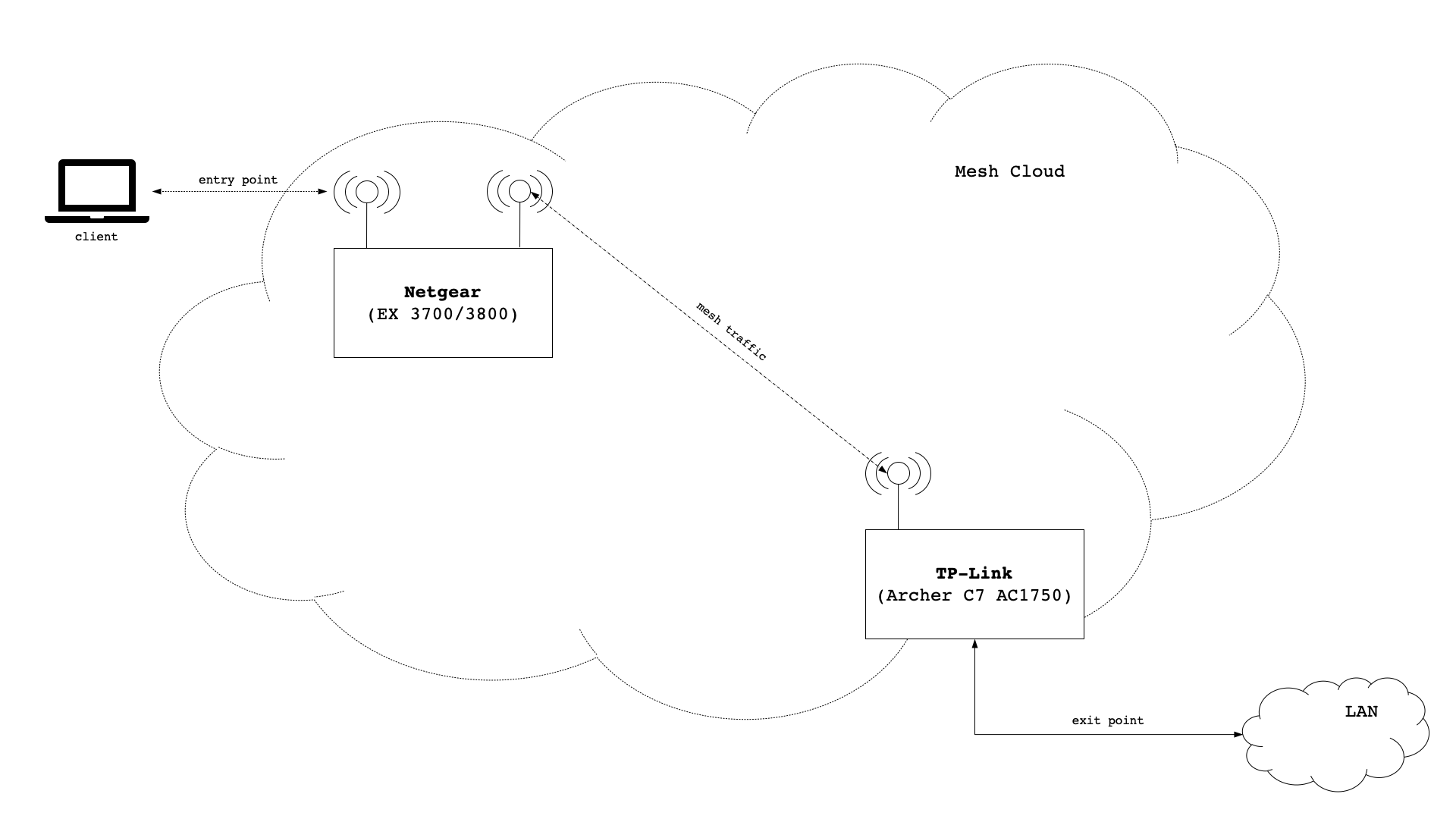
The technical terms under which we address the 2 above nodes require some quick clarification. A device that provides a gateway into another network, like an uplink to the internet (i.e. via cable connection), can be called an exit point in a mesh setup. A device that enables clients such as mobile phones and laptops to connect to the mesh network can be called entry point in a mesh setup.

mesh setup

Having said that, the Netgear device will be mesh node with no connection to any other networks. It will only have the ability to reach other networks by going through the mesh network it is a part of. It will pose as a wireless access point and provide users with the ability to connect to “the” network. Hence, the Netgear device is a plain entry point in our mesh setup.

The TP-Link device has two roles! It will be a mesh node that, while being connected to other mesh nodes, will pose as a wireless access point. The TP-Link device will be an entry point in our mesh setup. At the same time the TP-Link device will have a connection to other networks than the mesh network. It will pose as a gateway out of the mesh network into other networks. Therefore, the TP-Link device will be an exit point as well.

Assumptions / Scope

This post assumes that you can manage to install OpenWrt onto the TP-Link and the Netgear device on your own. Also, this post doesn’t cover initial network setup for the TP-Link device in terms of WAN interface, DNS Server, DHCP Server or Firewall. It is assumed you know your way around the basic workings of how computer networks are coming together.

Network Setup

We will use the network 192.168.28.0/24 and setup the following configuration:

DeviceConfig KeyConfig Value
TP-Linkipaddr192.168.28.1
gateway
SSID
Netgearipaddr192.168.28.3
gateway192.168.28.1
SSID24TEST

TP-Link Archer C7 AC1750

While this device could of course offer wifi, in our initial setup we decide not to do that at first. The reason is that it might help understand that wifi communication for mesh and wifi communication for access points (client devices) are totally separate from on another. Actually, different radios can be used all together.

Let’s start by figuring out how many radios our device has and which frequencies are supported:

root@AC1750:~# iw phy | grep 'MHz \['
			* 2412 MHz [1] (24.0 dBm)
			* 2417 MHz [2] (24.0 dBm)
			* 2422 MHz [3] (24.0 dBm)
			* 2427 MHz [4] (24.0 dBm)
			* 2432 MHz [5] (24.0 dBm)
			* 2437 MHz [6] (24.0 dBm)
			* 2442 MHz [7] (24.0 dBm)
			* 2447 MHz [8] (24.0 dBm)
			* 2452 MHz [9] (24.0 dBm)
			* 2457 MHz [10] (24.0 dBm)
			* 2462 MHz [11] (24.0 dBm)
			* 2467 MHz [12] (disabled)
			* 2472 MHz [13] (disabled)
			* 2484 MHz [14] (disabled)
			* 5180 MHz [36] (23.0 dBm)
			* 5200 MHz [40] (23.0 dBm)
			* 5220 MHz [44] (23.0 dBm)
			* 5240 MHz [48] (23.0 dBm)
			* 5260 MHz [52] (23.0 dBm) (radar detection)
			* 5280 MHz [56] (23.0 dBm) (radar detection)
			* 5300 MHz [60] (23.0 dBm) (radar detection)
			* 5320 MHz [64] (23.0 dBm) (radar detection)
			* 5500 MHz [100] (23.0 dBm) (radar detection)
			* 5520 MHz [104] (23.0 dBm) (radar detection)
			* 5540 MHz [108] (23.0 dBm) (radar detection)
			* 5560 MHz [112] (23.0 dBm) (radar detection)
			* 5580 MHz [116] (23.0 dBm) (radar detection)
			* 5600 MHz [120] (23.0 dBm) (radar detection)
			* 5620 MHz [124] (23.0 dBm) (radar detection)
			* 5640 MHz [128] (23.0 dBm) (radar detection)
			* 5660 MHz [132] (23.0 dBm) (radar detection)
			* 5680 MHz [136] (23.0 dBm) (radar detection)
			* 5700 MHz [140] (23.0 dBm) (radar detection)
			* 5720 MHz [144] (23.0 dBm) (radar detection)
			* 5745 MHz [149] (30.0 dBm)
			* 5765 MHz [153] (30.0 dBm)
			* 5785 MHz [157] (30.0 dBm)
			* 5805 MHz [161] (30.0 dBm)
			* 5825 MHz [165] (30.0 dBm)
			* 5845 MHz [169] (disabled)
			* 5865 MHz [173] (disabled)

Well, we kind of knew upfront that the device has both a 2.4 GHz and a 5 GHz radio, but now we can explicitly see all the frequencies and channels that are supported by the device. What we need to check next is if (and how) the device supports 802.11s:

root@AC1750:~# iw phy | grep -i mesh
		 * mesh point
		 * #{ managed } <= 2048, #{ AP, mesh point } <= 8, #{ P2P-client, P2P-GO } <= 1, #{ IBSS } <= 1,
		 * mesh point
		 * #{ AP, mesh point } <= 8, #{ managed } <= 1,

Looks good. Next step is to install the B.A.T.M.A.N. kernel module as well as the full version of batctl.

root@AC1750:~# opkg update
root@AC1750:~# opkg install kmod-batman-adv
root@AC1750:~# opkg install batctl-full

We also need to install wpad-mesh, but it conflicts with wpad-basic – so we need to send that one packing upfront.

root@AC1750:~# opkg remove wpad-basic
root@AC1750:~# opkg install wpad-mesh-openssl

Wireless Config

We are going to create a mesh network with the name MyMesh and encrypt it with psk2 and ccmp. We will put our mesh network on our 5 GHz radio and create an internal network device called nwi_mesh0. We need to edit the file /etc/config/wireless and insert the following:

config wifi-iface 'wifinetmesh0'
        option device 'radio5'
        option ifname 'mesh0'
        option network 'nwi_mesh0'
        option mode 'mesh'
        option mesh_fwding '0'
        option mesh_id 'MyMesh'
        option encryption 'psk2+ccmp'
        option key 'mysecretpassword'

We have to make sure that our device name (line 2) matches that of our 5 GHz radio. In a fresh installation of OpenWrt radios are often numbered through starting from zero (radio0, radio1, etc.). I like to rename my radios to radio24 (2.4 GHz) and radio5 (5 GHz) for better readability. Anyway, the other thing that is important is the name of our internal network device (line 4) which we will create later via /etc/config/network. All other options in the configuration stanza above must be the same on every other mesh node in our mesh network! There are 3 other settings that also must be the same across all mesh nodes in the mesh network: wireless protocol, radio frequency (channel) and channel width. Below are settings for channel 48 (5240 MHz), wireless 802.11a and an 80MHz throughput.

config wifi-device 'radio5'
        option type 'mac80211'
        option channel '48'
        option hwmode '11a'
        option htmode 'VHT80'
        option path 'pci0000:00/0000:00:00.0'
 

Network Config

We need to create two interfaces and bridge them with our local area network. The first interface we need to specify is bat0, which we need to adhere to the batman advanced protocol (batadv). The second interface we need is nwi_mesh0, as this is the exact name we gave in the wireless config earlier on. That one will adhere to the batman advanced hard interface protocol (batadv_hardif). Also, because B.A.T.M.A.N. is a layer 2 protocol, we should increase the MTU above the typical value of 1500 so that we can avoid packet fragmentation. We add the following stanza in the file /etc/config/network.

config interface 'nwi_mesh0'
        option proto 'batadv_hardif'
        option mtu '2304'
        option master 'bat0'

config interface 'bat0'
        option proto 'batadv'

Last but not least we need to bridge the bat0 interface with our local area network by adding it to the interface definition of lan. We change the following line in /etc/config/network.

config interface 'lan'
        option stp '1'
        option type 'bridge'
        option ifname 'eth0.1 bat0'
        option proto 'static'
        option ipaddr '192.168.28.1'
        option netmask '255.255.255.0'
        option delegate '0'

That’s it for the TP-Link device. We should reboot to make sure all changes will be applied.

Netgear EX3700 / EX3800

Mostly we will apply the exact same setup, but with two differences:

  1. the device will not be connected to the internet, so we will need to copy the packages onto the device via scp
  2. the device will also provide a wireless access point for client devices to connect to it

Let’s start with checking the preconditions. Without showing lengthy console dumps to prove it, it is safe to say that this device also supports 802.11s as well as both a 2.4 GHz and a 5 GHz radio. On the 5 GHz radio it supports one less channel than the TP-Link device (channel 144 is missing), but other than than things look pretty compatible.

Copy & Install packages

For the packages needed, there are some dependencies that we need to supply as well. We need to copy the following packages onto the Netgear device (i.e. via scp):

batctl-full_2019.2-3_mipsel_24kc.ipk
kmod-batman-adv_4.14.171+2019.2-5_mipsel_24kc.ipk
kmod-cfg80211_4.14.171+4.19.98-1-1_mipsel_24kc.ipk
kmod-crypto-crc32c_4.14.171-1_mipsel_24kc.ipk
kmod-crypto-hash_4.14.171-1_mipsel_24kc.ipk
kmod-lib-crc16_4.14.171-1_mipsel_24kc.ipk
kmod-lib-crc32c_4.14.171-1_mipsel_24kc.ipk
libopenssl1.1_1.1.1d-2_mipsel_24kc.ipk
librt_1.1.24-2_mipsel_24kc.ipk
wpad-mesh-openssl_2019-08-08-ca8c2bd2-2_mipsel_24kc.ipk

Next we follow the exact same installation procedure as for the TP-Link device. One thing we should watch out for is flash memory… the Netgear device doesn’t offer much ‘free disk space’, so it might be wise to copy, install and delete one package as a time.

Wireless config

We actually use the exact same wireless config stanza as for the TP-Link device. As far as the radio is concerned, we have to make sure that wireless protocol, radio frequency (channel) and channel width match with the settings for the TP-Link device.

In addition we want our Netgear device to be a wireless access point. We define a new wireless access point named , so we need to define 24TEST for our 2.4 GHz radio. Note that what happens on the 2.4 GHz radio and the access point 24TEST have nothing to do with our mesh network. Both configurations are totally separate from one another. The interesting part of 24TEST though is line 21, which defines the network interface to the wireless access point.

config wifi-device 'radio5'
        option type 'mac80211'
        option channel '48'
        option hwmode '11a'
        option path 'pci0000:00/0000:00:00.0/0000:01:00.0'
        option htmode 'VHT80'

config wifi-device 'radio24'
        option type 'mac80211'
        option channel '11'
        option hwmode '11g'
        option path 'platform/10180000.wmac'
        option htmode 'HT40'

config wifi-iface 'wifinet24test'
        option device 'radio24'
        option mode 'ap'
        option key 'anothersecretpassword'
        option encryption 'psk2'
        option ssid '24TEST'
        option network 'lan'

config wifi-iface 'wifinetmesh0'
        option device 'radio5'
        option ifname 'mesh0'
        option network 'nwi_mesh0'
        option mode 'mesh'
        option mesh_fwding '0'
        option mesh_id 'MyMesh'
        option encryption 'psk2+ccmp'
        option key 'mysecretpassword'

Network Config

Again, we do the exact same things as for the TP-Link device in /etc/config/network.

config interface 'nwi_mesh0'
        option proto 'batadv_hardif'
        option mtu '2304'
        option master 'bat0'

config interface 'bat0'
        option proto 'batadv'

Where things look a little bit different, is the definition of the local area network (lan) in /etc/config/network. Of course we have a different IP address (line 6), but we also must declare the TP-Link device as gateway (line 8) and dns server (line 10).

config interface 'lan'
        option stp '1'
        option type 'bridge'
        option ifname 'eth0 bat0'
        option proto 'static'
        option ipaddr '192.168.28.3'
        option netmask '255.255.255.0'
        option gateway '192.168.28.1'
        option delegate '0'
        list dns '192.168.28.1'

Putting things up for a test (layer 2)

B.A.T.M.A.N. is a layer 2 protocol, which means there is a bunch of stuff that we can do without an IP address. First, we can log in to either device and the first thing we should make sure is that the mesh devices mesh0 and bat0 are up and running:

root@EX3700:~# ip link
1: lo: <LOOPBACK,UP,LOWER_UP> mtu 65536 qdisc noqueue state UNKNOWN qlen 1000
    link/loopback 00:00:00:00:00:00 brd 00:00:00:00:00:00
2: eth0: <BROADCAST,MULTICAST,UP,LOWER_UP> mtu 1500 qdisc fq_codel master br-lan state UNKNOWN qlen 1000
    link/ether 3c:37:86:60:f7:1f brd ff:ff:ff:ff:ff:ff
5: br-lan: <BROADCAST,MULTICAST,UP,LOWER_UP> mtu 1500 qdisc noqueue state UP qlen 1000
    link/ether 3c:37:86:60:f7:1f brd ff:ff:ff:ff:ff:ff
6: mesh0: <BROADCAST,MULTICAST,UP,LOWER_UP> mtu 2304 qdisc noqueue master bat0 state UP qlen 1000
    link/ether 3c:37:86:60:f7:1e brd ff:ff:ff:ff:ff:ff
7: bat0: <BROADCAST,MULTICAST,UP,LOWER_UP> mtu 1500 qdisc noqueue master br-lan state UNKNOWN qlen 1000
    link/ether 96:e1:f8:8e:fc:d7 brd ff:ff:ff:ff:ff:ff
8: wlan1: <BROADCAST,MULTICAST,UP,LOWER_UP> mtu 1500 qdisc mq master br-lan state UP qlen 1000
    link/ether 3c:37:86:60:f7:1f brd ff:ff:ff:ff:ff:ff
9: wlan0-1: <BROADCAST,MULTICAST,UP,LOWER_UP> mtu 1500 qdisc noqueue master br-lan state UP qlen 1000
    link/ether 3e:37:86:60:f7:1e brd ff:ff:ff:ff:ff:ff

Next we should make sure that the nodes can find each other. If the following command returns nothing, there is probably a typo in the config, otherwise you should see this:

root@EX3700:~# iw dev mesh0 station dump
Station b0:be:76:e9:90:ab (on mesh0)
	inactive time:	0 ms
	rx bytes:	12437433
	rx packets:	141145
	tx bytes:	58226
	tx packets:	363
	tx retries:	26
	tx failed:	1
	rx drop misc:	4
	signal:  	-69 [-69, -71] dBm
	signal avg:	-66 [-66, -68] dBm
	Toffset:	6797824060 us
	tx bitrate:	351.0 MBit/s VHT-MCS 4 80MHz VHT-NSS 2
	rx bitrate:	263.3 MBit/s VHT-MCS 6 80MHz VHT-NSS 1
	rx duration:	26267 us
	last ack signal:0 dBm
	expected throughput:	60.333Mbps
	mesh llid:	0
	mesh plid:	0
	mesh plink:	ESTAB
	mesh local PS mode:	ACTIVE
	mesh peer PS mode:	ACTIVE
	mesh non-peer PS mode:	ACTIVE
	authorized:	yes
	authenticated:	yes
	associated:	yes
	preamble:	long
	WMM/WME:	yes
	MFP:		yes
	TDLS peer:	no
	DTIM period:	2
	beacon interval:100
	connected time:	6559 seconds

Now we should see our mesh neighbor with batctl.

root@EX3700:~# batctl o
[B.A.T.M.A.N. adv openwrt-2019.2-5, MainIF/MAC: mesh0/3c:37:86:60:f7:1e (bat0/96:e1:f8:8e:fc:d7 BATMAN_IV)]
   Originator        last-seen (#/255) Nexthop           [outgoingIF]
 * b0:be:76:e9:90:ab    0.420s   (255) b0:be:76:e9:90:ab [     mesh0]

If we want to know how much throughput we can expect, we can run a throughput test with batctl as well. We will use the MAC address from our neighbor.

root@EX3700:~# batctl tp b0:be:76:e9:90:ab
Test duration 10430ms.
Sent 58511592 Bytes.
Throughput: 5.35 MB/s (44.88 Mbps)

Putting things up for a test (Layer 3)

Finally, we can send a regular ping to see if layer 3 is fine as well.

root@EX3700:~# ping -c 3 192.168.28.1
PING 192.168.28.1 (192.168.28.1): 56 data bytes
64 bytes from 192.168.28.1: seq=0 ttl=64 time=1.540 ms
64 bytes from 192.168.28.1: seq=1 ttl=64 time=2.160 ms
64 bytes from 192.168.28.1: seq=2 ttl=64 time=1.240 ms

--- 192.168.28.1 ping statistics ---
3 packets transmitted, 3 packets received, 0% packet loss
round-trip min/avg/max = 1.240/1.646/2.160 ms

Summary

Beyond that point you should connect to the 24TEST wifi with your mobile phone and check that things are working fine there, too.

Other than that mesh with 802.11s only starts to make sense with 3 devices and more, so while our little test setup is a nice POC, fun doesn’t begin until many more devices (2- or 3-digit numbers of devices). That said, the list of neighbors with the following command can become much (much) longer:

root@EX3700:~# batctl n
[B.A.T.M.A.N. adv openwrt-2019.2-5, MainIF/MAC: mesh0/3c:37:86:60:f7:1e (bat0/96:e1:f8:8e:fc:d7 BATMAN_IV)]
IF             Neighbor              last-seen
        mesh0	  b0:be:76:e9:90:ab    0.570s

OpenLDAP Server

Installing an OpenLDAP Server for central user management

This post explains how to setup a LDAP DNS server inside a jail and surround it with a phpLDAPadmin web UI inside that same jail. Whenever a new client is served an ip address from the DHCP server, the DHCP server will update the DNS server with the new ip address dynamically.

OpenLDAP

The first thing we need to do is to install the needed openldap-server package. Before we do that we set the time zone though:

tzsetup Europe/Berlin
pkg install openldap-server

After installation of the openldap-server package we already get two messages – one from the openldap-client package and one from the openldap-server package. Let’s look at the openldap-client message:

Message from openldap-client-2.4.45:

************************************************************

The OpenLDAP client package has been successfully installed.

Edit
  /usr/local/etc/openldap/ldap.conf
to change the system-wide client defaults.

Try `man ldap.conf' and visit the OpenLDAP FAQ-O-Matic at
  http://www.OpenLDAP.org/faq/index.cgi?file=3
for more information.

************************************************************

We will actually follow that right away and edit our ldap.conf file as follows:

BASE    dc=home,dc=local 
URI     ldap://ldap1.home.local ldap://ldap1.home.local:666

SIZELIMIT       0
TIMELIMIT       15
DEREF           never

The other message we get is from openldap-server:

Message from openldap-server-2.4.45_4:

************************************************************

The OpenLDAP server package has been successfully installed.

In order to run the LDAP server, you need to edit
  /usr/local/etc/openldap/slapd.conf
to suit your needs and add the following lines to /etc/rc.conf:
  slapd_enable="YES"
  slapd_flags='-h "ldapi://%2fvar%2frun%2fopenldap%2fldapi/ ldap://0.0.0.0/"'
  slapd_sockets="/var/run/openldap/ldapi"

Then start the server with
  /usr/local/etc/rc.d/slapd start
or reboot.

Try `man slapd' and the online manual at
  http://www.OpenLDAP.org/doc/
for more information.

slapd runs under a non-privileged user id (by default `ldap'),
see /usr/local/etc/rc.d/slapd for more information.

************************************************************

We will copy the following entries into our /etc/rc.conf:

slapd_enable="YES"
slapd_flags='-h "ldapi://%2fvar%2frun%2fopenldap%2fldapi/ ldap://0.0.0.0/"'
slapd_sockets="/var/run/openldap/ldapi"

Also, we have to seriously edit our /usr/local/etc/openldap/slapd.conf file and make sure that the following lines are in the config file:

# Include 4 important schema files at least
include         /usr/local/etc/openldap/schema/core.schema
include         /usr/local/etc/openldap/schema/cosine.schema
include         /usr/local/etc/openldap/schema/inetorgperson.schema
include         /usr/local/etc/openldap/schema/nis.schema

# Define the storage location for pid and argument file
pidfile         /var/run/openldap/slapd.pid
argsfile        /var/run/openldap/slapd.args

# set the log level so we stat log connections/operations/results
loglevel        256

# Load dynamic backend modules:
modulepath      /usr/local/libexec/openldap
moduleload      back_mdb

#######################################################################
# MDB database definitions
#######################################################################
database        mdb
maxsize         1073741824

# Define our domain suffix and root dn
suffix          "dc=home,dc=local"
rootdn          "cn=Manager,dc=home,dc=local"

# Use of strong authentication for password
rootpw        {SSHA}SYPSMKmTgbugazvkHadr47fra83ISyON
password-hash {SSHA}

# The database directory MUST exist prior to running slapd AND 
# should only be accessible by the slapd and slap tools.
# Mode 700 recommended.
directory       /var/db/openldap-data
# Indices to maintain
index   objectClass     eq

Now you might wonder where the root password comes from? Very easy – you need to create the hash using the slappasswd utility on the command line.

slappasswd -h "{SSHA}"

You will be asked to enter a password and in return you will receive a strong hash for your password (in the example above the password test123 has produced the hash SYPSMKmTgbugazvkHadr47fra83ISyON).

Now we can already start our OpenLDAP server using the following command:

service slapd start

If we look into /var/log/messages we can see the correct start of the server. However, ideally we want a separate log file just for OpenLDAP. We can create that logfile by adding the following two lines into the /etc/syslog.conf file:

!slapd
*.*                                             /var/log/slapd.log

We need to create the empty log file and restart the syslogd daemon next:

touch /var/log/slapd.log
service syslogd restart
service slapd restart

With that done we should see a separate log file with the following content:

Mar 18 11:07:28 ldap slapd[54700]: @(#) $OpenLDAP: slapd 2.4.45 (Mar 15 2018 21:57:40) $        root@111amd64-default-job-17:/wrkdirs/usr/ports/net/openldap24-server/work/openldap-2.4.45/servers/slapd
Mar 18 11:07:28 ldap slapd[54701]: slapd starting

Finally we can create ourselves a small LDIF file and import that into our database.

dn: dc=home,dc=local
objectclass: dcObject
objectclass: organization
o: home
dc: home

dn: cn=Manager,dc=home,dc=local 
objectclass: organizationalRole
cn: Manager

When importing the file you will be asked for a password. The password you have to enter is the same you have put as a hash into the /usr/local/etc/openldap/slapd.conf file (in our example we used test123).

cd /usr/local/etc/openldap
ldapadd -D "cn=Manager,dc=home,dc=local" -W -f import.ldif

Congratulations! Our OpenLDAP server is setup and ready to be used. Special note here: in case you need a SAMBA schema you will note the schema files are not provided by the OpenLDAP installation. Don’t worry, you can find the schema here: https://raw.githubusercontent.com/samba-team/samba/master/examples/LDAP/samba.schema

Nginx

We actually would like to have a web frontend for our OpenLDAP server. One easy way is to install phpLDAPadmin which requires Nginx and PHP. Let’s start by installing Nginx:

pkg install nginx

Right after installation we can enable the service in /etc/rc.conf

sysrc nginx_enable=YES
nginx_enable:  -> YES

After that we can start the service and test it:

service nginx start
Performing sanity check on nginx configuration:
nginx: the configuration file /usr/local/etc/nginx/nginx.conf syntax is ok
nginx: configuration file /usr/local/etc/nginx/nginx.conf test is successful
Starting nginx.

If you have a SSL certificate you need to put the following into your server section of your nginx.conf file:

    server {
        listen          443 ssl;
        server_name     ldap1 ldap1.home.local;

        ssl_certificate         ldap1.home.local.bundle.pem;
        ssl_certificate_key     ldap1.home.local.key.pem;

Above will take care of serving content via https. In addition you could redirect all http traffic to https by putting in an additional server section:

    server {
        listen          80 default;
        server_name     ldap1 ldap1.home.local;
        access_log      off;
        error_log       off;
        ## redirect http to https ##
        return          301 https://$server_name$request_uri;
    }

PHP

For phpLDAPadmin we are going to install version 5.6 of PHP. Let’s install the package via package manager:

pkg install php56

First of all we need a php.ini file. We can just copy the production example that comes along with the package:

cp /usr/local/etc/php.ini-production /usr/local/etc/php.ini

In the php.ini file we should apply the following fix:

;cgi.fix_pathinfo=1
cgi.fix_pathinfo=0

Next we need to adapt /usr/local/etc/php-fpm.conf to setup fpm for our needs. Find the line where it says at which port to listen and replace that line with an instruction to use a socket file instead.

;listen = 127.0.0.1:9000
listen = /var/run/php-fpm.sock

In the same file find the three lines about listener ownership and uncomment them. Please note that you have to change the listen.mode from 0660 to 0666 as otherwise phpLDAPadmin will complain about missing _SESSION variables (don’t ask me why… didn’t further investigate this).

listen.owner = www
listen.group = www
listen.mode = 0666

Next we have to take care of a couple of things in the Nginx configuration. Edit your nginx.conf file to replace the location section as follows:

#location / {
#    root   /usr/local/www/nginx;
#    index  index.html index.htm;
#}

location / {
    try_files $uri $uri/ =404;
}

root /usr/local/www/nginx;
index index.php index.html index.htm;

location ~ \.php$ {
    try_files $uri =404;
    fastcgi_split_path_info ^(.+\.php)(/.+)$;
    fastcgi_pass unix:/var/run/php-fpm.sock;
    fastcgi_index index.php;
    fastcgi_param SCRIPT_FILENAME $request_filename;
    include fastcgi_params;
}

Now let’s enable the php fpm service.

sysrc php_fpm_enable=YES

php_fpm_enable:  -> YES

And of course, let’s start the php fpm service.

service php-fpm start

Performing sanity check on php-fpm configuration:
[25-Mar-2018 13:09:41] NOTICE: configuration file /usr/local/etc/php-fpm.conf test is successful

Starting php_fpm.

Last but not least we need to restart Nginx.

service nginx restart

Performing sanity check on nginx configuration:
nginx: the configuration file /usr/local/etc/nginx/nginx.conf syntax is ok
nginx: configuration file /usr/local/etc/nginx/nginx.conf test is successful
Stopping nginx.
Waiting for PIDS: 30037.
Performing sanity check on nginx configuration:
nginx: the configuration file /usr/local/etc/nginx/nginx.conf syntax is ok
nginx: configuration file /usr/local/etc/nginx/nginx.conf test is successful
Starting nginx.

phpLDAPadmin

Let’s install the package via package manager:

pkg install phpldapadmin

The package manager will tell you that it installed phpLDAPadmin into folder /usr/local/www/phpldapadmin. As a first activity, we need to edit the config.php configuration file as we need to setup our LDAP connection details. For that please change the following lines as follows:

// $servers->setValue('server','host','127.0.0.1');
$servers->setValue('server','host','ldap://ldap1.home.local');

// $servers->setValue('server','port',389);
$servers->setValue('server','port',389);

// $servers->setValue('login','auth_type','session');
$servers->setValue('login','auth_type','session');

Eventually we have to edit our nginx.conf again as we need to point the web server root to phpLDAPadmin.

#root /usr/local/www/nginx;
root /usr/local/www/phpldapadmin/htdocs;

For the change to take effect please restart Nginx:

service nginx restart

When creating new posix accounts we should make sure that user ids do not collide with local system users. The way we do it is to make sure new users are being created with ids of 10.000 and above. We will edit the posixAccount.xml template that phpLDAPadmin provides for posix account creation. Specifically we will override the value for the uidNumber attribute:

        UID Number
        terminal.png
        6
        1
        1
<!--    <value>=php.GetNextNumber(/;uidNumber)</value> -->
        =php.GetNextNumber(/;uidNumber;;;;10000)

Neat trick 😉 …now we do the same thing for the gidNumber attribute in the posixGroup.xml template:

        GID Number
        2
        1
        1
        1
<!--    <value>=php.GetNextNumber(/;gidNumber)</value> -->
        =php.GetNextNumber(/;gidNumber;;;;10000)

Taking things for a spin

Last but not least we should check that we can do an ldap search from a remote host somewhere. We use the following command:

ldapsearch -x -b 'dc=home,dc=local' -h ldap.home.local -D 'cn=myuser,ou=users,dc=home,dc=local' -W

If things go to plan you are being prompted for the password of your user (“myuser” in the example above). The query should return something ending with these lines:

# search result
search: 2
result: 0 Success

The importing thing in the result above being the result code 0 Success.

Bonus: Change DN layout for new users

Right now phpLDAPadmin creates new users with a distinguished name that is driven by cn, however we might want users to become created driven by uid. Changing that requires us to go back to the posixAccount.xml template. There we need to do one more so phpLDAPadmin will create new users with a DN driven by uid:

<!-- <rdn>cn</rdn> -->
uid

Why do we do that? Consider this:

dn: cn=sample user,ou=users,dc=home,dc=local
objectClass: top
objectClass: inetOrgPerson
cn: sample user
uid: sampleuser

but on the other hand consider this:

dn: uid=sampleuser,ou=users,dc=home,dc=local
objectClass: top
objectClass: inetOrgPerson
cn: sample user
uid: sampleuser

Even though the attributes are identical, the DN is the primary key and the entries given above, are two complete separate entries with two different DNs. Now if we want to login via uid later on, rather than cn, we need that fix.

Certificate Authority

Creating a local certificate authority

This post explains how to setup a local CA (certificate authority) from which to issue server certificates for a local network.

Our Setup

At home we also want to have SSL certificates for our servers, so we can leverage encryption of http traffic and turn it into https. Also, some infrastructure servers (i.e. GIT) will rely on https, so it will be a good idea to be prepared. Our setup will consist of three layers:

Root CA <-> Intermediate CA <-> Servers

The general reason we don’t issue server certificates directly from the root CA is that it is 1) rather uncommon to do so and 2) we might end up with the need for more than one CA to issue server certificates in our network (i.e. using lets encrypt)

Root CA

The first thing we need to do is to setup a root CA which more or less is nothing more than a structure of directories on any host. The host actually doesn’t need to be a server and literally can be your laptop. No services need to be started and in reality the root CA often is an air gapped computer.

mkdir /root/ca
cd /root/ca
mkdir certs crl newcerts private
chmod 700 private
touch index.txt
echo 1000 > serial

Now we need to create a config file for openssl

touch caconfig.cnf

The file content is shown below. Please note that the root directory in line 7 of the file needs to match the directory on your drive. If you decide to create the directory somewhere else, please adapt line 7. The same goes for the subdirectories between line 8 and line 21.

[ ca ]
# `man ca`
default_ca = CA_default

[ CA_default ]
# Directory and file locations.
dir               = /root/ca
certs             = $dir/certs
crl_dir           = $dir/crl
new_certs_dir     = $dir/newcerts
database          = $dir/index.txt
serial            = $dir/serial
RANDFILE          = $dir/private/.rand

# The root key and root certificate.
private_key       = $dir/private/ca.key.pem
certificate       = $dir/certs/ca.cert.pem

# For certificate revocation lists.
crlnumber         = $dir/crlnumber
crl               = $dir/crl/ca.crl.pem
crl_extensions    = crl_ext
default_crl_days  = 30

# SHA-1 is deprecated, so use SHA-2 instead.
default_md        = sha256

name_opt          = ca_default
cert_opt          = ca_default
default_days      = 375
preserve          = no
policy            = policy_strict

[ policy_strict ]
# The root CA should only sign intermediate certificates that match.
# See the POLICY FORMAT section of `man ca`.
countryName             = match
stateOrProvinceName     = match
organizationName        = match
organizationalUnitName  = optional
commonName              = supplied
emailAddress            = optional

[ policy_loose ]
# Allow the intermediate CA to sign a more diverse range of certificates.
# See the POLICY FORMAT section of the `ca` man page.
countryName             = optional
stateOrProvinceName     = optional
localityName            = optional
organizationName        = optional
organizationalUnitName  = optional
commonName              = supplied
emailAddress            = optional

[ req ]
# Options for the `req` tool (`man req`).
default_bits        = 2048
distinguished_name  = req_distinguished_name
string_mask         = utf8only

# SHA-1 is deprecated, so use SHA-2 instead.
default_md          = sha256

# Extension to add when the -x509 option is used.
x509_extensions     = v3_ca

[ req_distinguished_name ]
# See .
countryName                     = Country Name (2 letter code)
stateOrProvinceName             = State or Province Name
localityName                    = Locality Name
0.organizationName              = Organization Name
organizationalUnitName          = Organizational Unit Name
commonName                      = Common Name
emailAddress                    = Email Address

# Optionally, specify some defaults.
countryName_default             = DE
stateOrProvinceName_default     = Saxony
localityName_default            = Dresden
0.organizationName_default      = Example
organizationalUnitName_default  = Example Certificate Authority
emailAddress_default            = john.doe@example.com

[ v3_ca ]
# Extensions for a typical CA (`man x509v3_config`).
subjectKeyIdentifier = hash
authorityKeyIdentifier = keyid:always,issuer
basicConstraints = critical, CA:true
keyUsage = critical, digitalSignature, cRLSign, keyCertSign

[ v3_intermediate_ca ]
# Extensions for a typical intermediate CA (`man x509v3_config`).
subjectKeyIdentifier = hash
authorityKeyIdentifier = keyid:always,issuer
basicConstraints = critical, CA:true
keyUsage = critical, digitalSignature, cRLSign, keyCertSign

[ v3_intermediate_ca ]
# Extensions for a typical intermediate CA (`man x509v3_config`).
subjectKeyIdentifier = hash
authorityKeyIdentifier = keyid:always,issuer
basicConstraints = critical, CA:true, pathlen:0
keyUsage = critical, digitalSignature, cRLSign, keyCertSign

[ usr_cert ]
# Extensions for client certificates (`man x509v3_config`).
basicConstraints = CA:FALSE
nsCertType = client, email
nsComment = "OpenSSL Generated Client Certificate"
subjectKeyIdentifier = hash
authorityKeyIdentifier = keyid,issuer
keyUsage = critical, nonRepudiation, digitalSignature, keyEncipherment
extendedKeyUsage = clientAuth, emailProtection

[ server_cert ]
# Extensions for server certificates (`man x509v3_config`).
basicConstraints = CA:FALSE
nsCertType = server
nsComment = "OpenSSL Generated Server Certificate"
subjectKeyIdentifier = hash
authorityKeyIdentifier = keyid,issuer:always
keyUsage = critical, digitalSignature, keyEncipherment
extendedKeyUsage = serverAuth

[ crl_ext ]
# Extension for CRLs (`man x509v3_config`).
authorityKeyIdentifier=keyid:always

[ ocsp ]
# Extension for OCSP signing certificates (`man ocsp`).
basicConstraints = CA:FALSE
subjectKeyIdentifier = hash
authorityKeyIdentifier = keyid,issuer
keyUsage = critical, digitalSignature
extendedKeyUsage = critical, OCSPSigning

Now it is time to create the root key. Because we are creating a private key for a root CA we should use 4096 bit encryption.

cd /root/ca
openssl genrsa -aes256 -out private/ca.key.pem 4096

You will be prompted to give a password:

Enter pass phrase for ca.key.pem: mysecretpassword
Verifying - Enter pass phrase for ca.key.pem: mysecretpassword

After the certificate is created we should make sure nobody else can read it on the filesystem.

chmod 400 private/ca.key.pem

Now we create a signing request for a certificate that is valid for 20 years. We also implicitly self sign the request:

cd /root/ca
openssl req -config caconfig.cnf -key private/ca.key.pem -new -x509 -days 7300 -sha256 -extensions v3_ca -out certs/ca.cert.pem


When we are being prompted for the password, we shall give the private key password from above.

Enter pass phrase for ca.key.pem: mysecretpassword
You are about to be asked to enter information that will be incorporated
into your certificate request.
-----
Country Name (2 letter code) [XX]:DE
State or Province Name []:Saxony
Locality Name []: Dresden
Organization Name []:Example
Organizational Unit Name []:Example Certificate Authority
Common Name []:Example Root CA
Email Address []:john.doe@example.com

The public certificate can be read by everybody, as long as nobody can write it. If desired we can also use openssl to marvel at our fresh certificate and verify it.

chmod 444 certs/ca.cert.pem
openssl x509 -noout -text -in certs/ca.cert.pem

Intermediate CA

Same as for the root CA, we now setup an intermediate CA. The intermediate CA could be at the same host, but it really doesn’t have to be though.

mkdir /root/ca/ca-intermediate
cd /root/ca/ca-intermediate
mkdir certs crl csr newcerts private
chmod 700 private
touch index.txt
echo 1000 > serial
echo 1000 > crlnumber

Again, we need to create a config file for openssl

touch ca-intermediate.cnf

The file content is shown below. Not much has changed compared to the root CA. The policy we apply is now loose (see line 32) and we copy possible extensions (see line 35). Again, the root directory in line 7 of the file needs to match the directory on your drive. If you decide to create the directory somewhere else, please adapt line 7. The same goes for the subdirectories between line 8 and line 21.

[ ca ]
# `man ca`
default_ca = CA_default

[ CA_default ]
# Directory and file locations.
dir               = /root/ca/ca-intermediate
certs             = $dir/certs
crl_dir           = $dir/crl
new_certs_dir     = $dir/newcerts
database          = $dir/index.txt
serial            = $dir/serial
RANDFILE          = $dir/private/.rand

# The root key and root certificate.
private_key     = $dir/private/intermediate.key.pem
certificate     = $dir/certs/intermediate.cert.pem

# For certificate revocation lists.
crlnumber         = $dir/crlnumber
crl               = $dir/crl/intermediate.crl.pem
crl_extensions    = crl_ext
default_crl_days  = 30

# SHA-1 is deprecated, so use SHA-2 instead.
default_md        = sha256

name_opt          = ca_default
cert_opt          = ca_default
default_days      = 375
preserve          = no
policy            = policy_loose

# <<< I M P O R T A N T >>>
copy_extensions   = copy

[ policy_strict ]
# The root CA should only sign intermediate certificates that match.
# See the POLICY FORMAT section of `man ca`.
countryName             = match
stateOrProvinceName     = match
organizationName        = match
organizationalUnitName  = optional
commonName              = supplied
emailAddress            = optional

[ policy_loose ]
# Allow the intermediate CA to sign a more diverse range of certificates.
# See the POLICY FORMAT section of the `ca` man page.
countryName             = optional
stateOrProvinceName     = optional
localityName            = optional
organizationName        = optional
organizationalUnitName  = optional
commonName              = supplied
emailAddress            = optional

[ req ]
# Options for the `req` tool (`man req`).
default_bits        = 2048
distinguished_name  = req_distinguished_name
string_mask         = utf8only

# SHA-1 is deprecated, so use SHA-2 instead.
default_md          = sha256

# Extension to add when the -x509 option is used.
x509_extensions     = v3_ca

[ req_distinguished_name ]
# See .
countryName                     = Country Name (2 letter code)
stateOrProvinceName             = State or Province Name
localityName                    = Locality Name
0.organizationName              = Organization Name
organizationalUnitName          = Organizational Unit Name
commonName                      = Common Name
emailAddress                    = Email Address

# Optionally, specify some defaults.
countryName_default             = DE
stateOrProvinceName_default     = Saxony
localityName_default            = Dresden
0.organizationName_default      = Example
organizationalUnitName_default  = Example Certificate Authority
emailAddress_default            = john.doe@example.com

[ v3_ca ]
# Extensions for a typical CA (`man x509v3_config`).
subjectKeyIdentifier = hash
authorityKeyIdentifier = keyid:always,issuer
basicConstraints = critical, CA:true
keyUsage = critical, digitalSignature, cRLSign, keyCertSign

[ v3_intermediate_ca ]
# Extensions for a typical intermediate CA (`man x509v3_config`).
subjectKeyIdentifier = hash
authorityKeyIdentifier = keyid:always,issuer
basicConstraints = critical, CA:true, pathlen:0
keyUsage = critical, digitalSignature, cRLSign, keyCertSign

[ usr_cert ]
# Extensions for client certificates (`man x509v3_config`).
basicConstraints = CA:FALSE
nsCertType = client, email
nsComment = "OpenSSL Generated Client Certificate"
subjectKeyIdentifier = hash
authorityKeyIdentifier = keyid,issuer
keyUsage = critical, nonRepudiation, digitalSignature, keyEncipherment
extendedKeyUsage = clientAuth, emailProtection

[ server_cert ]
# Extensions for server certificates (`man x509v3_config`).
basicConstraints = CA:FALSE
nsCertType = server
nsComment = "OpenSSL Generated Server Certificate"
subjectKeyIdentifier = hash
authorityKeyIdentifier = keyid,issuer:always
keyUsage = critical, digitalSignature, keyEncipherment
extendedKeyUsage = serverAuth

[ crl_ext ]
# Extension for CRLs (`man x509v3_config`).
authorityKeyIdentifier=keyid:always

[ ocsp ]
# Extension for OCSP signing certificates (`man ocsp`).
basicConstraints = CA:FALSE
subjectKeyIdentifier = hash
authorityKeyIdentifier = keyid,issuer
keyUsage = critical, digitalSignature
extendedKeyUsage = critical, OCSPSigning

Next we can create the intermediate private key (please note that we are still in the ca-intermediate folder):

openssl genrsa -aes256 -out private/intermediate.key.pem 4096

We are being prompted to give a password:

Enter pass phrase for intermediate.key.pem: anothersecretpassword
Verifying - Enter pass phrase for intermediate.key.pem: anothersecretpassword

We should make sure that nobody can read the private key:

chmod 400 private/intermediate.key.pem

As a next step we now create a signing request:

openssl req -config ca-intermediate.cnf -new -sha256 -key private/intermediate.key.pem -out csr/intermediate.csr.pem

As we do so, we are being prompted for the password that protects the private key of our intermediate certificate authority.

Enter pass phrase for intermediate.key.pem: anothersecretpassword
You are about to be asked to enter information that will be incorporated
into your certificate request.
-----
Country Name (2 letter code) [XX]:DE
State or Province Name []:Saxony
Locality Name []:Dresden
Organization Name []:Example
Organizational Unit Name []:Example Certificate Authority
Common Name []:Example Intermediate CA
Email Address []:john.doeh@example.com

We have successfully created a certificate signing request. Now let’s go back to the Root CA and sign the request. Let’s make sure we use the Root CA’s openssl config for doing that:

cd /root/ca
openssl ca -config caconfig.cnf -extensions v3_intermediate_ca -days 3650 -notext -md sha256 -in ca-intermediate/csr/intermediate.csr.pem -out ca-intermediate/certs/intermediate.cert.pem

The password we are being prompted for is the password of the Root CA – makes sense, because the Root CA is asked to sign something.

Enter pass phrase for ca.key.pem: mysecretpassword
Sign the certificate? [y/n]: y

It should be allowed that everybody can read the public certificate. At the same time nobody should be allowed to write it.

chmod 444 ca-intermediate/certs/intermediate.cert.pem

We could verify the intermediate certificate with the following command:

openssl x509 -noout -text -in ca-intermediate/certs/intermediate.cert.pem

However, so much more important is to verify the chain of the intermediate certificate against the root certificate:

openssl verify -CAfile certs/ca.cert.pem ca-intermediate/certs/intermediate.cert.pem

intermediate.cert.pem: OK

On that note… let’s create a certificate chain that we can later on hand out to web servers (i.e. apache has an option for that):

cat ca-intermediate/certs/intermediate.cert.pem certs/ca.cert.pem > ca-intermediate/certs/ca-chain.cert.pem
chmod 444 ca-intermediate/certs/ca-chain.cert.pem

Server Certificate

Finally, we can issue a server certificate from our intermediate CA. At first, create the server key (make sure it is 2048 bit). As we are creating a certificate for a service (i.e. Nginx or Apache) we should skip the -aes256 option as we otherwise would create a private key with a password and would need to enter the password every time we start the service.

cd /root/ca/ca-intermediate
openssl genrsa -out private/myserver.example.com.key.pem 2048
chmod 400 private/myserver.example.com.key.pem

It makes a lot of sense to create a config file for openssl!

cd /root/ca/ca-intermediate
touch myserver.cnf

And here is why: look at lines 72, 96 and 99 until 101. Our server will have more than just one simple domain name service entry. It might be available under the full name myserver.example.com but also under the short name myserver. We need alternative DNS entries for the server certificate.

[ ca ]
# `man ca`
default_ca = CA_default

[ CA_default ]
# Directory and file locations.
dir               = /root/ca/ca-intermediate
certs             = $dir/certs
crl_dir           = $dir/crl
new_certs_dir     = $dir/newcerts
database          = $dir/index.txt
serial            = $dir/serial
RANDFILE          = $dir/private/.rand

# The root key and root certificate.
private_key     = $dir/private/intermediate.key.pem
certificate     = $dir/certs/intermediate.cert.pem

# For certificate revocation lists.
crlnumber         = $dir/crlnumber
crl               = $dir/crl/intermediate.crl.pem
crl_extensions    = crl_ext
default_crl_days  = 30

# SHA-1 is deprecated, so use SHA-2 instead.
default_md        = sha256

name_opt          = ca_default
cert_opt          = ca_default
default_days      = 375
preserve          = no
policy            = policy_loose

# <<< I M P O R T A N T >>>
# Extension copying option: use with caution.
copy_extensions   = copy

[ policy_strict ]
# The root CA should only sign intermediate certificates that match.
# See the POLICY FORMAT section of `man ca`.
countryName             = match
stateOrProvinceName     = match
organizationName        = match
organizationalUnitName  = optional
commonName              = supplied
emailAddress            = optional

[ policy_loose ]
# Allow the intermediate CA to sign a more diverse range of certificates.
# See the POLICY FORMAT section of the `ca` man page.
countryName             = optional
stateOrProvinceName     = optional
localityName            = optional
organizationName        = optional
organizationalUnitName  = optional
commonName              = supplied
emailAddress            = optional

[ req ]
# Options for the `req` tool (`man req`).
default_bits        = 2048
distinguished_name  = req_distinguished_name
string_mask         = utf8only

# SHA-1 is deprecated, so use SHA-2 instead.
default_md          = sha256

# Extension to add when the -x509 option is used.
x509_extensions     = v3_ca

# <<< I M P O R T A N T >>>
req_extensions      = v3_req

[ req_distinguished_name ]
# See .
countryName                     = Country Name (2 letter code)
stateOrProvinceName             = State or Province Name
localityName                    = Locality Name
0.organizationName              = Organization Name
organizationalUnitName          = Organizational Unit Name
commonName                      = Common Name
emailAddress                    = Email Address

# Optionally, specify some defaults.
countryName_default             = DE
stateOrProvinceName_default     = Saxony
localityName_default            = Dresden
0.organizationName_default      = Example
organizationalUnitName_default  = Example Web Services
emailAddress_default            = john.doe@example.com

[ v3_req ]
basicConstraints = CA:FALSE
keyUsage = nonRepudiation, digitalSignature, keyEncipherment
# <<< I M P O R T A N T >>>
subjectAltName = @alt_names

# <<< I M P O R T A N T >>>
[ alt_names ]
DNS.0 = myserver.example.com
DNS.1 = myserver

[ v3_ca ]
# Extensions for a typical CA (`man x509v3_config`).
subjectKeyIdentifier = hash
authorityKeyIdentifier = keyid:always,issuer
basicConstraints = critical, CA:true
keyUsage = critical, digitalSignature, cRLSign, keyCertSign

[ v3_intermediate_ca ]
# Extensions for a typical intermediate CA (`man x509v3_config`).
subjectKeyIdentifier = hash
authorityKeyIdentifier = keyid:always,issuer
basicConstraints = critical, CA:true, pathlen:0
keyUsage = critical, digitalSignature, cRLSign, keyCertSign

[ usr_cert ]
# Extensions for client certificates (`man x509v3_config`).
basicConstraints = CA:FALSE
nsCertType = client, email
nsComment = "OpenSSL Generated Client Certificate"
subjectKeyIdentifier = hash
authorityKeyIdentifier = keyid,issuer
keyUsage = critical, nonRepudiation, digitalSignature, keyEncipherment
extendedKeyUsage = clientAuth, emailProtection

[ server_cert ]
# Extensions for server certificates (`man x509v3_config`).
basicConstraints = CA:FALSE
nsCertType = server
nsComment = "OpenSSL Generated Server Certificate"
subjectKeyIdentifier = hash
authorityKeyIdentifier = keyid,issuer:always
keyUsage = critical, digitalSignature, keyEncipherment
extendedKeyUsage = serverAuth

[ crl_ext ]
# Extension for CRLs (`man x509v3_config`).
authorityKeyIdentifier=keyid:always

[ ocsp ]
# Extension for OCSP signing certificates (`man ocsp`).
basicConstraints = CA:FALSE
subjectKeyIdentifier = hash
authorityKeyIdentifier = keyid,issuer
keyUsage = critical, digitalSignature
extendedKeyUsage = critical, OCSPSigning

Now we create the signing request (make sure you’re in the intermediate ca folder and use the special server config as it contains the SAN):

openssl req -config myserver.cnf -key private/myserver.example.com.key.pem -new -sha256 -out csr/myserver.example.com.csr.pem

There should be no password prompt, as our private key is unprotected.

You are about to be asked to enter information that will be incorporated
into your certificate request.
-----
Country Name (2 letter code) [XX]:DE
State or Province Name []:Saxony
Locality Name []:Dresden
Organization Name []:Example
Organizational Unit Name []:Example Web Services
Common Name []:myserver.example.com
Email Address []:john.doe@example.com

Now we sign the request with the intermediate CA and write protect it:

openssl ca -config ca-intermediate.cnf -extensions server_cert -days 375 -notext -md sha256 -in csr/myserver.example.com.csr.pem -out certs/myserver.example.com.cert.pem
chmod 444 certs/myserver.example.com.cert.pem

You can verify the certificate:

openssl x509 -noout -text -in certs/myserver.example.com.cert.pem

However, very important would be to create a bundle that chains the intermediate certificate with the server certificate:

cat certs/myserver.example.com.cert.pem certs/intermediate.cert.pem > certs/myserver.example.com.bundle.pem

Last but not least lets verify the chain of the server certificate against the root certificate:

cd /root/ca
openssl verify -CAfile certs/ca.cert.pem ca-intermediate/certs/myserver.example.com.bundle.pem

myserver.example.com.cert.pem: OK

…all done!

Create an Infrastructure Service Appliance with BSD Jails

This post will explain how to setup a total of 6 jails distributed over 2 hosts, so that DHCP, DNS and LDAP can be provided into the network.

What we’d like to setup are the following servers:

Of course in an ideal world all 6 servers would be sitting on physically dispersed hardware for good load balancing. However, in our case we will use only 2 physical servers and setup 3 jails in each of server. For now we will use “regular” servers, but later want to run our setup on a single board computer such as a raspberry pi. In this post we will talk about the setup process of either of the “ISA” hosts.

ISA Host Network

First of all we need to get our network setup straight. In our example the infrastructure service appliance will be called isa1 and to the outside world have an ip address of 192.168.23.2/24 (which you can change for your configuration). We edit /etc/resolv.conf to look like this:

search          home.local
nameserver      192.168.23.1
nameserver      8.8.8.8

In the /etc/hosts file we need to put the following:

::1                     localhost isa1.home.local
127.0.0.1               localhost isa1.home.local

Next we will actually create multiple aliases for our network interface to be used by the jails later on. Every jail needs one loopback adapter and one public ip address. On top of that our router sits at 192.168.23.1/24 and we have to put that into /etc/rc.conf as well. Also, we will enable services for sshd and openntpd (openntpd being told to synchronize upon start). We will automatically start ezjail and tell the kernel to produce and persist a core dump in case of software exceptions.

ifconfig_em0="inet 192.168.23.2/24"
ifconfig_em0_alias0="inet 192.168.23.4/32"
ifconfig_em0_alias1="inet 192.168.23.6/32"
ifconfig_em0_alias2="inet 192.168.23.8/32"
defaultrouter="192.168.23.1"
cloned_interfaces="${cloned_interfaces} lo1"
cloned_interfaces="${cloned_interfaces} lo2"
cloned_interfaces="${cloned_interfaces} lo3"
sshd_enable="YES"
#ntpd_enable="YES"
#ntpd_sync_on_start="YES"
openntpd_enable="YES"
openntpd_flags="-s -v"
ezjail_enable="YES"
dumpdev="AUTO"

The network configuration we just put into /etc/rc.conf will not apply unless we reboot. As we don’t need (neither want) to do that, we can make the network adjustments ad-hoc by issuing the following commands in the shell:

service netif cloneup lo1
service netif cloneup lo2
service netif cloneup lo3
ifconfig em0 inet 192.168.23.2/24
ifconfig em0 alias0 inet 192.168.23.4/32
ifconfig em0 alias1 inet 192.168.23.6/32
ifconfig em0 alias2 inet 192.168.23.8/32

Finally we should make sure our log files and everything else relates to our time zone. Let’s execute the following to set our timezone:

tzsetup Europe/Berlin

DHCP jail

Obviously the first command that we need is for creation of the actual jail. We use ezjail and call our jail dhcpjail. We assign network interface em0 with ip address 192.168.23.4 to the outside world and use loopback adapter lo1 with ip 127.0.4.1 internally.

ezjail-admin create dhcpjail 'em0|192.168.23.4,lo1|127.0.4.1'

There is something really special about the jail or DHCP – it needs the bpf (Berkley Packet Filter) device the UDP broadcast messaging. Jails are not just a chroot-ed environment but also are restricted heavily in the resources they can use, especially the device file system (devfs) is not fully exposed. That being said, in this case we need to create a ruleset allowing bpf for our jail, so please make sure your /etc/devfs.rules file contains these lines:

[devfsrules_jail_with_bpf=6]
add include $devfsrules_hide_all
add include $devfsrules_unhide_basic
add include $devfsrules_unhide_login
add path 'bpf*' unhide

Above ruleset now shall be applied to our DHCP jail. We have to put the following lines into /usr/local/etc/ezjail/dhcpjail:

export jail_dhcpjail_devfs_ruleset="6"
export jail_dhcpjail_parameters="allow.raw_sockets allow.sysvipc"

Next we will copy our /etc/resolv.conf file into the new jail:

cp /etc/resolv.conf /usr/jails/dhcpjail/etc/

And finally we need to finetune the hosts file in the jail. Please make sure to edit the hosts file in the jail (/usr/jails/dhcpjail/etc/hosts) and not the hosts file of your host environment.

::1                     localhost dhcp1.home.local
127.0.4.1               localhost dhcp1.home.local

Last but not least – and if desired, we can start the loopback interface associated with the jail. We don’t have to do that now, but need to do it before we start the jail (note: if you reboot between now and the time you start the jail, you can skip this step, as the interface will be started as part of parsing /etc/rc.conf during boot).

service netif start lo1

DNS jail

We assign network interface em0 with ip address 192.168.23.6 to the outside world and use loopback adapter lo2 with ip 127.0.6.1 internally.

ezjail-admin create dnsjail 'em0|192.168.23.6,lo2|127.0.6.1'

Next we will copy our /etc/resolv.conf file into the new jail:

cp /etc/resolv.conf /usr/jails/dnsjail/etc/

We finetune the hosts file in the jail.

::1                     localhost dns1.home.local
127.0.6.1               localhost dns1.home.local

Again – optinally, we can start the loopback interface associated with the jail.

service netif start lo2

LDAP jail

We assign network interface em0 with ip address 192.168.23.8 to the outside world and use loopback adapter lo3 with ip 127.0.8.1 internally.

ezjail-admin create ldapjail 'em0|192.168.23.8,lo3|127.0.8.1'

Next we will copy our /etc/resolv.conf file into the new jail:

cp /etc/resolv.conf /usr/jails/ldapjail/etc/

We finetune the hosts file inside the jail.

::1                     localhost ldap1.home.local
127.0.8.1               localhost ldap1.home.local

Again – optinally, we can start the loopback interface associated with the jail.

service netif start lo3

check

Last but not least you want to start all three jails and check that they are running. Please run the following four commands:

ezjail-admin start dhcpjail
ezjail-admin start dnsjail
ezjail-admin start ldapjail
ezjail-admin list

Especially the last command will give you the output we’re looking for. It will list the jails that are installed and their status.

STA JID  IP              Hostname                       Root Directory
--- ---- --------------- ------------------------------ ------------------------
DR  3    192.168.23.8    ldapjail                       /usr/jails/ldapjail
    3    lo3|127.0.8.1
DR  2    192.168.23.6    dnsjail                        /usr/jails/dnsjail
    2    lo2|127.0.6.1
DR  1    192.168.23.4    dhcpjail                       /usr/jails/dhcpjail
    1    lo1|127.0.4.1

DHCP2, DNS2 and LDAP2 jail on ISA2

As you might have guessed, the setup is exactly the same. The only difference are the ip addresses. You can see the ip addresses in the figure up top this article.

FreeBSD tweaks for productivity

Having installed a fresh FreeBSD from scratch, you could use a couple of tools and settings for better productivity. This is what I do

For a freshly setup system there are a number of packages and config changes that will come in handy later on.

sudo

Let’s start with sudo. Login as root and execute the following command:

> pkg install sudo

Now edit type in the command visudo and find the following line:

#%wheel ALL=(ALL) ALL

You want to remove the # so that the line now reads as this:

%wheel ALL=(ALL) ALL

Now every user in the group wheel can use the sudo command.

ntp daemon

Having a precise time is extremely important. Edit the file /etc/rc.conf and make sure the following lines are in there:

ntpd_enable="YES"
ntpd_sync_on_start="YES"

openntpd

In case you want to run jails, you should not use ntpd as it will bind to all interfaces at the same time. On a “regular” system this is no problem, however as jails expect to have exclusive access to their own network interfaces, you could run into problems in your jails, as the port will be already taken by the underlying main host. Long stories short: openntpd can be setup to not bind to “any” interface. Install the package with the following command:

> pkg install openntpd

Edit the file /etc/rc.conf and make sure that ntpd is disabled, while openntpd is enabled and setup to sync on system start:

#ntpd_enable="YES"
#ntpd_sync_on_start="YES"
openntpd_enable="YES"
openntpd_flags="-s -v"

freebsd-update

The following 4 commands retrieve the latest system updates, install these and set a cron for once a day to check for further updates. At the end the system is rebooted.

> freebsd-update fetch
> freebsd-update install
> printf '@daily   root   freebsd-update   cron' >> /etc/crontab
> shutdown -r now

screen

Depending on your hardware some tasks take a little longer and you might want to logoff without terminating your tasks. Install the package for screen with the following command:

> pkg install screen

ezjail

We want to run jails eventually and need some good tool to manage those jails. Install the package for ezjail with the following command:

> pkg install ezjail

Also make sure that ezjail will be started with your host by putting the following line in the /etc/rc.conf file:
ezjail with the following command:

ezjail_enable="YES"

zsh

Having a good shell is key for productivity. We will install zsh with the following command:

> pkg install zsh

Also, you should not change the shell of the root user. Rather assign the shell to your regular user (replace YOUR_USER with your actual user name.

> chsh -s /­usr/local/bin/zsh YOUR_USER

vim lite

Everybody has his/her favorite text editor. For me it is vi, but I want at least syntax highlighting and some more. I will install vim-lite with the following command and also make an alias for vi while I’m at it.

> sudo pkg install vim-lite
> printf '\nalias vi=vim\nexport WITHOUT_X11=YES' >> ~/.zshrc
> printf '\nset background=dark\nset mouse-=a' >> ~/.vimrc