
Most of us have been in a situation at least once where we need to follow the TOFU (trust on first use) pattern. A popular example would be a new host that we try to login for the first time via SSH. We might see something like this:
andreas@AnDeSu16 ➜  ~ ssh andreas@192.168.1.1
The authenticity of host '192.168.1.1 (192.168.1.1)' can't be established.
ECDSA key fingerprint is SHA256:fTGKcndGlhvoHoNI8HGu6ErQpKer495rMRJrrQok+ok.
Are you sure you want to continue connecting (yes/no/[fingerprint])?
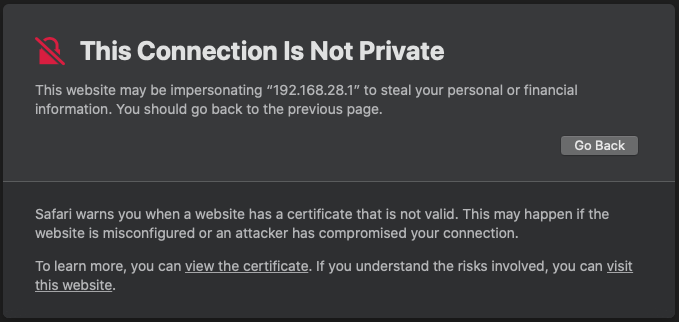
Just to be clear: this type of warning is exactly the same situation as if our web browser is asking us if we want to continue because the browser cannot verify the authenticity of the website’s certificate (see below).
Solution Approach
The ‘fix’ is actually much easier than one might think. Similar to TLS certificates we can use SSH certificates. The idea is simple: we create ourselves a certificate authority for SSH and sign public host keys with it. As a result we will create host certificates that we can send back to the host. After that hosts will present such certificates to clients. All that clients need to do in order to verify the authenticity of such certificate is to trust our global (internal) SSH Certificate Authority.
While TLS certificates make use of a standardized format (x.509), SSH certificates follow a proprietary format that is widely used. However, the principles behind the certification process are the same. Let’s summarize the process is plain steps briefly…
- Certificate Authority has a private key and a public key
- Client trusts the public key of Certificate Authority
- Host has a key-pair consisting of one private and one public key
- Host keeps its private key secret but submits its public key to Certificate Authority
- Certificate Authority uses its private key to sign the host’s public key
- Certificate Authority’s signature has yielded a host certificate
- Host imports the host certificate
- Client is presented with host’s certificate upon login
- Because Client trusts the Certificate Authority’s public key, it implicitly trusts Host’s certificate
Certificate Authority Layout
Let’s have a look at the directory structure we have in place for our SSH Certificate Authority. Our master keypair is stored in the private and public folder. The certs folder is meant for the certificates we issue.
/
└── ca
	└── SSH
		└── host
			├── certs
			├── private
			│   ├── tinkivity_host_ecdsa_key
			│   ├── tinkivity_host_ed25519_key
			│   └── tinkivity_host_rsa_key
			└── public
				├── tinkivity_host_ecdsa_key.pub
				├── tinkivity_host_ed25519_key.pub
				└── tinkivity_host_rsa_key.pub
Import Host’s public key(s)
Our practical example is creating a certificate for a new host (newhost.tinkivity.home), which we want to be valid for 5 years. The first thing we have to do is to create a directory under the certs folder and to change into it.
andreas@rootca ➜  SSH mkdir /ca/SSH/host/certs/newhost.tinkivity.home
andreas@rootca ➜  SSH cd /ca/SSH/host/router/newhost.tinkivity.home
In order to issue a certificate we need the public keys from the new host. Technically one public key would be enough, but there are 3 common (and considered safe) algorithms out there (ECDSA, RSA and ED25519), which each have their own key-pair and can have a corresponding certificate.
NEVER EVER should private keys leave the machine or host at which they have been generated! Please do not export private keys from your host ever!
Let’s have a quick look into the directory structure after import of the public host keys.
andreas@rootca ➜  newhost.tinkivity.home ls -lah
total 23
drwxr-xr-x  2 root  wheel     5B Jan  4 18:54 .
drwxr-xr-x  7 root  wheel     7B Jan  4 18:42 ..
-r--r-----  1 root  wheel   188B Jan  4 18:54 ssh_host_ecdsa_key.pub
-r--r-----  1 root  wheel   108B Jan  4 18:54 ssh_host_ed25519_key.pub
-r--r-----  1 root  wheel   408B Jan  4 18:54 ssh_host_rsa_key.pub
Issue Host certificate(s)
For each of the 3 keys we can issue a certificate. There are some parameters we will supply to the ssh-keygen command. Let’s go through those parameters one by one:
| parameter | meaning |
|---|---|
| -s | says we want to sign a certificate and the next parameter to follow must be the private key of the certificate authority |
| -h | indicates that we are about to sign a host certificate (has no parameter value to follow) |
| -I | says we want to give the certificate an ID and the next parameter to follow must be the string representing the certificate ID |
| -n | says we want to set principal name(s) and the next parameter to follow must be a comma separated list of principal names (no white spaces please) |
| -V | says we want to set the validity interval and the next parameter must be a validity interval (please read the ssh-keygen man page for format instructions) |
| our router’s public host key |
Having understood the meaning of those parameters, we can get to work and issue our first certificate. We go alphabetically and start with the ECDSA certificate.
andreas@rootca ➜  newhost.tinkivity.home ssh-keygen -s ../../private/tinkivity_host_ecdsa_key -h -I newhost_v01 -n newhost,newhost.tinkivity.home -V 'always:20260131' ssh_host_ecdsa_key.pub
Enter passphrase:
Signed host key ssh_host_ecdsa_key-cert.pub: id "newhost_v01" serial 0 for newhost,newhost.tinkivity.home valid before 2026-01-31T00:00:00
We repeat the same procedure for ED25519 and RSA.
andreas@rootca ➜  newhost.tinkivity.home ssh-keygen -s ../../private/tinkivity_host_ed25519_key -h -I newhost_v01 -n newhost,newhost.tinkivity.home -V 'always:20260131' ssh_host_ed25519_key.pub
andreas@rootca ➜  newhost.tinkivity.home ssh-keygen -s ../../private/tinkivity_host_rsa_key -h -I newhost_v01 -n newhost,newhost.tinkivity.home -V 'always:20260131' ssh_host_rsa_key.pub
When done we should find 3 certificates in our folder. The names of our certificates are automatically being generated. The pattern is that xxx_key.pub is being expanded to xxx_key-cert.pub.
andreas@rootca ➜  newhost.tinkivity.home ls -lah *-cert.pub
-r--r-----  1 root  wheel   873B Jan  4 18:21 ssh_host_ecdsa_key-cert.pub
-r--r-----  1 root  wheel   521B Jan  4 18:22 ssh_host_ed25519_key-cert.pub
-r--r-----  1 root  wheel   2.0K Jan  4 18:22 ssh_host_rsa_key-cert.pub
Verifying host certificates
We can use the ssh-keygen command to check the content of the certificate.
andreas@rootca ➜  newhost.tinkivity.home ssh-keygen -Lf ssh_host_ecdsa_key-cert.pub
ssh_host_ecdsa_key-cert.pub:
        Type: ecdsa-sha2-nistp521-cert-v01@openssh.com host certificate
        Public key: ECDSA-CERT SHA256:b17eQwm1UGqUIISx1rulZt7yKypRa8zBuuBBsf7EtwU
        Signing CA: ECDSA SHA256:RElqZXAHlXvULMiwDK1OaYgQtTyxY9iLlhbctQgKRic
        Key ID: "newhost_v01"
        Serial: 0
        Valid: before 2026-01-31T00:00:00
        Principals:
                newhost
                newhost.tinkivity.home
        Critical Options: (none)
        Extensions: (none)
Installing host certificates
At our host we need to edit the /etc/ssh/sshd_config and insert the following lines.
HostCertificate /etc/ssh/ssh_host_rsa_key-cert.pub
HostCertificate /etc/ssh/ssh_host_ecdsa_key-cert.pub
HostCertificate /etc/ssh/ssh_host_ed25519_key-cert.pub
Now the SSH Daemon will present the listed SSH certificates to clients. Don’t forget to restart the SSH Daemon after the configuration change.
Client Trust
As mentioned before, clients now don’t have to trust every certificate, but they only have to trust our Certificate Authority (one time). For that to happen we add the following lines into our ~/.ssh/known_hosts file.
andreas@AnDeSu16 ➜  ~ head -n 3 ~/.ssh/known_hosts
@cert-authority *.tinkivity.home ecdsa-sha2-nistp521 AAAAE2VjZHNhLXNoYTItbmlzdHA1MjEAAAAIbmlzdHA1MjEAAACFBABmiuAXjy7orTZPxVrzSRe73/Cbd32skx7ESOr/pDx7Sf56uimPrjpj3/iwkx7qdjSOLVNgwyfYftlJl+GOSz/teQFleLuvNOq134YJEYX7dFh5osZTGtzndRQbFOGZ/R4zGgY1I499PdQxzN0r3pWBgR1Ch9fj6PFmu8QaeqjOWXe9Yw== tinkivity ssh ca host key
@cert-authority *.tinkivity.home ssh-ed25519 AAAAC3NzaC1lZDI1NTE5AAAAIBTLDMY7h06Hcw2O7dyh9jCN+V+g17ZXSE14aSDR25nR tinkivity ssh ca host key
@cert-authority *.tinkivity.home ssh-rsa AAAAB3NzaC1yc2EAAAADAQABAAACAQCwc0SM2eEDSPE5tV5A/H8ImtTfuZupnN9EObetGvSyTyo8K/qHLm8qpdy0AJbssm5O+Sxcy0TWjV3fEHeVABnn0FS7KGVDu6RcgJSfjszmLe1L+nhYF1jtLm1tco1EMir2iyUwLNQGsBn89auSyYF/K8109ILo06a4DErKcI3hSp/itB55dws2p2XLWtvWPhFH5tp8gCSCc90DRlRiWyyrlMYxQWnJfJbNVxc5g8D9R5JT7Kj+Yj1KyTolrF75N9x53TeOrhbJu4cBkr/Inpp+uI4bz0+ZNJE5KTrtW1NvxEicFw3R2aqjtpBaIY6ZDFW3SM7zHT49MrI4Q8Vd9y4i+q5KruPMSjCUhIPB05yyWJk9vaOyNdyCgluIWOUM81Bey9b13gvSfNMAx+8O29jD5dCBaAHn6lHu+/i67tHxvR5kAgA/XXZfjNNXrAb4PcWlasOXRLNsgJCEb/DDxzNA4dVuhhdV4+KC2qZheGn6YROpBqCHCrL8ITE2hPK+j30DkFTH4jw69tThQjZZZDo9jqoI0kVpDroFskUI8fPZBZY+k7/lTUEPxH+JaDi80fNFWuROYiAwF44NCp1I7GdtqyVdU+WNUaz6NPAaKvFZqGdcwmCJqpi7yCeS4w7vERGTzQ1V4ZJZzgDUPOrthrVP4XBoJtvsBZ3l5KdAO96Ciw== tinkivity ssh ca host key
With the amendment to your ~/.ssh/known_hosts file above you should be done. If you now connect to a host matching the domain filter (*.tinkivity.home in the case above) and still get told the authenticity cannot be verified, you should be concerned for a reason 😉
Exception: create private keys for future host
In exceptional cases we can store the private key of a host in our Certificate Authority. One of those rare exceptions is when we want to build an appliance that we want to setup via an image in a one-stop-shop approach (i.e. using Crochet-FreeBSD or YOCTO). In such cases it makes sense to generate the private key(s) upfront, because the first time such device will actually boot might be somewhere in the field (where we don’t have access). What we want are 3 keys – one for each commonly accepted and considered safe cryptographic algorithms.
Do not set a password if you want the host to have the possibility to work unattended!
andreas@rootca ➜  image123.tinkivity.home ssh-keygen -t ecdsa -b 521 -C "image123 host key" -f ssh_host_ecdsa_key
andreas@rootca ➜  image123.tinkivity.home ssh-keygen -t ed25519 -C "image123 host key" -f ssh_host_ed25519_key
andreas@rootca ➜  image123.tinkivity.home ssh-keygen -t rsa -b 4096 -C "image123 host key" -f ssh_host_rsa_key