IKEv2 VPN on OpenWrt – Part II

In this second blog post we will switch from a username/password authentication to a certificate based authentication using EAP-TLS. We will go into detail on the x.509 certificates employed for both the VPN initiator and VPN responder.

Changes to previous setup

In the first part of this blog post we drew a big picture, made some assumptions, defined preconditions and agreed on a network setup. All these points actually won’t change for the second part, as the only thing we’re changing is authentication. In other words we only change the way how a client (the VPN initiator) authenticates itself to the server (the VPN responder) and vice versa.

Extensible Authentication Protocol

When talking about EAP-TLS we’re using a framework called the Extensible Authentication Protocol, which is commonly used in network communications and also is a big part of the 802.1x standard.

What happens in a nutshell is that upon establishment of a VPN connection, TLS handshakes are being used to mutually authenticate client and server. While this method consumes a lot of extra messages during key exchange (~6 to 10 extra IKE messages), it has a lot of advantages. One of those advantages is the authentication against an AAA backend (a RADIUS server). Another advantage is that all modern operating systems for mobile and desktop devices support authentication via this method.

Certificates

The first thing we need to clarify is how our certificates can be verified by both the VPN initiator and the VPN responder. For that to happen, certificates must be derived from a certificate authority that everybody trusts. While it is of course possible to obtain a certificate from a certificate authority that is represented in Mozilla’s, Apple’s or Microsoft’s root store, it is not necessary. Besides the associated cost for such certificates, we don’t actually need anybody to trust our certificates. Only actual parties involved in our VPN connection need to trust our certificates.

Long stories short – we will use our own root certificate authority to issue our certificates. Ideally we actually don’t even use the root certificate authority, but an intermediate certificate authority to issue our certificates.

    +-------------+
    |             |
    |   ROOT CA   |
    |             |
    +------+------+
           |
           v
+----------+----------+
|                     |
|   INTERMEDIATE CA   |
|                     |
+---------+-+---------+
          | |
          | |
          | |    +------------------+
          | |    |                  |
          | +--->+ HOST CERTIFICATE |
          |      |                  |
          |      +------------------+
          |
          |
          |      +--------------------+
          |      |                    |
          +----->+ CLIENT CERTIFICATE |
                 |                    |
                 +--------------------+

Host Certificate Deployment

As stated above, the VPN responder needs not only the host certificate, but only the certificate issuing chain for verification. Let’s have a quick look at those parts of the directory structure that is important on our VPN responder (our OpenWrt router):

/etc/ipsec.d
├── cacerts
│   ├── tinkivity-rootca.pem
│   └── tinkivity-stepca.pem
├── certs
│   └── servercert.cert.pem
└── private
    └── servercert.key.pem

O.K. – but what goes where?

cacerts

In this directory we put the root certificate as well as all other intermediate certificates. We need to know that strongSwan only reads the first certificate in every certificate file (i.e. .pem file), so placing one full-chain certificate file will do us no good. Instead we will put one certificate for every certification authority in our chain in that directory. In our case this directory will contain two certificates. Upon start the ipsec daemon will automatically load all certificates it can find in this directory. That means that no configuration entries are needed to make ipsec aware of certificates in that folder.

certs

As part of the configuration in /etc/ipsec.conf we can define certificates to be used (i.e. via left|rightcert statements). This folder contains such certificates and in our case it will contain our host certificate.

private

For every certificate that we use as part of our /etc/ipsec.conf configuration, a private key is needed. This folder will contain one private key for every corresponding certificate mentioned in the left|rightcert statements in our configuration. In our case this directory will contain the private key of our host certificate.

For strongSwan to properly load the private key (including application of the passphrase that protects it), the following entry is needed in the /etc/ipsec.secrets configuration:

# /etc/ipsec.secrets - strongSwan IPsec secrets file

: RSA servercert.key.pem "INSERT PASSPHRASE HERE"

Host Certificate Generation

In general we follow the common recipe for generating any x.509 certificate. We create a private key, a certificate signing request and we sign the certificate.

Private Key

We choose RSA as algorithm and create a 4096 bit long private key that we protect by a password. Rather than using the legacy genrsa command in openssl, we go with the newer genpkey command, as it allows for better fine-tuning. We do not put the passphrase on the command line, but define a file (passphrase.txt) that we include into our command.

andreas@intermediateca ➜  ~ openssl genpkey -algorithm RSA -aes-256-cbc -pkeyopt rsa_keygen_bits:4096 -pass file:passphrase.txt -out servercert.key.pem

Certificate Signing Request

Because we want to limit the length and complexity of our command line, we use an openssl configuration file to determine what we want in our certificate.

[req]
prompt			= no
distinguished_name	= req_dn
req_extensions		= req_ext

[req_dn]
CN			= vpn.example.com

[req_ext]
subjectAltName		= @alt_names

[alt_names]
DNS.1			= vpn
DNS.2			= vpn.example.com
DNS.3			= internalhostname
DNS.4			= internalhostname.lan.local

The canonical name (CN) must be set to match one of the subject alternative names (as shown in lines 13-16 above). Moreover, there must be match between one of the subject alternative names and the leftid used in the configuration at /etc/ipsec.conf for the certificate to be useful for strongSwan. Eventually we issue the certificate signing request with the following command:

andreas@intermediateca ➜  ~ openssl req -new -config config.cnf -key servercert.key.pem -passin file:passphrase.txt -out request.csr

Certificate Signing

For convenience we use our smallstep intermediate certificate authority for signing our certificate. However, we could just as easily sign our certificate directly with openssl.

andreas@intermediateca ➜  ~ step ca sign --ca-url https://acme.tinkivity.home:8443 --root /etc/ssl/tinkivity.pem --provisioner vpnserver-prov --not-after 2021-12-31T23:59:59Z request.csr servercert.cert.pem

More important than how we sign the certificate is the question what our certificate looks like? We use openssl to inspect the content of the certificate:

andreas@intermediateca ➜  ~ openssl x509 -noout -text -in servercert.cert.pem
Certificate:
    Data:
        Version: 3 (0x2)
        Serial Number:
            46:79:09:ef:cf:6a:8a:55:93:17:6c:fe:44:38:0a:89
        Signature Algorithm: sha256WithRSAEncryption
        Issuer: C = DE, ST = Saxony, O = Tinkivity, OU = Tinkivity Intermediate Certificate Authority, CN = Smallstep Intermediate CA, emailAddress = xxx@xxx.com
        Validity
            Not Before: Jan  9 14:16:05 2021 GMT
            Not After : Dec 31 23:59:59 2021 GMT
        Subject: C = DE, ST = Saxony, L = Dresden, street = "Musterstrasse 1, 01234 Dresden, Germany", O = Tinkivity, OU = vpn servers via manual vpnserver-prov, CN = vpn.example.com
        Subject Public Key Info:
            Public Key Algorithm: rsaEncryption
                RSA Public-Key: (4096 bit)
                Modulus:
                    00:cb:9a:1a:dd:28:a7:84:8e:15:e7:83:c0:64:1c:
                    ...
                    << REDACTED >>
                    ...
                    b9:36:25
                Exponent: 65537 (0x10001)
        X509v3 extensions:
            X509v3 Extended Key Usage: 
                TLS Web Server Authentication
            X509v3 Subject Key Identifier: 
                90:F9:FF:02:CD:CA:5E:2F:61:43:EA:8B:CB:B0:FE:DD:7A:16:77:D4
            X509v3 Authority Key Identifier: 
                keyid:87:32:28:49:63:29:06:79:96:13:DE:47:14:9F:EF:C0:DD:EC:4D:C3

            X509v3 Subject Alternative Name: 
                DNS:vpn, DNS:vpn.example.com, DNS:internalhostname, DNS:internalhostname.lan.local
            1.3.6.1.4.1.37476.9000.64.1: 
                0@.....vpnserver-prov.+jtrIkQa8-b_nzz2OU4DlffIMHmDZmhVV1R3rBBC46qo
    Signature Algorithm: sha256WithRSAEncryption
         4a:3a:26:fa:dc:3b:08:be:df:03:a1:cf:d7:47:e5:98:10:ac:
         ...
         << REDACTED >>>
         ...
         30:25:5a:cb:94:dd:4a:24

Obviously we use a dedicated provisioner for VPN server certificates (vpnserver-prov), but other than automatic application of custom subject settings for our certificate, there is no special magic happening in the provisioner. Still, you can read my earlier blog post if you like to understand more how step ca templates can be used.

Either way, the important part of the host certificate from an ipsec point of view are the subject alternative names (line 32 above). Matching between leftid in the configuration, the Remote ID declared on the client side and one of the subject alternative names is crucial.

VPN Responder Configuration

In the first part of this blog post we defined EAP-MSCHAPv2 as authentication method.

/etc/ipsec.conf

Compared to the configuration we’ve used for username/password authentication, only a very few lines need to change. For better housekeeping (and debugging) we have renamed our connection (line 16) to rwEAPTLS. In line 19 we changed our rightid into vpn-via-eaptls and in line 20 we switched to eap-tls for an authentication method.

config setup

conn %default
        keyexchange=ikev2
        ike=aes256-aes128-sha256-sha1-modp3072-modp2048
        esp=aes128-aes256-sha256-modp3072-modp2048,aes128-aes256-sha256
        left=%any4
        leftauth=pubkey
        leftcert=servercert.cert.pem
        leftid=vpn.example.com
        right=%any4
        rightsourceip=10.10.97.2-10.10.97.6
        eap_identity=%identity
        auto=add

conn rwEAPTLS
	leftsendcert=always
	leftsubnet=10.10.97.0/29,10.10.90.0/24
	rightid=vpn-via-eaptls
	rightauth=eap-tls

/etc/ipsec.secrets

In our previous configuration we had one line per every user that wanted to connect via username/password authentication with our VPN (i.e. myuser : EAP “mypassword”). As we don’t use usernames and passwords any more we can delete those lines. Alternatively we can leave them in the configuration, as strongSwan will disregard them on its own if they are not needed.

: RSA servercert.key.pem "INSERT PASSPHRASE HERE"

However, as mentioned above in this blog post, we need to put in the passphrase (if any) that is needed to decode the private key. If no passphrase is set for the private key, the configuration line ends after the name of the private key file (no empty quotes needed).

Client Certificate

As part of EAP-TLS clients need a certificate too. From an x.509 point of view there is no dramatic difference between a client certificate and host certificate. The same recipe as for host certificates does apply.

Private Key

Same as for hosts, we create ourselves a 4096 bit long RSA key and protect it with a passphrase. We follow the exact procedure as for the host private key above.

Certificate Signing Request

Same as for hosts, we create a configuration. What’s different this time though, is the content.

We use the canonical name to define the name of the user (line 7).

For the subject alternative names we like to get the user’s email address into our certificate. Besides DNS names, the standard for the subject alternative names extension allows to put email as value. We do that in line 13.

In line 14 we use DNS to specify what this client will be allowed to do in match of a rightid in our /etc/ipsec.conf configuration (see above). This is a very important part of the authentication. While the certificate chain helps strongSwan to verify the authenticity of the client certificate, the subject alternative name vpn-via-eaptls in the certificate will be matched to potential connections in the VPN responder side. As it happens we have defined one such connection and this will be the reason that the client will be allowed to connect.

[req]
prompt             = no
distinguished_name = req_dn
req_extensions     = req_ext

[req_dn]
CN                 = John Doe

[req_ext]
subjectAltName     = @alt_names

[alt_names]
email.1            = john.doe@example.com
DNS.1              = vpn-via-eaptls

As for the generation of the CSR (certificate signing request), we follow the exact procedure as for the host certificate signing request.

Certificate Signing

Again, for convenience we use our smallstep ca to issue the certificate. This time we use a different provisioner that applies some different claims. However, the provisioner is not that important really, as besides administrative differences there is nothing going on that would require it. I mainly use provisioners for better housekeeping (i.e. certificate expiration claims).

andreas@intermediateca ➜  ~ step ca sign --ca-url https://acme.tinkivity.home:8443 --root /etc/ssl/tinkivity.pem --provisioner vpnclient-prov --not-after 2021-12-31T23:59:59Z request.csr usercert.pem

Client Certificate Deployment

When it comes to deployment to our client we actually don’t want to send a bunch of files (keys and certs). Ideally we want to only send around one archive that contains it all. We use the PKCS#12 format for that. Besides the private key and the user certificate, we also put our root certificate into the PKCS#12 archive.

andreas@intermediateca ➜  ~ openssl pkcs12 -export -inkey userkey.pem -in usercert.pem -name SomeFriendlyName -certfile /etc/ssl/tinkivity.pem -passin file:passphrase.txt -out john.doe.vpncert.p12
Enter Export Password:
Verifying - Enter Export Password:

The export password that is asked for, is not the same as the passphrase of the private key. All it does is to protect the p12 archive during transport. With a strong export password it will be perfectly safe to distribute the p12 archive via insecure media (such as email, dropbox, etc.).

But careful! When creating a PKCS#12 archive, the private key in that archive will be stripped of its password. When retrieving a private key from a PKCS#12 archive, the private key will not be password protected.

andreas@intermediateca ➜  ~ openssl pkcs12 -nodes -nocerts -in john.doe.vpncert.p12
Enter Import Password:
Bag Attributes
    localKeyID: B8 B9 AA 7E B5 A4 BC BD 91 B2 6A 8D 11 99 59 31 EC 34 30 CF 
    friendlyName: SomeFriendlyName
Key Attributes: <No Attributes>
-----BEGIN PRIVATE KEY-----
MIIJQQIBADANBgkqhkiG9w0BAQEFAASCCSswggknAgEAAoICAQChH5dr3zCmsJtf
...
<< REDACTED >>
...
8rz6Fz++G18dufZ66uzObluJ/+mw
-----END PRIVATE KEY-----

Importing the user certificate

This part is specific to the operating system of the client, but typically a double-click on the file does the trick. Anyway, as our client receives and imports the .p12 archive, the root certificate, that allows that client to trust our host, is automatically being installed on the client as well.

Client Configuration

Compared to the first part of this blog post, there are actually only very slight differences in setup. The first step of configuring a new connection (go to System Preferences –> Network -> “plus sign” button), is still the same.

What happens after we click the Create button is a little different. We need to use our new Local ID for EAP-TLS, as we’re not using username/password authentication any longer.

Server Address: xxx.xxx.xxx.xxx
     Remote ID: vpn.example.com
      Local ID: vpn-via-eaptls

Also, when we click on the Authentication Settings button, we need to use Certificate for the Authentication Settings and we need to use the Select… button to use our imported user certificate.

Authentication Settings: Certificate
            Certificate: Select... John Doe

Making a connection

That part has not changed. However, what you need to keep in mind now are the expiration dates of the certificates. By the time a user certificate expires, that user will not be able to use VPN any longer. When the host certificate expires, no user will be able to connect via VPN any longer.
Reviving a bricked TP Link WR1043ND Router

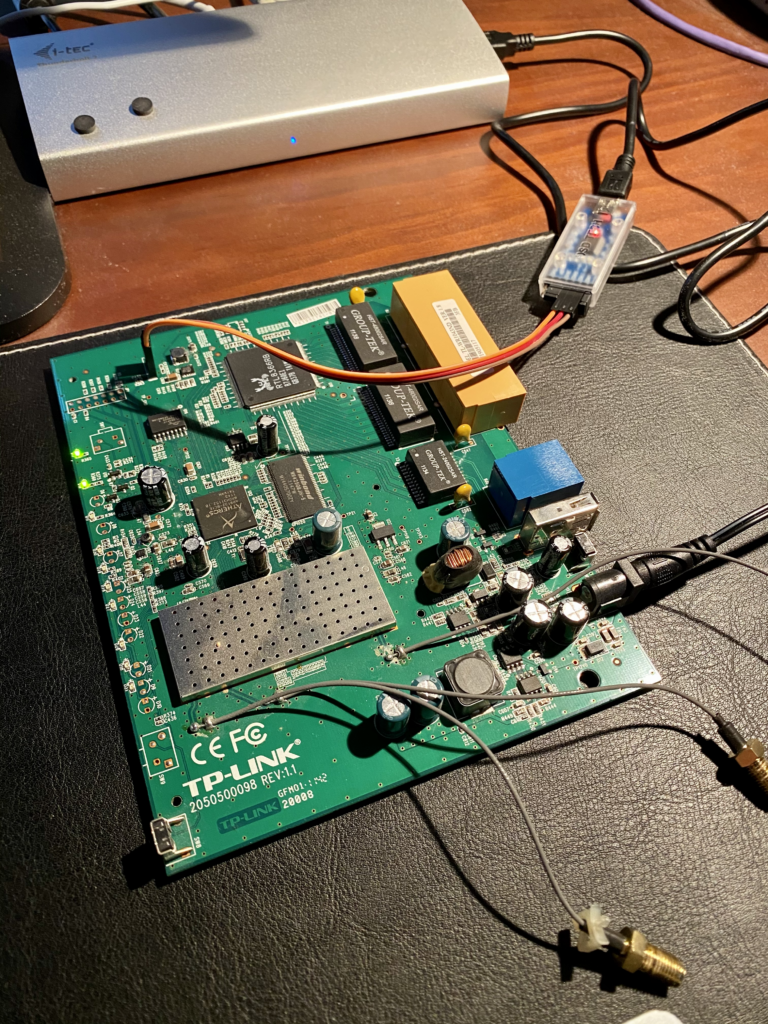
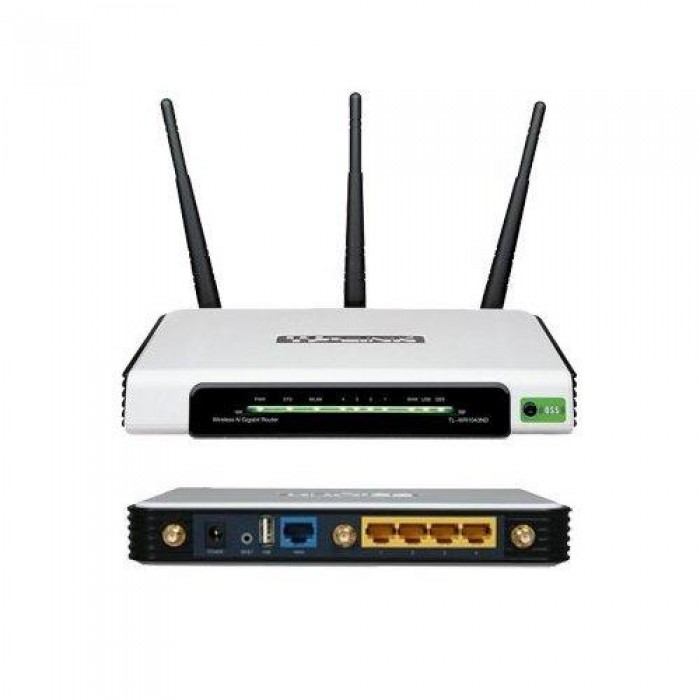
I have this old TP Link router that I thought I could tech some tricks. Unfortunately I flashed it with an image that contained a broken configuration and I successfully locked myself out completely from the all network access to it.

TP Link TL-WR1043ND
TP Link TL-WR1043ND

Newer models support a failsafe method in which very early on in the boot process the router might look for a specific image via TFTP. This model (at least this revision) didn’t let me grasp that straw though.

Serial Console to the rescue

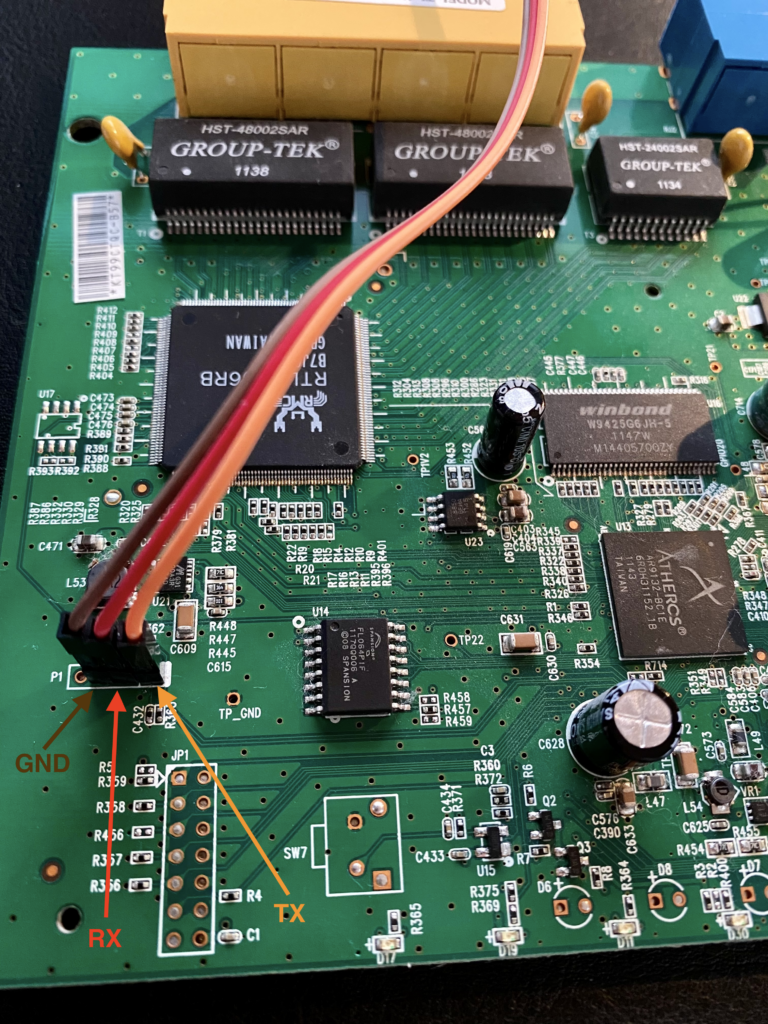
OpenWrt’s wiki provides extremely good documentation on a seemlingly endless list of devices. Of course there is also a long and detailed entry for the TL-WR1043ND model. Near the bottom of the wiki entry it mentions UART ports that lie dormant on the PCB. All that is needed is to “crack” open the router and to connect 3 wires to the right places.

I am extremely unexperienced when it comes to soldering, but adding three wires in place is a task that I can (barely) get done.

UART ports with wires soldered into them

On the other end of my wires I connected a USB to serial adapter, to be more precise I own a FT232RL that can be bought for less than 10 bucks on AMAZON (or Ali Express if you have enough time to wait for it to be shipped in from China). The most important thing when connecting the FTDI to the board is the voltage. The board runs on 3.3V and it is of utmost importance to adjust the FTDI to that exact voltage, as otherwise the circuit will fry. Other than that the RX port on the board needs to be hooked up with the TX port of the FTDI and the TX port of the board goes into the RX of the FTDI. When ready my setup looked like this:

Router with UART ports connected to FTDI

Connect to the console

I am sure there are plenty of programs out there that allow connecting the serial console to a terminal. With OSX there is no need to install anything, as you just have to open a terminal and use the screen command. The first thing though is to find out the name of the device.

andreas@AnDeSu16 ➜  ~ ls -lah /dev/tty.*
crw-rw-rw-  1 root  wheel   18,   0 Dec 10 14:48 /dev/tty.Bluetooth-Incoming-Port
crw-rw-rw-  1 root  wheel   18,   2 Dec 10 14:48 /dev/tty.JabraEVOLVE65-SPPDev
crw-rw-rw-  1 root  wheel   18,   4 Jan  8 14:38 /dev/tty.usbserial-AB0KGVU8

As shown above the device we want to connect to it is listed as last entry. Now all we need to do is to use the screen command with the device name and the correct baud rate. In our case the router uses 115200 baud and so we adhere…

andreas@AnDeSu16 ➜  ~ screen /dev/tty.usbserial-AB0KGVU8 115200

Last but not least comes the moment of truth and we switch on our router…

U-Boot 1.1.4 (Nov 17 2009 - 11:56:26)

AP83 (ar9100) U-boot 0.0.11
DRAM:  
sri
32 MB
id read 0x100000ff
flash size 8MB, sector count = 128
Flash:  8 MB
Using default environment

In:    serial
Out:   serial
Err:   serial
Net:   ag7100_enet_initialize...
No valid address in Flash. Using fixed address
: cfg1 0xf cfg2 0x7114
eth0: 00:03:7f:09:0b:ad
eth0 up
eth0
Autobooting in 1 seconds## Booting image at bf020000 ...
   Uncompressing Kernel Image ... OK

Starting kernel ...

Perfect. Everything after that is a piece of cake, as we get into a root console and can do whatever we like with it. Well, obviously we use it to flash a working image that allows us remote access again 😉

Employing SSH host certificates

Most of us have been in a situation at least once where we need to follow the TOFU (trust on first use) pattern. A popular example would be a new host that we try to login for the first time via SSH. We might see something like this:

andreas@AnDeSu16 ➜  ~ ssh andreas@192.168.1.1
The authenticity of host '192.168.1.1 (192.168.1.1)' can't be established.
ECDSA key fingerprint is SHA256:fTGKcndGlhvoHoNI8HGu6ErQpKer495rMRJrrQok+ok.
Are you sure you want to continue connecting (yes/no/[fingerprint])? 

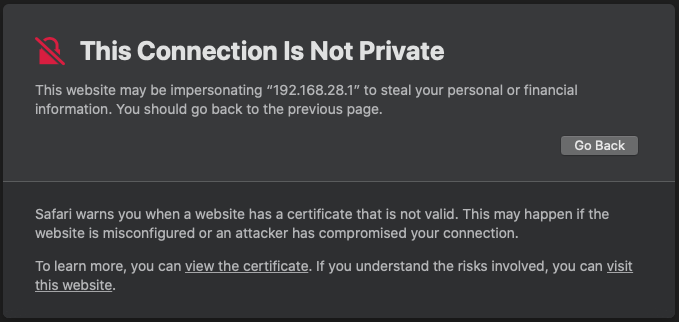
Just to be clear: this type of warning is exactly the same situation as if our web browser is asking us if we want to continue because the browser cannot verify the authenticity of the website’s certificate (see below).

Solution Approach

The ‘fix’ is actually much easier than one might think. Similar to TLS certificates we can use SSH certificates. The idea is simple: we create ourselves a certificate authority for SSH and sign public host keys with it. As a result we will create host certificates that we can send back to the host. After that hosts will present such certificates to clients. All that clients need to do in order to verify the authenticity of such certificate is to trust our global (internal) SSH Certificate Authority.

While TLS certificates make use of a standardized format (x.509), SSH certificates follow a proprietary format that is widely used. However, the principles behind the certification process are the same. Let’s summarize the process is plain steps briefly…

  • Certificate Authority has a private key and a public key
  • Client trusts the public key of Certificate Authority
  • Host has a key-pair consisting of one private and one public key
  • Host keeps its private key secret but submits its public key to Certificate Authority
  • Certificate Authority uses its private key to sign the host’s public key
  • Certificate Authority’s signature has yielded a host certificate
  • Host imports the host certificate
  • Client is presented with host’s certificate upon login
  • Because Client trusts the Certificate Authority’s public key, it implicitly trusts Host’s certificate

Certificate Authority Layout

Let’s have a look at the directory structure we have in place for our SSH Certificate Authority. Our master keypair is stored in the private and public folder. The certs folder is meant for the certificates we issue.

/
└── ca
	└── SSH
		└── host
			├── certs
			├── private
			│   ├── tinkivity_host_ecdsa_key
			│   ├── tinkivity_host_ed25519_key
			│   └── tinkivity_host_rsa_key
			└── public
				├── tinkivity_host_ecdsa_key.pub
				├── tinkivity_host_ed25519_key.pub
				└── tinkivity_host_rsa_key.pub

Import Host’s public key(s)

Our practical example is creating a certificate for a new host (newhost.tinkivity.home), which we want to be valid for 5 years. The first thing we have to do is to create a directory under the certs folder and to change into it.

andreas@rootca ➜  SSH mkdir /ca/SSH/host/certs/newhost.tinkivity.home
andreas@rootca ➜  SSH cd /ca/SSH/host/router/newhost.tinkivity.home

In order to issue a certificate we need the public keys from the new host. Technically one public key would be enough, but there are 3 common (and considered safe) algorithms out there (ECDSA, RSA and ED25519), which each have their own key-pair and can have a corresponding certificate.

NEVER EVER should private keys leave the machine or host at which they have been generated! Please do not export private keys from your host ever!

Let’s have a quick look into the directory structure after import of the public host keys.

andreas@rootca ➜  newhost.tinkivity.home ls -lah
total 23
drwxr-xr-x  2 root  wheel     5B Jan  4 18:54 .
drwxr-xr-x  7 root  wheel     7B Jan  4 18:42 ..
-r--r-----  1 root  wheel   188B Jan  4 18:54 ssh_host_ecdsa_key.pub
-r--r-----  1 root  wheel   108B Jan  4 18:54 ssh_host_ed25519_key.pub
-r--r-----  1 root  wheel   408B Jan  4 18:54 ssh_host_rsa_key.pub

Issue Host certificate(s)

For each of the 3 keys we can issue a certificate. There are some parameters we will supply to the ssh-keygen command. Let’s go through those parameters one by one:

parametermeaning
-ssays we want to sign a certificate and the next parameter to follow must be the private key of the certificate authority
-hindicates that we are about to sign a host certificate (has no parameter value to follow)
-Isays we want to give the certificate an ID and the next parameter to follow must be the string representing the certificate ID
-nsays we want to set principal name(s) and the next parameter to follow must be a comma separated list of principal names (no white spaces please)
-Vsays we want to set the validity interval and the next parameter must be a validity interval (please read the ssh-keygen man page for format instructions)
our router’s public host key

Having understood the meaning of those parameters, we can get to work and issue our first certificate. We go alphabetically and start with the ECDSA certificate.

andreas@rootca ➜  newhost.tinkivity.home ssh-keygen -s ../../private/tinkivity_host_ecdsa_key -h -I newhost_v01 -n newhost,newhost.tinkivity.home -V 'always:20260131' ssh_host_ecdsa_key.pub
Enter passphrase: 
Signed host key ssh_host_ecdsa_key-cert.pub: id "newhost_v01" serial 0 for newhost,newhost.tinkivity.home valid before 2026-01-31T00:00:00

We repeat the same procedure for ED25519 and RSA.

andreas@rootca ➜  newhost.tinkivity.home ssh-keygen -s ../../private/tinkivity_host_ed25519_key -h -I newhost_v01 -n newhost,newhost.tinkivity.home -V 'always:20260131' ssh_host_ed25519_key.pub
andreas@rootca ➜  newhost.tinkivity.home ssh-keygen -s ../../private/tinkivity_host_rsa_key -h -I newhost_v01 -n newhost,newhost.tinkivity.home -V 'always:20260131' ssh_host_rsa_key.pub

When done we should find 3 certificates in our folder. The names of our certificates are automatically being generated. The pattern is that xxx_key.pub is being expanded to xxx_key-cert.pub.

andreas@rootca ➜  newhost.tinkivity.home ls -lah *-cert.pub
-r--r-----  1 root  wheel   873B Jan  4 18:21 ssh_host_ecdsa_key-cert.pub
-r--r-----  1 root  wheel   521B Jan  4 18:22 ssh_host_ed25519_key-cert.pub
-r--r-----  1 root  wheel   2.0K Jan  4 18:22 ssh_host_rsa_key-cert.pub

Verifying host certificates

We can use the ssh-keygen command to check the content of the certificate.

andreas@rootca ➜  newhost.tinkivity.home ssh-keygen -Lf ssh_host_ecdsa_key-cert.pub 
ssh_host_ecdsa_key-cert.pub:
        Type: ecdsa-sha2-nistp521-cert-v01@openssh.com host certificate
        Public key: ECDSA-CERT SHA256:b17eQwm1UGqUIISx1rulZt7yKypRa8zBuuBBsf7EtwU
        Signing CA: ECDSA SHA256:RElqZXAHlXvULMiwDK1OaYgQtTyxY9iLlhbctQgKRic
        Key ID: "newhost_v01"
        Serial: 0
        Valid: before 2026-01-31T00:00:00
        Principals: 
                newhost
                newhost.tinkivity.home
        Critical Options: (none)
        Extensions: (none)

Installing host certificates

At our host we need to edit the /etc/ssh/sshd_config and insert the following lines.

HostCertificate /etc/ssh/ssh_host_rsa_key-cert.pub
HostCertificate /etc/ssh/ssh_host_ecdsa_key-cert.pub
HostCertificate /etc/ssh/ssh_host_ed25519_key-cert.pub

Now the SSH Daemon will present the listed SSH certificates to clients. Don’t forget to restart the SSH Daemon after the configuration change.

Client Trust

As mentioned before, clients now don’t have to trust every certificate, but they only have to trust our Certificate Authority (one time). For that to happen we add the following lines into our ~/.ssh/known_hosts file.

andreas@AnDeSu16 ➜  ~ head -n 3 ~/.ssh/known_hosts 
@cert-authority *.tinkivity.home ecdsa-sha2-nistp521 AAAAE2VjZHNhLXNoYTItbmlzdHA1MjEAAAAIbmlzdHA1MjEAAACFBABmiuAXjy7orTZPxVrzSRe73/Cbd32skx7ESOr/pDx7Sf56uimPrjpj3/iwkx7qdjSOLVNgwyfYftlJl+GOSz/teQFleLuvNOq134YJEYX7dFh5osZTGtzndRQbFOGZ/R4zGgY1I499PdQxzN0r3pWBgR1Ch9fj6PFmu8QaeqjOWXe9Yw== tinkivity ssh ca host key
@cert-authority *.tinkivity.home ssh-ed25519 AAAAC3NzaC1lZDI1NTE5AAAAIBTLDMY7h06Hcw2O7dyh9jCN+V+g17ZXSE14aSDR25nR tinkivity ssh ca host key
@cert-authority *.tinkivity.home ssh-rsa AAAAB3NzaC1yc2EAAAADAQABAAACAQCwc0SM2eEDSPE5tV5A/H8ImtTfuZupnN9EObetGvSyTyo8K/qHLm8qpdy0AJbssm5O+Sxcy0TWjV3fEHeVABnn0FS7KGVDu6RcgJSfjszmLe1L+nhYF1jtLm1tco1EMir2iyUwLNQGsBn89auSyYF/K8109ILo06a4DErKcI3hSp/itB55dws2p2XLWtvWPhFH5tp8gCSCc90DRlRiWyyrlMYxQWnJfJbNVxc5g8D9R5JT7Kj+Yj1KyTolrF75N9x53TeOrhbJu4cBkr/Inpp+uI4bz0+ZNJE5KTrtW1NvxEicFw3R2aqjtpBaIY6ZDFW3SM7zHT49MrI4Q8Vd9y4i+q5KruPMSjCUhIPB05yyWJk9vaOyNdyCgluIWOUM81Bey9b13gvSfNMAx+8O29jD5dCBaAHn6lHu+/i67tHxvR5kAgA/XXZfjNNXrAb4PcWlasOXRLNsgJCEb/DDxzNA4dVuhhdV4+KC2qZheGn6YROpBqCHCrL8ITE2hPK+j30DkFTH4jw69tThQjZZZDo9jqoI0kVpDroFskUI8fPZBZY+k7/lTUEPxH+JaDi80fNFWuROYiAwF44NCp1I7GdtqyVdU+WNUaz6NPAaKvFZqGdcwmCJqpi7yCeS4w7vERGTzQ1V4ZJZzgDUPOrthrVP4XBoJtvsBZ3l5KdAO96Ciw== tinkivity ssh ca host key

With the amendment to your ~/.ssh/known_hosts file above you should be done. If you now connect to a host matching the domain filter (*.tinkivity.home in the case above) and still get told the authenticity cannot be verified, you should be concerned for a reason 😉

Exception: create private keys for future host

In exceptional cases we can store the private key of a host in our Certificate Authority. One of those rare exceptions is when we want to build an appliance that we want to setup via an image in a one-stop-shop approach (i.e. using Crochet-FreeBSD or YOCTO). In such cases it makes sense to generate the private key(s) upfront, because the first time such device will actually boot might be somewhere in the field (where we don’t have access). What we want are 3 keys – one for each commonly accepted and considered safe cryptographic algorithms.

Do not set a password if you want the host to have the possibility to work unattended!

andreas@rootca ➜  image123.tinkivity.home ssh-keygen -t ecdsa -b 521 -C "image123 host key" -f ssh_host_ecdsa_key
andreas@rootca ➜  image123.tinkivity.home ssh-keygen -t ed25519 -C "image123 host key" -f ssh_host_ed25519_key
andreas@rootca ➜  image123.tinkivity.home ssh-keygen -t rsa -b 4096 -C "image123 host key" -f ssh_host_rsa_key

SSL cert from local ACME server for OpenWrt

There is an acme package available for OpenWrt which allows to obtain SSL certificates from Let’s Encrypt. Wouldn’t it be nice if we could have OpenWrt obtain SSL certificates from our own private ACME server (within our local network)? This blog post explains the easy steps in order to achieve just that.

What’s wrong with the default ACME package?

Actually, there is nothing wrong with the default package. However, it doesn’t allow for any ACME server URL other than Let’s Encrypt’s URL. These are our requirements:

  1. make use of the –server parameter so that we can supply the URL of our internal ACME server
  2. make use of the –ca-bundle parameter so that we can verify the SSL certificate of our internal ACME server
  3. make use of the –days parameter so that we can set automatic renewal of certificates to something (way) less than the default 60 days

What needs to change?

There is one config file that we have to customize and there is a script that we need to extend. Also, we need to install our internal root certificate so that acme.sh can verify the SSL certificate of our internal ACME server.

/etc/config/acme

As soon as you install the acme package, a default configuration file will be created. Within the acme section we need to supply our credentials (our email address). There is one cert section that we can assign a name to it, although the name doesn’t really matter as in most cases we will be ok with just having the one cert section anyway. The last 3 lines in that configuration file are our own and will not be parsed by the default acme package (we will handle that in a minute). All 3 options correspond to the command line parameters of the official acme.sh script.

config acme
        option state_dir        '/etc/acme'
        option account_email    'john.doe@example.com'
        option debug            '0'

config cert 'localserver'
        option keylength        '2048'
        option update_uhttpd    '1'
        list domains            'openwrt.local'
        list domains            'openwrt'
        option use_staging      '0'
        option enabled          '1'
        option server           'https://acme.local:8443/acme/weekly/directory'
        option cabundle         '/etc/ssl/certs/tinkivity.pem'
        option renewal_days     '3'

/usr/lib/acme/run-acme

While OpenWrt’s acme package calls an unmodified acme.sh script, it does so via a wrapper script. The name of that wrapper script is run-acme and we need to insert 9 lines of code to handle our own configuration parameters.

Find the issue_cert() subroutine and go to the first line that modifies the acme_args parameter. Now insert the following lines (see marked in red below) into the script.

    [ "$enabled" -eq "1" ] || return

    [ "$DEBUG" -eq "1" ] && acme_args="$acme_args --debug"

    local server
    local cabundle
    local renewal_days
    config_get server "$section" server
    config_get cabundle "$section" cabundle
    config_get renewal_days "$section" renewal_days
    [ -n "$cabundle" ] && acme_args="$acme_args --ca-bundle $cabundle"
    [ -n "$server" ] && acme_args="$acme_args --server $server"
    [ -n "$renewal_days" ] && acme_args="$acme_args --days $renewal_days"

    set -- $domains
    main_domain=$1

Our first 3 custom lines (lines 5, 6 and 7 above) declare a local variable within the shell script. The next 3 lines (lines 8, 9 and 10 above) use OpenWrt’s functional API to get our custom parameters from the /etc/config/acme configuration file. The last 3 lines (lines 11, 12 and 13 above) append our custom configuration values to the command line parameters that will be handed over to acme.sh.

Test run

The only thing left to do is to test our modifications…

root@OpenWrt:~# /usr/lib/acme/run-acme
acme: Running pre checks for openwrt.local.
4+0 records in
4+0 records out
Generating a RSA private key
..........................+++++
......................+++++
writing new private key to '/etc/acme/openwrt.local/openwrt.local.key.new'
acme: Running ACME for openwrt.local
acme: Using standalone mode
Standalone mode.
Create account key ok.
Registering account
Registered
ACCOUNT_THUMBPRINT='2dYMwVSlI3Ewk69JJIpdhDa63uYdmoRiAWrBP64O8zg'
Creating domain key
The domain key is here: /etc/acme/openwrt.local/openwrt.local.key
Single domain='openwrt.local'
Getting domain auth token for each domain
Getting webroot for domain='openwrt.local'
Verifying: openwrt.local
Standalone mode server
Success
Verify finished, start to sign.
Lets finalize the order, Le_OrderFinalize: https://acme.local:8443/acme/weekly/order/mdApyrB1mSTDfrG0oJP97hCfo9MapD4g/finalize
Download cert, Le_LinkCert: https://acme.local:8443/acme/weekly/certificate/zT0aO2NdTXhIJZXE8DsSGdw1d6dw0Pbs
Cert success.
-----BEGIN CERTIFICATE-----
MIIFrDCCA5SgAwIBAgIQbFGdrtEr8eQq2McxMc2+ojANBgkqhkiG9w0BAQsFADCB
...
<< REDACTED >>
...
DPnJoXMPK0WR2dkRHtpZDQ==
-----END CERTIFICATE-----
Your cert is in  /etc/acme/openwrt.local/openwrt.local.cer 
Your cert key is in  /etc/acme/openwrt.local/openwrt.local.key 
The intermediate CA cert is in  /etc/acme/openwrt.local/ca.cer 
And the full chain certs is there:  /etc/acme/openwrt.local/fullchain.cer 
acme: Running post checks (cleanup).

IKEv2 VPN on OpenWrt – Part I

This blog post is the first in a series of three blog posts. Obviously we talk about VPN and somehow we involve a device that runs OpenWrt. To be more clear on what exactly we’re trying to achieve by using which means, let’s elaborate our challenge and solution proposal thereof.

The big picture

We have “somebody” that likes to connect to a network from a remote location. That person will use a device such as a computer, laptop, tablet or mobile phone. Often throughout this blog post we will refer to this person as Road Warrior. The network that the road warrior wants to access can be a home or office network, but in either event is reachable via the public internet and it lives behind a router with a firewall. In this blog post we call that router a Gateway. In terms of virtual private network communication in such scenario we will assign the road warrior the role of an Initiator while the gateway serves as a Responder.

There might be many solutions to the challenge posted via the general setup as described above. We will solve it with a particular architecture and plan to employ the following components and methods:

  • OpenWrt (as network router)
  • strongSwan (as VPN responder)
  • OSX / iOS (as VPN initiator)
  • IKEv2 (for key exchange)
  • EAP-TLS (for authentication)

This 3 Part tutorial will show how the complete setup and configuration on a step by step basis. In Part I (this part) we will show how to setup the VPN server and how to establish a simple connection from a client using a username/password authentication. In Part II we will show how to create certificates that are needed for EAP-TLS and in Part III we talk about site-to-site VPN.

Assumptions

We will assume a moderate knowledge on OpenWrt and general networking. That said, we will not go into details on how to install OpenWrt onto a router and we will also not explain how to install a package onto an OpenWrt router or even how to custom build OpenWrt from scratch. If that should be a concern, please follow the instructions from the OpenWrt user guide or for more advanced topics please look up the developer guide.

Furthermore we assume the following network setup:

[user device] <---> [public internet] <---> [router] <---> [target network]

In our case we will use 2 different user devices. One user device will be a laptop running OSX and the other device will be a phone running IOS.

Devices running Windows, Android, Linux, etc., equally work without problems, but are not used as examples in our blog post.

Although we will ultimately use EAP-TLS for authentication, we will use EAP-MSCHAPv2 in the first part of our blog post. The main reason is that we try with a much simpler username/password authentication in a first step for easier debugging. Once that works, we can move on to the more complex client certificates.

Preconditions

In my case I decided to custom build OpenWrt for my specific router, because a custom build can yield a much smaller footprint. In my build configuration I selected the following packages to be built into the system.

CONFIG_PACKAGE_strongswan=y
CONFIG_PACKAGE_strongswan-charon=y
CONFIG_PACKAGE_strongswan-default=y
CONFIG_PACKAGE_strongswan-ipsec=y
CONFIG_PACKAGE_strongswan-libtls=y
CONFIG_PACKAGE_strongswan-mod-aes=y
CONFIG_PACKAGE_strongswan-mod-attr=y
CONFIG_PACKAGE_strongswan-mod-connmark=y
CONFIG_PACKAGE_strongswan-mod-constraints=y
CONFIG_PACKAGE_strongswan-mod-des=y
CONFIG_PACKAGE_strongswan-mod-dnskey=y
CONFIG_PACKAGE_strongswan-mod-eap-identity=y
CONFIG_PACKAGE_strongswan-mod-eap-mschapv2=y
CONFIG_PACKAGE_strongswan-mod-eap-tls=y
CONFIG_PACKAGE_strongswan-mod-fips-prf=y
CONFIG_PACKAGE_strongswan-mod-gmp=y
CONFIG_PACKAGE_strongswan-mod-hmac=y
CONFIG_PACKAGE_strongswan-mod-kernel-netlink=y
CONFIG_PACKAGE_strongswan-mod-md4=y
CONFIG_PACKAGE_strongswan-mod-md5=y
CONFIG_PACKAGE_strongswan-mod-nonce=y
CONFIG_PACKAGE_strongswan-mod-openssl=y
CONFIG_PACKAGE_strongswan-mod-pem=y
CONFIG_PACKAGE_strongswan-mod-pgp=y
CONFIG_PACKAGE_strongswan-mod-pkcs1=y
CONFIG_PACKAGE_strongswan-mod-pubkey=y
CONFIG_PACKAGE_strongswan-mod-random=y
CONFIG_PACKAGE_strongswan-mod-rc2=y
CONFIG_PACKAGE_strongswan-mod-resolve=y
CONFIG_PACKAGE_strongswan-mod-revocation=y
CONFIG_PACKAGE_strongswan-mod-sha1=y
CONFIG_PACKAGE_strongswan-mod-sha2=y
CONFIG_PACKAGE_strongswan-mod-socket-default=y
CONFIG_PACKAGE_strongswan-mod-sshkey=y
CONFIG_PACKAGE_strongswan-mod-stroke=y
CONFIG_PACKAGE_strongswan-mod-updown=y
CONFIG_PACKAGE_strongswan-mod-x509=y
CONFIG_PACKAGE_strongswan-mod-xauth-generic=y
CONFIG_PACKAGE_strongswan-mod-xcbc=y
CONFIG_PACKAGE_strongswan-pki=y

Note that there are other packages that these packages might depend on. As explanations in custom building OpenWrt is not the scope of this blog post, please make sure all dependencies are satisfied (i.e. use make menuconfig to automatically resolve dependencies).

You don’t have to custom build, but can use an off-the-shelf OpenWrt image and simply install the strongSwan packages listed above.

The target network is one of potentially many networks that are routed by the router. In our case we have a network called lab, that is separated from other networks. We want road warriors to be able to get to the lab network.

Network setup

Understanding our configuration later on requires to understand our network setup on the router in the first place. In our setup we have 3 networks, all of which have an active DHCP server that hands out ip addresses to clients.

        Main Network: [10.10.10.0/24]
Road Warrior Network: [10.10.97.0/28]
         Lab Network: [10.10.90.0/24]

The main network is the default network that would also exist if there would be only one network setup. Assuming we have a home network, this is where your computers and laptops go. Devices in this network are generally trusted and allowed to see each other. Also, the main network most likely will have a route to the internet as well as all other networks configured. In our case the main network is connected to all lan ports of the router and which ever device that plugs into the router via cable will get an ip address in the main network.

The road warrior network only serves one purpose, that is to assign an ip address to incoming road warriors. Road warriors might be allowed to see each other – or not – depending on your preference. Also, the firewall as well as the ipsec settings will determine into which other networks road warriors are allowed to get into them. In our case we will allow road warriors to access the lab network, but deny them the main network. Also we will allow road warriors to see each other.

The lab network is an isolated network that may host a couple of servers and some clients. Either way, the lab network doesn’t route into the main network but might have internet access. In our case the lab network cannot go anywhere and it is isolated from the rest of the world.

strongSwan configuration

More or less there are 3 different configuration files that we need to adopt. Let’s start with the easiest modification.

/etc/strongswan.d/charon/attr.conf

In this file we need to add 2 lines for DNS. We make use of two different IKEv2 configuration payload attribute types in order to tell incoming road warrior which DNS server to use for our target network(s). The ip address 10.10.97.1, that points to the DNS server of the road warrior network, is declared in line 5 by using attribute type 3 (INTERNAL_IP4_DNS). The domain name of our local network, for which our internal DNS server should be used, is declared in line 6 by using attribute type 25 (INTERNAL_DNS_DOMAIN).

In summary, the road warrior network gateway assumes the DNS server function in our setup and we tell road warriors that connect via VPN to submit all DNS queries that match our domain (locallab.home) to it.

attr {
    3  = 10.10.97.1
    25 = locallab.home
    load = yes
}

/etc/ipsec.secrets

In the first line we declare the type and name of the private key for the server certificate that will be offered to VPN clients as part of the key exchange. The key is in a file named servercert.key.pem and should be treated as an RSA key. The key has no password. The key is located in the default folder for private keys that strongSwan looks into – in our case /etc/ipsec.d/private, thus the full path to the key is /etc/ipsec.d/private/servercert.key.pem. The second line defines a user by the name of myuser with the password mypassword.

: RSA servercert.key.pem
myuser : EAP "mypassword"

/etc/ipsec.conf

Line 1 declares a section for general configuration parameters. We don’t have any of those, so we leave the block empty in our config.

Line 3 declares the default configuration parameter block that all specific connections (i.e. also our connection in line 16) will inherit from. Let’s look at every line in that block in more detail:

Line 4 says that we want to use an ikev2 key exchange. In line 5 we define the cipher suites to be used for our IKE and ISAKMP security associations and in line 6 we do the same for ESP.

Before we continue to the next line, we need to understand the concept of left and right parameters for strongSwan. In easy words, we do have two communication partners and thus 2 sides of our communication. More or less you can think of the left side of the local side and the right side of the remote side. The config below is for our VPN responder and we do consider it the local config in this context. That’s why ‘left’ parameters refer to the settings on our OpenWrt router.

Line 7 defines the public network interface for our router. We don’t have a static ip address, so we leave it as %any4, which signifies an IPv4 address to be filled in during negotiation.

Line 8 defines that our router will be authenticated via public key cryptography – or in layman’s terms: our router will present a server certificate to the client.

Line 9 defines the file name of the server certificate.

Line 10 specifies how the server (our router) should be identified for authentication. We will talk about certificates in Part II, so for now we leave it like that.

Line 11 specifies the public ip address for our road warriors. At this point we don’t know from where they’re coming, so we do not impose filters such as a specific geographic ip address regions or domain names. We exclude IPv6 addresses and limit our road warriors to use IPv4 addresses only.

Line 12 specifies the ip address to be used in a tunnel for the road warrior. We define a pool of addresses in the small subnet 10.10.97.0/29. We exclude the first host address (10.10.97.1) as it would collide with the gateway. We also exclude the broadcast address (10.10.97.7). In summary a road warrior will be assigned one ip address between 10.10.97.2 and 10.10.97.6.

Line 13 defines the identity a client uses to reply to an EAP Identity request. In our case we set it to %identity and by that indicate to the EAP identity method that during EAP authentication the client should be asked to provide an EAP identity.

Line 14 tells the IPSec daemon to load this configuration automatically during startup via the add parameter. In other scenarios such as site-to-site VPN tunnels we could use start as a parameter and that way tell the IPSec daemon to immediately start establish the VPN tunnel upon daemon initialization.

Line 16 starts a new configuration block that contains all the settings for our specific connection which we arbitrary name rwMSCHAPV2.

In line 17 we tell the IPSec daemon that incoming road warriors should always (as in automatically) be sent our server certificate. Although part of IKEv2 would be for the client to ask for the certificate explicitly, some clients don’t ask and just expect the certificate, which is why we set it up like that.

In line 18 we define to which subnets the incoming road warrior should gain access to. If we would define 0.0.0.0/0 here, our road warriors would send all traffic through the VPN tunnel and thus our router. What we want is a so called split-tunnel, hence we provide a comma separated list of sub networks which a road warrior should route through the VPN tunnel. Note that the road warrior subnet itself includes all 6 possible hosts. We excluded the gateway (10.10.97.1) from the road warrior address pool but we include it in the routing table for the road warrior. Otherwise road warriors would not be able to route traffic in that subnet.

In line 19 we define the identity that a client must use for authentication. For a username/password authentication the identity can be almost any string, as long as it matches responder and initiator configuration. In other authentication mechanisms (i.e. eap-tls the identity must be confirmed via certificate).

Finally, line 20 defines that this connection shall employ MSCHAPv2 as authentication method. Again, other methods such as pubkey or eap-tls could be used instead, but are not in scope of Part I (this part) of the blog post.

config setup

conn %default
        keyexchange=ikev2
        ike=aes256-aes128-sha256-sha1-modp3072-modp2048
        esp=aes128-aes256-sha256-modp3072-modp2048,aes128-aes256-sha256
        left=%any4
        leftauth=pubkey
        leftcert=servercert.cert.pem
        leftid=vpn.example.com
        right=%any4
        rightsourceip=10.10.97.2-10.10.97.6
        eap_identity=%identity
        auto=add

conn rwMSCHAPV2
        leftsendcert=always
        leftsubnet=10.10.97.0/29,10.10.90.0/24
        rightid=vpn-via-mschapv2
        rightauth=eap-mschapv2

Network configuration

Obviously we need to configure 2 extra networks – one for our road warriors and another one as our target.

/etc/config/network

We add 2 new interfaces, which we both declare as a virtual lan.

The vpn interface will point to VLAN 97 and be defined as a 29 bit network, which provides for a total of 6 hosts. That number will be more than enough as a) our home network will not have more than 2 or 3 parallel VPN tunnels established concurrently and b) the hardware we’re using will not have enough computing power for the cryptographic operations needed to sustain 10s of VPN tunnels at the same time.

The lab interface will point to VLAN 90 and be defined as a 24 bit network, which provides for a total of 254 hosts. I doubt we will have that many hosts connected at home, but we don’t need to limit the amount of supported hosts for performance reasons either.

config interface 'vpn'
        option stp '1'
        option type 'bridge'
        option ifname 'eth0.97'
        option proto 'static'
        option ipaddr '10.10.97.1'
        option netmask '255.255.255.248'
        option delegate '0'

config interface 'lab'
        option stp '1'
        option type 'bridge'
        option ifname 'eth0.90'
        option proto 'static'
        option ipaddr '10.10.90.1'
        option netmask '255.255.255.0'
        option delegate '0'

/etc/config/dhcp

We add 2 dhcp configuration blocks. The first block is for our vpn network and we define that no DHCP server should be started in that network, as IPSec takes care of assigning IP addresses to road warriors. The second block defines a DHCP server for our lab network.

config dhcp 'vpn'
        option interface 'vpn'
        option ignore '1'

config dhcp 'lab'
        option start '100'
        option leasetime '12h'
        option limit '150'
        option interface 'lab'

Firewall configuration

Having IPSec setup is not enough, as road warriors will bounce at the firewall before even getting to the IPSec daemon. Again, there are 3 configuration files that we need to adopt to get the firewall in order.

/etc/config/firewall

We have to add a number of blocks into the existing firewall configuration. The brief summary is as follows:

We create 2 new zones – one for our vpn network and another one for the lab network (lines 1-13). We allow traffic from our vpn zone to be forwarded to the lab zone (lines 14-16). We add 4 rules that open up our wan zone for incoming VPN connections.

config zone
        option name             vpn
        list network            'vpn'
        option input            ACCEPT
        option output           ACCEPT
        option forward          ACCEPT

config zone               
        option name             lab
        list network            'lab'    
        option input            ACCEPT    
        option output           ACCEPT
        option forward          REJECT

config forwarding
        option src              vpn
        option dest             lab

config rule                                            
        option name             Allow-IPSec-ESP        
        option src              wan                    
        option proto            esp                    
        option target           ACCEPT                 
                                                       
config rule                                            
        option name             Allow-ISAKMP           
        option src              wan                    
        option dest_port        500                    
        option proto            udp                    
        option target           ACCEPT                 
                                                       
config rule                                            
        option name             Allow-IPSec-NAT        
        option src              wan                    
        option dest_port        4500                   
        option proto            udp                    
        option target           ACCEPT                 
                                                       
config rule                                            
        option name             Allow-IPSec-AH         
        option src              wan                    
        option proto            ah                     
        option target           ACCEPT                 

/etc/firewall.user

We have to accept input, forward and output traffic originated from and directed to clients matching an IPsec policy. If we want to be able to reach or ping road warriors, we need the rule in line 5, as it exempts traffic that matches an IPsec policy from being NAT-ed before tunneling. Optionally, we can setup NAT (or SNAT) as shown in line 6 in order for our road warriors to be able to access the internet.

iptables -I INPUT  -m policy --dir in --pol ipsec --proto esp -j ACCEPT
iptables -I FORWARD  -m policy --dir in --pol ipsec --proto esp -j ACCEPT
iptables -I FORWARD  -m policy --dir out --pol ipsec --proto esp -j ACCEPT
iptables -I OUTPUT   -m policy --dir out --pol ipsec --proto esp -j ACCEPT
iptables -t nat -I POSTROUTING -m policy --pol ipsec --dir out -j ACCEPT
iptables -t nat -I POSTROUTING -s 10.10.97.0/29 -o wan -j MASQUERADE

Putting it all together

First of all, let’s have a quick look again at all the files that we’ve had to create or modify in order to get our setup done. Please note that there might be other directories that would fall into the tree structure shown below, but for easier reading all those are not listed. Below only shows those directories and files we had to modify. Also, in this part of the blog post we will not talk about the certificates, but we will magically assume those to be in place and correctly setup. We will talk about certificates in Part II.

└── etc
    ├── config
    │   ├── dhcp
    │   ├── firewall
    │   └── network
    ├── firewall.user
    ├── ipsec.conf
    ├── ipsec.d
    │   ├── cacerts
    │   │   ├── rootca.pem
    │   │   └── intermediateca.pem
    │   ├── certs
    │   │   └── servercert.cert.pem
    │   └── private
    │       └── servercert.key.pem
    ├── ipsec.secrets
    └── strongswan.d
        └── charon
            └── attr.conf

IPSec Status

The first thing we do is to login to our router on a local interface via ssh (or alternatively a serial console). The IPSec daemon should be started automatically upon boot, otherwise a quick /etc/init.d/ipsec start command will do the trick. Time to use the ipsec statusall command to see what’s going on.

root@OpenWrt:~# ipsec statusall
Status of IKE charon daemon (strongSwan 5.8.2, Linux 4.14.209, mips):
  uptime: 84 seconds, since Jan 01 19:10:14 2021
  worker threads: 11 of 16 idle, 5/0/0/0 working, job queue: 0/0/0/0, scheduled: 0
  loaded plugins: charon aes des rc2 sha2 sha1 md4 md5 random nonce x509 revocation constraints pubkey pkcs1 pgp dnskey sshkey pem openssl fips-prf gmp xcbc hmac attr kernel-netlink resolve socket-default connmark stroke updown eap-identity eap-mschapv2 eap-tls xauth-generic
Virtual IP pools (size/online/offline):
  10.10.97.2-10.10.97.6: 5/0/0
Listening IP addresses:
  10.10.10.1
  10.10.90.1
  10.10.97.1
  xxx.xxx.xxx.xxx
Connections:
  rwMSCHAPV2:  %any4...%any4  IKEv2
  rwMSCHAPV2:   local:  [vpn.example.com] uses public key authentication
  rwMSCHAPV2:    cert:  "C=DE, ST=Saxony, L=Dresden, STREET=Musterstrasse 1, 01234 Dresden, Germany, O=Tinkivity, OU=vpn gateways via manual vpngate-prov, CN=vpn.example.com"
  rwMSCHAPV2:   remote: [vpn-via-mschapv2] uses EAP_MSCHAPV2 authentication with EAP identity '%any'
  rwMSCHAPV2:   child:  10.10.97.0/29 10.10.90.0/24 192.168.1.0/24 === dynamic TUNNEL
Security Associations (0 up, 0 connecting):
  none

Based on a good understanding of the configuration discussed in this blog post so far, most of the lines shown in the status should start to make real sense now. Line 12 is special, as it will not show triple-x pairs in reality, but show the public ip address of your wan port on your router.

Client configuration

Let’s use OSX’s build in network manager to configure a new VPN. Go to System Preferences –> Network and click the + (plus sign) button to configure a new VPN connection. Select VPN from the drop down list of interfaces and create a service as follows:

   Interface: VPN
    VPN Type: IKEv2
Service Name: myFirstVPN

Click the Create button and you will see a new connection that awaits some more configuration. Please key in the following values:

Server Address: xxx.xxx.xxx.xxx
     Remote ID: vpn.example.com
      Local ID: vpn-via-mschapv2

For the server address you can either type in the public ip address (if it doesn’t change in the next 5 minutes) or a fully qualified domain name (if you have dynamic DNS setup). The Remote ID and the Local ID should ring a bell for you, as it will match leftid and rightid from the /etc/ipsec.conf we have setup earlier. Finally, you will need to click on the Authentication Settings button to open a popup menu where you type in the following values:

Authentication Settings: Username
               Username: myuser
               Password: mypassword

Username and password will obviously match our configuration in /etc/ipsec.secrets.

Making a Connection

As soon as you click that Connect button, you should get a connection. If you still have your local console on the router you can tail the router log via the following command for good debugging:

root@OpenWrt:~# logread && logread -f

Once you have successfully established a connection, you should run the ipsec statusall command again and check out what is different now.

root@OpenWrt:~# ipsec statusall
Status of IKE charon daemon (strongSwan 5.8.2, Linux 4.14.209, mips):
  uptime: 99 seconds, since Jan 01 19:10:29 2021
  worker threads: 11 of 16 idle, 5/0/0/0 working, job queue: 0/0/0/0, scheduled: 0
  loaded plugins: charon aes des rc2 sha2 sha1 md4 md5 random nonce x509 revocation constraints pubkey pkcs1 pgp dnskey sshkey pem openssl fips-prf gmp xcbc hmac attr kernel-netlink resolve socket-default connmark stroke updown eap-identity eap-mschapv2 eap-tls xauth-generic
Virtual IP pools (size/online/offline):
  10.10.97.2-10.10.97.6: 5/0/0
Listening IP addresses:
  10.10.10.1
  10.10.90.1
  10.10.97.1
  xxx.xxx.xxx.xxx
Connections:
  rwMSCHAPV2:  %any4...%any4  IKEv2
  rwMSCHAPV2:   local:  [vpn.example.com] uses public key authentication
  rwMSCHAPV2:    cert:  "C=DE, ST=Saxony, L=Dresden, STREET=Musterstrasse 1, 01234 Dresden, Germany, O=Tinkivity, OU=vpn gateways via manual vpngate-prov, CN=vpn.example.com"
  rwMSCHAPV2:   remote: [vpn-via-mschapv2] uses EAP_MSCHAPV2 authentication with EAP identity '%any'
  rwMSCHAPV2:   child:  10.10.97.0/29 10.10.90.0/24 192.168.1.0/24 === dynamic TUNNEL
Security Associations (1 up, 0 connecting):
  rwMSCHAPV2[1]: ESTABLISHED 2 seconds ago, xxx.xxx.xxx.xxx[vpn.example.com]...192.168.0.2[vpn-via-mschapv2]
  rwMSCHAPV2[1]: Remote EAP identity: ding
  rwMSCHAPV2[1]: IKEv2 SPIs: 91b67839639696d2_i 04224a0ddb30a1e2_r*, public key reauthentication in 2 hours
  rwMSCHAPV2[1]: IKE proposal: AES_CBC_256/HMAC_SHA2_256_128/PRF_HMAC_SHA2_256/MODP_2048
  rwMSCHAPV2{1}:  INSTALLED, TUNNEL, reqid 1, ESP SPIs: cfff2908_i 0dfa6773_o
  rwMSCHAPV2{1}:  AES_CBC_256/HMAC_SHA2_256_128, 1097 bytes_i (8 pkts, 3s ago), 289 bytes_o (4 pkts, 3s ago), rekeying in 48 minutes
  rwMSCHAPV2{1}:   10.10.90.0/24 10.10.97.0/29 === 10.10.97.2/32

Congratulations – that’s it. In the next part of this blog post we will look at the certificates in more detail.