SSL cert from local ACME server for OpenWrt

There is an acme package available for OpenWrt which allows to obtain SSL certificates from Let’s Encrypt. Wouldn’t it be nice if we could have OpenWrt obtain SSL certificates from our own private ACME server (within our local network)? This blog post explains the easy steps in order to achieve just that.

What’s wrong with the default ACME package?

Actually, there is nothing wrong with the default package. However, it doesn’t allow for any ACME server URL other than Let’s Encrypt’s URL. These are our requirements:

  1. make use of the –server parameter so that we can supply the URL of our internal ACME server
  2. make use of the –ca-bundle parameter so that we can verify the SSL certificate of our internal ACME server
  3. make use of the –days parameter so that we can set automatic renewal of certificates to something (way) less than the default 60 days

What needs to change?

There is one config file that we have to customize and there is a script that we need to extend. Also, we need to install our internal root certificate so that acme.sh can verify the SSL certificate of our internal ACME server.

/etc/config/acme

As soon as you install the acme package, a default configuration file will be created. Within the acme section we need to supply our credentials (our email address). There is one cert section that we can assign a name to it, although the name doesn’t really matter as in most cases we will be ok with just having the one cert section anyway. The last 3 lines in that configuration file are our own and will not be parsed by the default acme package (we will handle that in a minute). All 3 options correspond to the command line parameters of the official acme.sh script.

config acme
        option state_dir        '/etc/acme'
        option account_email    'john.doe@example.com'
        option debug            '0'

config cert 'localserver'
        option keylength        '2048'
        option update_uhttpd    '1'
        list domains            'openwrt.local'
        list domains            'openwrt'
        option use_staging      '0'
        option enabled          '1'
        option server           'https://acme.local:8443/acme/weekly/directory'
        option cabundle         '/etc/ssl/certs/tinkivity.pem'
        option renewal_days     '3'

/usr/lib/acme/run-acme

While OpenWrt’s acme package calls an unmodified acme.sh script, it does so via a wrapper script. The name of that wrapper script is run-acme and we need to insert 9 lines of code to handle our own configuration parameters.

Find the issue_cert() subroutine and go to the first line that modifies the acme_args parameter. Now insert the following lines (see marked in red below) into the script.

    [ "$enabled" -eq "1" ] || return

    [ "$DEBUG" -eq "1" ] && acme_args="$acme_args --debug"

    local server
    local cabundle
    local renewal_days
    config_get server "$section" server
    config_get cabundle "$section" cabundle
    config_get renewal_days "$section" renewal_days
    [ -n "$cabundle" ] && acme_args="$acme_args --ca-bundle $cabundle"
    [ -n "$server" ] && acme_args="$acme_args --server $server"
    [ -n "$renewal_days" ] && acme_args="$acme_args --days $renewal_days"

    set -- $domains
    main_domain=$1

Our first 3 custom lines (lines 5, 6 and 7 above) declare a local variable within the shell script. The next 3 lines (lines 8, 9 and 10 above) use OpenWrt’s functional API to get our custom parameters from the /etc/config/acme configuration file. The last 3 lines (lines 11, 12 and 13 above) append our custom configuration values to the command line parameters that will be handed over to acme.sh.

Test run

The only thing left to do is to test our modifications…

root@OpenWrt:~# /usr/lib/acme/run-acme
acme: Running pre checks for openwrt.local.
4+0 records in
4+0 records out
Generating a RSA private key
..........................+++++
......................+++++
writing new private key to '/etc/acme/openwrt.local/openwrt.local.key.new'
acme: Running ACME for openwrt.local
acme: Using standalone mode
Standalone mode.
Create account key ok.
Registering account
Registered
ACCOUNT_THUMBPRINT='2dYMwVSlI3Ewk69JJIpdhDa63uYdmoRiAWrBP64O8zg'
Creating domain key
The domain key is here: /etc/acme/openwrt.local/openwrt.local.key
Single domain='openwrt.local'
Getting domain auth token for each domain
Getting webroot for domain='openwrt.local'
Verifying: openwrt.local
Standalone mode server
Success
Verify finished, start to sign.
Lets finalize the order, Le_OrderFinalize: https://acme.local:8443/acme/weekly/order/mdApyrB1mSTDfrG0oJP97hCfo9MapD4g/finalize
Download cert, Le_LinkCert: https://acme.local:8443/acme/weekly/certificate/zT0aO2NdTXhIJZXE8DsSGdw1d6dw0Pbs
Cert success.
-----BEGIN CERTIFICATE-----
MIIFrDCCA5SgAwIBAgIQbFGdrtEr8eQq2McxMc2+ojANBgkqhkiG9w0BAQsFADCB
...
<< REDACTED >>
...
DPnJoXMPK0WR2dkRHtpZDQ==
-----END CERTIFICATE-----
Your cert is in  /etc/acme/openwrt.local/openwrt.local.cer 
Your cert key is in  /etc/acme/openwrt.local/openwrt.local.key 
The intermediate CA cert is in  /etc/acme/openwrt.local/ca.cer 
And the full chain certs is there:  /etc/acme/openwrt.local/fullchain.cer 
acme: Running post checks (cleanup).

Fresh Jail Activity Logbook

On the ROOT console

Having created a fresh jail with FreeNAS 11.3, there are a number of things to do to get the jail where I want it to be. The following is a simple log of activities.

The first thing is to update the package lists and to install a number of packages that we need later on anyway.

> pkg update
> pkg install vim git sudo zsh

Next, a new user needs to be created, so we can enable SSH and allow for login. Please don’t forget to put the user into the wheel group.

> adduser

Still being root, we now have to invoke visudo and uncomment the line responsible for users in the wheel group to be allowed become sudo.

## Uncomment to allow members of group wheel to execute any command
# %wheel ALL=(ALL) ALL
%wheel ALL=(ALL) ALL

Last thing on the root console is to enable the SSH daemon and to start it.

> echo 'sshd_enable="YES"' >> /etc/rc.conf
> service sshd start

On the USER console

Evidently you will log into the new jail via ssh (not covered here). The first thing we want to make sure is that copy and paste works properly. That said, we need to add the following two lines to /etc/login.conf first.

default:\
        :passwd_format=sha512:\
        :copyright=/etc/COPYRIGHT:\
        :welcome=/etc/motd:\
        :setenv=MAIL=/var/mail/$,BLOCKSIZE=K:\
        :path=/sbin /bin /usr/sbin /usr/bin /usr/local/sbin /usr/local/bin ~/bin:\
        :nologin=/var/run/nologin:\
        :cputime=unlimited:\
        :datasize=unlimited:\
        :stacksize=unlimited:\
        :memorylocked=64K:\
        :memoryuse=unlimited:\
        :filesize=unlimited:\
        :coredumpsize=unlimited:\
        :openfiles=unlimited:\
        :maxproc=unlimited:\
        :sbsize=unlimited:\
        :vmemoryuse=unlimited:\
        :swapuse=unlimited:\
        :pseudoterminals=unlimited:\
        :kqueues=unlimited:\
        :umtxp=unlimited:\
        :priority=0:\
        :ignoretime@:\
        :umask=022:\
        :charset=UTF-8:\
        :lang=en_US.UTF-8:\
        :setenv=LC_COLLATE=C:

For these changes (above) to take effect, we have to rebuild the capability database.

> sudo cap_mkdb /etc/login.conf

Now it’s time to adjust vim so it will not jump into visual mode every time we select file content with the mouse. Kind of a hack, but we will append a line into the global vim defaults:

> sudo sh -c 'echo "set mouse-=a" >> /usr/local/share/vim/vim82/defaults.vim'

Now we install oh my zsh for better efficiency.

> sh -c "$(curl -fsSL https://raw.githubusercontent.com/ohmyzsh/ohmyzsh/master/tools/install.sh)"

Last, but not least we will customize our command prompt. We add the following line at the end of the .zshrc file.

PROMPT="%{$fg[white]%}%n@%{$fg[green]%}%m%{$reset_color%} ${PROMPT}"

Import SSL Root CA

Create a new file under /etc/ssl/tinkivity.pem, paste the SSL root certificate into it and change it to read only for everybody.

> sudo vim /etc/ssl/tinkivity.pem
> sudo chmod 444 /etc/ssl/tinkivity.pem

Get the hash for the root certificate and link it under /etc/ssl/certs by appending a .0 (dot-zero) postfix.

> openssl x509 -hash -noout -in /etc/ssl/tinkivity.pem
97efb5b5
> sudo ln -s /etc/ssl/tinkivity.pem /etc/ssl/certs/97efb5b5.0

OPTIONAL: append the root certificate to /etc/ssl/cert.pem

This should not be necessary, but in dire cases you can append the contents of /etc/ssl/tinkivity.pem to /etc/ssl/cert.pem

> cat /etc/ssl/tinkivity.pem | sudo tee -a /etc/ssl/cert.pem > /dev/null

Import SSH Root CA

Copy and paste the CAs public keys under the /etc/ssh folder and make them read only afterwards. There are 3 host keys (ecdsa, ed25519 and rsa) as well as 3 user keys.

> sudo vim /etc/ssh/ssh_tinkivity_host_ecdsa_key.pub
> sudo vim /etc/ssh/ssh_tinkivity_host_ed25519_key.pub
> sudo vim /etc/ssh/ssh_tinkivity_host_rsa_key.pub
> sudo vim /etc/ssh/ssh_tinkivity_user_ecdsa_key.pub
> sudo vim /etc/ssh/ssh_tinkivity_user_ed25519_key.pub
> sudo vim /etc/ssh/ssh_tinkivity_user_rsa_key.pub
> sudo chmod 444 /etc/ssh/ssh_tinkivity_*

Include the public host keys into your known_hosts file as certification authority.

> echo -n '@cert-authority *.tinkivity.home ' | cat - /etc/ssh/ssh_tinkivity_host_ecdsa_key.pub | tee -a ~/.ssh/known_hosts > /dev/null
> echo -n '@cert-authority *.tinkivity.home ' | cat - /etc/ssh/ssh_tinkivity_host_ed25519_key.pub | tee -a ~/.ssh/known_hosts > /dev/null
> echo -n '@cert-authority *.tinkivity.home ' | cat - /etc/ssh/ssh_tinkivity_host_rsa_key.pub | tee -a ~/.ssh/known_hosts > /dev/null

Include the public user keys into the /etc/ssh/sshd_config file as trusted user ca keys.

> echo 'TrustedUserCAKeys /etc/ssh/ssh_tinkivity_user_ecdsa_key.pub' | sudo tee -a /etc/ssh/sshd_config > /dev/null
> echo 'TrustedUserCAKeys /etc/ssh/ssh_tinkivity_user_ed25519_key.pub' | sudo tee -a /etc/ssh/sshd_config > /dev/null
> echo 'TrustedUserCAKeys /etc/ssh/ssh_tinkivity_user_rsa_key.pub' | sudo tee -a /etc/ssh/sshd_config > /dev/null

Finally, you need to start the SSH daemon to apply the updated configuration.

> sudo service sshd restart

Obtain Certificates (host and user)

Submit public keys

The following commands will generate 3 keypairs (ecdsa, ed25519 and rsa respectively) without a password. The public keys can be submitted to the SSH CA in order to obtain signed certificates from the CA.

> ssh-keygen -t ecdsa -N "" -f ~/.ssh/id_ecdsa
> ssh-keygen -t ed25519 -N "" -f ~/.ssh/id_ed25519
> ssh-keygen -t rsa -N "" -f ~/.ssh/id_rsa

Now you need to submit all 6 public keys to the CA (3 public host keys and 3 public user keys).

> scp /etc/ssh/ssh_host_ecdsa_key.pub user@rootca:/SSH-PKI/incoming
> scp /etc/ssh/ssh_host_ed25519_key.pub user@rootca:/SSH-PKI/incoming
> scp /etc/ssh/ssh_host_rsa_key.pub user@rootca:/SSH-PKI/incoming
> scp ~/.ssh/id_ecdsa.pub user@rootca:/SSH-PKI/incoming
> scp ~/.ssh/id_ed25519.pub user@rootca:/SSH-PKI/incoming
> scp ~/.ssh/id_rsa.pub user@rootca:/SSH-PKI/incoming

Import Certificates (host and user)

Host certificates go in the /etc/ssh directory and need to be included as such into the /etc/ssh/sshd_config file.

> echo 'HostCertificate /etc/ssh/ssh_tinkivity_host_ecdsa_key-cert.pub' | sudo tee -a /etc/ssh/sshd_config > /dev/null
> echo 'HostCertificate /etc/ssh/ssh_tinkivity_host_ed25519_key-cert.pub' | sudo tee -a /etc/ssh/sshd_config > /dev/null
> echo 'HostCertificate /etc/ssh/ssh_tinkivity_host_rsa_key-cert.pub' | sudo tee -a /etc/ssh/sshd_config > /dev/null

Restart the SSH daemon.

> sudo service sshd restart

User certificates go in the ~/.ssh directory of your local user.

> vim ~/.ssh/id_ecdsa-cert.pub
> vim ~/.ssh/id_ed25519-cert.pub
> vim ~/.ssh/id_rsa-cert.pub

OpenWrt Mesh WLAN

What we want to do is to create an 802.11s mesh wireless lan. We will use OpenWrt (version 19.07) and B.A.T.M.A.N. (Better Approach To Mobile Adhoc Networking) to accomplish our goal. We will play it easy first and start with 2 nodes:

  • TP-Link Archer C7 AC1750 (~60€)
  • Netgear EX3700 / EX3800 (~30€)

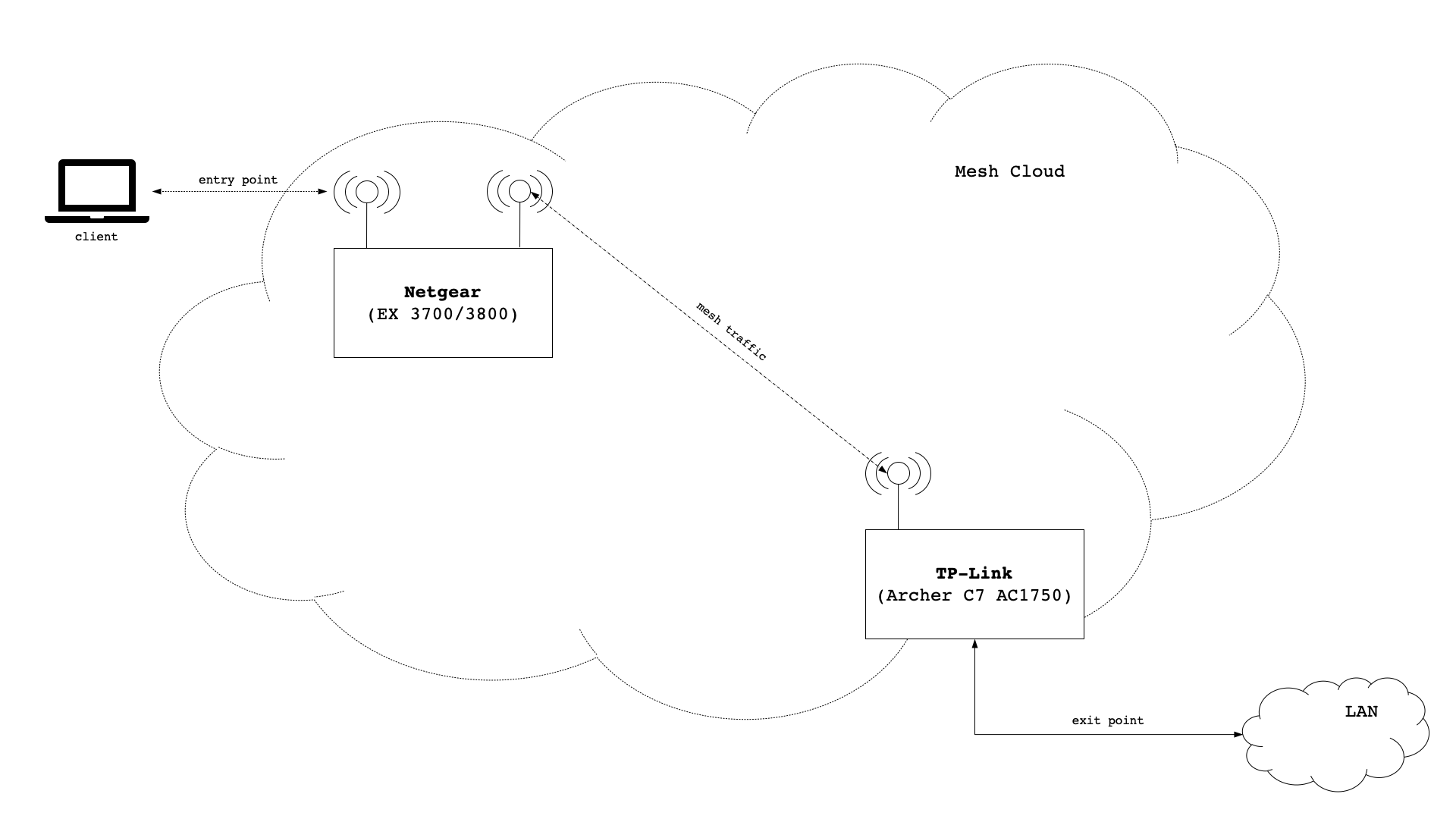
The technical terms under which we address the 2 above nodes require some quick clarification. A device that provides a gateway into another network, like an uplink to the internet (i.e. via cable connection), can be called an exit point in a mesh setup. A device that enables clients such as mobile phones and laptops to connect to the mesh network can be called entry point in a mesh setup.

mesh setup

Having said that, the Netgear device will be mesh node with no connection to any other networks. It will only have the ability to reach other networks by going through the mesh network it is a part of. It will pose as a wireless access point and provide users with the ability to connect to “the” network. Hence, the Netgear device is a plain entry point in our mesh setup.

The TP-Link device has two roles! It will be a mesh node that, while being connected to other mesh nodes, will pose as a wireless access point. The TP-Link device will be an entry point in our mesh setup. At the same time the TP-Link device will have a connection to other networks than the mesh network. It will pose as a gateway out of the mesh network into other networks. Therefore, the TP-Link device will be an exit point as well.

Assumptions / Scope

This post assumes that you can manage to install OpenWrt onto the TP-Link and the Netgear device on your own. Also, this post doesn’t cover initial network setup for the TP-Link device in terms of WAN interface, DNS Server, DHCP Server or Firewall. It is assumed you know your way around the basic workings of how computer networks are coming together.

Network Setup

We will use the network 192.168.28.0/24 and setup the following configuration:

DeviceConfig KeyConfig Value
TP-Linkipaddr192.168.28.1
gateway
SSID
Netgearipaddr192.168.28.3
gateway192.168.28.1
SSID24TEST

TP-Link Archer C7 AC1750

While this device could of course offer wifi, in our initial setup we decide not to do that at first. The reason is that it might help understand that wifi communication for mesh and wifi communication for access points (client devices) are totally separate from on another. Actually, different radios can be used all together.

Let’s start by figuring out how many radios our device has and which frequencies are supported:

root@AC1750:~# iw phy | grep 'MHz \['
			* 2412 MHz [1] (24.0 dBm)
			* 2417 MHz [2] (24.0 dBm)
			* 2422 MHz [3] (24.0 dBm)
			* 2427 MHz [4] (24.0 dBm)
			* 2432 MHz [5] (24.0 dBm)
			* 2437 MHz [6] (24.0 dBm)
			* 2442 MHz [7] (24.0 dBm)
			* 2447 MHz [8] (24.0 dBm)
			* 2452 MHz [9] (24.0 dBm)
			* 2457 MHz [10] (24.0 dBm)
			* 2462 MHz [11] (24.0 dBm)
			* 2467 MHz [12] (disabled)
			* 2472 MHz [13] (disabled)
			* 2484 MHz [14] (disabled)
			* 5180 MHz [36] (23.0 dBm)
			* 5200 MHz [40] (23.0 dBm)
			* 5220 MHz [44] (23.0 dBm)
			* 5240 MHz [48] (23.0 dBm)
			* 5260 MHz [52] (23.0 dBm) (radar detection)
			* 5280 MHz [56] (23.0 dBm) (radar detection)
			* 5300 MHz [60] (23.0 dBm) (radar detection)
			* 5320 MHz [64] (23.0 dBm) (radar detection)
			* 5500 MHz [100] (23.0 dBm) (radar detection)
			* 5520 MHz [104] (23.0 dBm) (radar detection)
			* 5540 MHz [108] (23.0 dBm) (radar detection)
			* 5560 MHz [112] (23.0 dBm) (radar detection)
			* 5580 MHz [116] (23.0 dBm) (radar detection)
			* 5600 MHz [120] (23.0 dBm) (radar detection)
			* 5620 MHz [124] (23.0 dBm) (radar detection)
			* 5640 MHz [128] (23.0 dBm) (radar detection)
			* 5660 MHz [132] (23.0 dBm) (radar detection)
			* 5680 MHz [136] (23.0 dBm) (radar detection)
			* 5700 MHz [140] (23.0 dBm) (radar detection)
			* 5720 MHz [144] (23.0 dBm) (radar detection)
			* 5745 MHz [149] (30.0 dBm)
			* 5765 MHz [153] (30.0 dBm)
			* 5785 MHz [157] (30.0 dBm)
			* 5805 MHz [161] (30.0 dBm)
			* 5825 MHz [165] (30.0 dBm)
			* 5845 MHz [169] (disabled)
			* 5865 MHz [173] (disabled)

Well, we kind of knew upfront that the device has both a 2.4 GHz and a 5 GHz radio, but now we can explicitly see all the frequencies and channels that are supported by the device. What we need to check next is if (and how) the device supports 802.11s:

root@AC1750:~# iw phy | grep -i mesh
		 * mesh point
		 * #{ managed } <= 2048, #{ AP, mesh point } <= 8, #{ P2P-client, P2P-GO } <= 1, #{ IBSS } <= 1,
		 * mesh point
		 * #{ AP, mesh point } <= 8, #{ managed } <= 1,

Looks good. Next step is to install the B.A.T.M.A.N. kernel module as well as the full version of batctl.

root@AC1750:~# opkg update
root@AC1750:~# opkg install kmod-batman-adv
root@AC1750:~# opkg install batctl-full

We also need to install wpad-mesh, but it conflicts with wpad-basic – so we need to send that one packing upfront.

root@AC1750:~# opkg remove wpad-basic
root@AC1750:~# opkg install wpad-mesh-openssl

Wireless Config

We are going to create a mesh network with the name MyMesh and encrypt it with psk2 and ccmp. We will put our mesh network on our 5 GHz radio and create an internal network device called nwi_mesh0. We need to edit the file /etc/config/wireless and insert the following:

config wifi-iface 'wifinetmesh0'
        option device 'radio5'
        option ifname 'mesh0'
        option network 'nwi_mesh0'
        option mode 'mesh'
        option mesh_fwding '0'
        option mesh_id 'MyMesh'
        option encryption 'psk2+ccmp'
        option key 'mysecretpassword'

We have to make sure that our device name (line 2) matches that of our 5 GHz radio. In a fresh installation of OpenWrt radios are often numbered through starting from zero (radio0, radio1, etc.). I like to rename my radios to radio24 (2.4 GHz) and radio5 (5 GHz) for better readability. Anyway, the other thing that is important is the name of our internal network device (line 4) which we will create later via /etc/config/network. All other options in the configuration stanza above must be the same on every other mesh node in our mesh network! There are 3 other settings that also must be the same across all mesh nodes in the mesh network: wireless protocol, radio frequency (channel) and channel width. Below are settings for channel 48 (5240 MHz), wireless 802.11a and an 80MHz throughput.

config wifi-device 'radio5'
        option type 'mac80211'
        option channel '48'
        option hwmode '11a'
        option htmode 'VHT80'
        option path 'pci0000:00/0000:00:00.0'
 

Network Config

We need to create two interfaces and bridge them with our local area network. The first interface we need to specify is bat0, which we need to adhere to the batman advanced protocol (batadv). The second interface we need is nwi_mesh0, as this is the exact name we gave in the wireless config earlier on. That one will adhere to the batman advanced hard interface protocol (batadv_hardif). Also, because B.A.T.M.A.N. is a layer 2 protocol, we should increase the MTU above the typical value of 1500 so that we can avoid packet fragmentation. We add the following stanza in the file /etc/config/network.

config interface 'nwi_mesh0'
        option proto 'batadv_hardif'
        option mtu '2304'
        option master 'bat0'

config interface 'bat0'
        option proto 'batadv'

Last but not least we need to bridge the bat0 interface with our local area network by adding it to the interface definition of lan. We change the following line in /etc/config/network.

config interface 'lan'
        option stp '1'
        option type 'bridge'
        option ifname 'eth0.1 bat0'
        option proto 'static'
        option ipaddr '192.168.28.1'
        option netmask '255.255.255.0'
        option delegate '0'

That’s it for the TP-Link device. We should reboot to make sure all changes will be applied.

Netgear EX3700 / EX3800

Mostly we will apply the exact same setup, but with two differences:

  1. the device will not be connected to the internet, so we will need to copy the packages onto the device via scp
  2. the device will also provide a wireless access point for client devices to connect to it

Let’s start with checking the preconditions. Without showing lengthy console dumps to prove it, it is safe to say that this device also supports 802.11s as well as both a 2.4 GHz and a 5 GHz radio. On the 5 GHz radio it supports one less channel than the TP-Link device (channel 144 is missing), but other than than things look pretty compatible.

Copy & Install packages

For the packages needed, there are some dependencies that we need to supply as well. We need to copy the following packages onto the Netgear device (i.e. via scp):

batctl-full_2019.2-3_mipsel_24kc.ipk
kmod-batman-adv_4.14.171+2019.2-5_mipsel_24kc.ipk
kmod-cfg80211_4.14.171+4.19.98-1-1_mipsel_24kc.ipk
kmod-crypto-crc32c_4.14.171-1_mipsel_24kc.ipk
kmod-crypto-hash_4.14.171-1_mipsel_24kc.ipk
kmod-lib-crc16_4.14.171-1_mipsel_24kc.ipk
kmod-lib-crc32c_4.14.171-1_mipsel_24kc.ipk
libopenssl1.1_1.1.1d-2_mipsel_24kc.ipk
librt_1.1.24-2_mipsel_24kc.ipk
wpad-mesh-openssl_2019-08-08-ca8c2bd2-2_mipsel_24kc.ipk

Next we follow the exact same installation procedure as for the TP-Link device. One thing we should watch out for is flash memory… the Netgear device doesn’t offer much ‘free disk space’, so it might be wise to copy, install and delete one package as a time.

Wireless config

We actually use the exact same wireless config stanza as for the TP-Link device. As far as the radio is concerned, we have to make sure that wireless protocol, radio frequency (channel) and channel width match with the settings for the TP-Link device.

In addition we want our Netgear device to be a wireless access point. We define a new wireless access point named , so we need to define 24TEST for our 2.4 GHz radio. Note that what happens on the 2.4 GHz radio and the access point 24TEST have nothing to do with our mesh network. Both configurations are totally separate from one another. The interesting part of 24TEST though is line 21, which defines the network interface to the wireless access point.

config wifi-device 'radio5'
        option type 'mac80211'
        option channel '48'
        option hwmode '11a'
        option path 'pci0000:00/0000:00:00.0/0000:01:00.0'
        option htmode 'VHT80'

config wifi-device 'radio24'
        option type 'mac80211'
        option channel '11'
        option hwmode '11g'
        option path 'platform/10180000.wmac'
        option htmode 'HT40'

config wifi-iface 'wifinet24test'
        option device 'radio24'
        option mode 'ap'
        option key 'anothersecretpassword'
        option encryption 'psk2'
        option ssid '24TEST'
        option network 'lan'

config wifi-iface 'wifinetmesh0'
        option device 'radio5'
        option ifname 'mesh0'
        option network 'nwi_mesh0'
        option mode 'mesh'
        option mesh_fwding '0'
        option mesh_id 'MyMesh'
        option encryption 'psk2+ccmp'
        option key 'mysecretpassword'

Network Config

Again, we do the exact same things as for the TP-Link device in /etc/config/network.

config interface 'nwi_mesh0'
        option proto 'batadv_hardif'
        option mtu '2304'
        option master 'bat0'

config interface 'bat0'
        option proto 'batadv'

Where things look a little bit different, is the definition of the local area network (lan) in /etc/config/network. Of course we have a different IP address (line 6), but we also must declare the TP-Link device as gateway (line 8) and dns server (line 10).

config interface 'lan'
        option stp '1'
        option type 'bridge'
        option ifname 'eth0 bat0'
        option proto 'static'
        option ipaddr '192.168.28.3'
        option netmask '255.255.255.0'
        option gateway '192.168.28.1'
        option delegate '0'
        list dns '192.168.28.1'

Putting things up for a test (layer 2)

B.A.T.M.A.N. is a layer 2 protocol, which means there is a bunch of stuff that we can do without an IP address. First, we can log in to either device and the first thing we should make sure is that the mesh devices mesh0 and bat0 are up and running:

root@EX3700:~# ip link
1: lo: <LOOPBACK,UP,LOWER_UP> mtu 65536 qdisc noqueue state UNKNOWN qlen 1000
    link/loopback 00:00:00:00:00:00 brd 00:00:00:00:00:00
2: eth0: <BROADCAST,MULTICAST,UP,LOWER_UP> mtu 1500 qdisc fq_codel master br-lan state UNKNOWN qlen 1000
    link/ether 3c:37:86:60:f7:1f brd ff:ff:ff:ff:ff:ff
5: br-lan: <BROADCAST,MULTICAST,UP,LOWER_UP> mtu 1500 qdisc noqueue state UP qlen 1000
    link/ether 3c:37:86:60:f7:1f brd ff:ff:ff:ff:ff:ff
6: mesh0: <BROADCAST,MULTICAST,UP,LOWER_UP> mtu 2304 qdisc noqueue master bat0 state UP qlen 1000
    link/ether 3c:37:86:60:f7:1e brd ff:ff:ff:ff:ff:ff
7: bat0: <BROADCAST,MULTICAST,UP,LOWER_UP> mtu 1500 qdisc noqueue master br-lan state UNKNOWN qlen 1000
    link/ether 96:e1:f8:8e:fc:d7 brd ff:ff:ff:ff:ff:ff
8: wlan1: <BROADCAST,MULTICAST,UP,LOWER_UP> mtu 1500 qdisc mq master br-lan state UP qlen 1000
    link/ether 3c:37:86:60:f7:1f brd ff:ff:ff:ff:ff:ff
9: wlan0-1: <BROADCAST,MULTICAST,UP,LOWER_UP> mtu 1500 qdisc noqueue master br-lan state UP qlen 1000
    link/ether 3e:37:86:60:f7:1e brd ff:ff:ff:ff:ff:ff

Next we should make sure that the nodes can find each other. If the following command returns nothing, there is probably a typo in the config, otherwise you should see this:

root@EX3700:~# iw dev mesh0 station dump
Station b0:be:76:e9:90:ab (on mesh0)
	inactive time:	0 ms
	rx bytes:	12437433
	rx packets:	141145
	tx bytes:	58226
	tx packets:	363
	tx retries:	26
	tx failed:	1
	rx drop misc:	4
	signal:  	-69 [-69, -71] dBm
	signal avg:	-66 [-66, -68] dBm
	Toffset:	6797824060 us
	tx bitrate:	351.0 MBit/s VHT-MCS 4 80MHz VHT-NSS 2
	rx bitrate:	263.3 MBit/s VHT-MCS 6 80MHz VHT-NSS 1
	rx duration:	26267 us
	last ack signal:0 dBm
	expected throughput:	60.333Mbps
	mesh llid:	0
	mesh plid:	0
	mesh plink:	ESTAB
	mesh local PS mode:	ACTIVE
	mesh peer PS mode:	ACTIVE
	mesh non-peer PS mode:	ACTIVE
	authorized:	yes
	authenticated:	yes
	associated:	yes
	preamble:	long
	WMM/WME:	yes
	MFP:		yes
	TDLS peer:	no
	DTIM period:	2
	beacon interval:100
	connected time:	6559 seconds

Now we should see our mesh neighbor with batctl.

root@EX3700:~# batctl o
[B.A.T.M.A.N. adv openwrt-2019.2-5, MainIF/MAC: mesh0/3c:37:86:60:f7:1e (bat0/96:e1:f8:8e:fc:d7 BATMAN_IV)]
   Originator        last-seen (#/255) Nexthop           [outgoingIF]
 * b0:be:76:e9:90:ab    0.420s   (255) b0:be:76:e9:90:ab [     mesh0]

If we want to know how much throughput we can expect, we can run a throughput test with batctl as well. We will use the MAC address from our neighbor.

root@EX3700:~# batctl tp b0:be:76:e9:90:ab
Test duration 10430ms.
Sent 58511592 Bytes.
Throughput: 5.35 MB/s (44.88 Mbps)

Putting things up for a test (Layer 3)

Finally, we can send a regular ping to see if layer 3 is fine as well.

root@EX3700:~# ping -c 3 192.168.28.1
PING 192.168.28.1 (192.168.28.1): 56 data bytes
64 bytes from 192.168.28.1: seq=0 ttl=64 time=1.540 ms
64 bytes from 192.168.28.1: seq=1 ttl=64 time=2.160 ms
64 bytes from 192.168.28.1: seq=2 ttl=64 time=1.240 ms

--- 192.168.28.1 ping statistics ---
3 packets transmitted, 3 packets received, 0% packet loss
round-trip min/avg/max = 1.240/1.646/2.160 ms

Summary

Beyond that point you should connect to the 24TEST wifi with your mobile phone and check that things are working fine there, too.

Other than that mesh with 802.11s only starts to make sense with 3 devices and more, so while our little test setup is a nice POC, fun doesn’t begin until many more devices (2- or 3-digit numbers of devices). That said, the list of neighbors with the following command can become much (much) longer:

root@EX3700:~# batctl n
[B.A.T.M.A.N. adv openwrt-2019.2-5, MainIF/MAC: mesh0/3c:37:86:60:f7:1e (bat0/96:e1:f8:8e:fc:d7 BATMAN_IV)]
IF             Neighbor              last-seen
        mesh0	  b0:be:76:e9:90:ab    0.570s

OpenLDAP Server

Installing an OpenLDAP Server for central user management

This post explains how to setup a LDAP DNS server inside a jail and surround it with a phpLDAPadmin web UI inside that same jail. Whenever a new client is served an ip address from the DHCP server, the DHCP server will update the DNS server with the new ip address dynamically.

OpenLDAP

The first thing we need to do is to install the needed openldap-server package. Before we do that we set the time zone though:

tzsetup Europe/Berlin
pkg install openldap-server

After installation of the openldap-server package we already get two messages – one from the openldap-client package and one from the openldap-server package. Let’s look at the openldap-client message:

Message from openldap-client-2.4.45:

************************************************************

The OpenLDAP client package has been successfully installed.

Edit
  /usr/local/etc/openldap/ldap.conf
to change the system-wide client defaults.

Try `man ldap.conf' and visit the OpenLDAP FAQ-O-Matic at
  http://www.OpenLDAP.org/faq/index.cgi?file=3
for more information.

************************************************************

We will actually follow that right away and edit our ldap.conf file as follows:

BASE    dc=home,dc=local 
URI     ldap://ldap1.home.local ldap://ldap1.home.local:666

SIZELIMIT       0
TIMELIMIT       15
DEREF           never

The other message we get is from openldap-server:

Message from openldap-server-2.4.45_4:

************************************************************

The OpenLDAP server package has been successfully installed.

In order to run the LDAP server, you need to edit
  /usr/local/etc/openldap/slapd.conf
to suit your needs and add the following lines to /etc/rc.conf:
  slapd_enable="YES"
  slapd_flags='-h "ldapi://%2fvar%2frun%2fopenldap%2fldapi/ ldap://0.0.0.0/"'
  slapd_sockets="/var/run/openldap/ldapi"

Then start the server with
  /usr/local/etc/rc.d/slapd start
or reboot.

Try `man slapd' and the online manual at
  http://www.OpenLDAP.org/doc/
for more information.

slapd runs under a non-privileged user id (by default `ldap'),
see /usr/local/etc/rc.d/slapd for more information.

************************************************************

We will copy the following entries into our /etc/rc.conf:

slapd_enable="YES"
slapd_flags='-h "ldapi://%2fvar%2frun%2fopenldap%2fldapi/ ldap://0.0.0.0/"'
slapd_sockets="/var/run/openldap/ldapi"

Also, we have to seriously edit our /usr/local/etc/openldap/slapd.conf file and make sure that the following lines are in the config file:

# Include 4 important schema files at least
include         /usr/local/etc/openldap/schema/core.schema
include         /usr/local/etc/openldap/schema/cosine.schema
include         /usr/local/etc/openldap/schema/inetorgperson.schema
include         /usr/local/etc/openldap/schema/nis.schema

# Define the storage location for pid and argument file
pidfile         /var/run/openldap/slapd.pid
argsfile        /var/run/openldap/slapd.args

# set the log level so we stat log connections/operations/results
loglevel        256

# Load dynamic backend modules:
modulepath      /usr/local/libexec/openldap
moduleload      back_mdb

#######################################################################
# MDB database definitions
#######################################################################
database        mdb
maxsize         1073741824

# Define our domain suffix and root dn
suffix          "dc=home,dc=local"
rootdn          "cn=Manager,dc=home,dc=local"

# Use of strong authentication for password
rootpw        {SSHA}SYPSMKmTgbugazvkHadr47fra83ISyON
password-hash {SSHA}

# The database directory MUST exist prior to running slapd AND 
# should only be accessible by the slapd and slap tools.
# Mode 700 recommended.
directory       /var/db/openldap-data
# Indices to maintain
index   objectClass     eq

Now you might wonder where the root password comes from? Very easy – you need to create the hash using the slappasswd utility on the command line.

slappasswd -h "{SSHA}"

You will be asked to enter a password and in return you will receive a strong hash for your password (in the example above the password test123 has produced the hash SYPSMKmTgbugazvkHadr47fra83ISyON).

Now we can already start our OpenLDAP server using the following command:

service slapd start

If we look into /var/log/messages we can see the correct start of the server. However, ideally we want a separate log file just for OpenLDAP. We can create that logfile by adding the following two lines into the /etc/syslog.conf file:

!slapd
*.*                                             /var/log/slapd.log

We need to create the empty log file and restart the syslogd daemon next:

touch /var/log/slapd.log
service syslogd restart
service slapd restart

With that done we should see a separate log file with the following content:

Mar 18 11:07:28 ldap slapd[54700]: @(#) $OpenLDAP: slapd 2.4.45 (Mar 15 2018 21:57:40) $        root@111amd64-default-job-17:/wrkdirs/usr/ports/net/openldap24-server/work/openldap-2.4.45/servers/slapd
Mar 18 11:07:28 ldap slapd[54701]: slapd starting

Finally we can create ourselves a small LDIF file and import that into our database.

dn: dc=home,dc=local
objectclass: dcObject
objectclass: organization
o: home
dc: home

dn: cn=Manager,dc=home,dc=local 
objectclass: organizationalRole
cn: Manager

When importing the file you will be asked for a password. The password you have to enter is the same you have put as a hash into the /usr/local/etc/openldap/slapd.conf file (in our example we used test123).

cd /usr/local/etc/openldap
ldapadd -D "cn=Manager,dc=home,dc=local" -W -f import.ldif

Congratulations! Our OpenLDAP server is setup and ready to be used. Special note here: in case you need a SAMBA schema you will note the schema files are not provided by the OpenLDAP installation. Don’t worry, you can find the schema here: https://raw.githubusercontent.com/samba-team/samba/master/examples/LDAP/samba.schema

Nginx

We actually would like to have a web frontend for our OpenLDAP server. One easy way is to install phpLDAPadmin which requires Nginx and PHP. Let’s start by installing Nginx:

pkg install nginx

Right after installation we can enable the service in /etc/rc.conf

sysrc nginx_enable=YES
nginx_enable:  -> YES

After that we can start the service and test it:

service nginx start
Performing sanity check on nginx configuration:
nginx: the configuration file /usr/local/etc/nginx/nginx.conf syntax is ok
nginx: configuration file /usr/local/etc/nginx/nginx.conf test is successful
Starting nginx.

If you have a SSL certificate you need to put the following into your server section of your nginx.conf file:

    server {
        listen          443 ssl;
        server_name     ldap1 ldap1.home.local;

        ssl_certificate         ldap1.home.local.bundle.pem;
        ssl_certificate_key     ldap1.home.local.key.pem;

Above will take care of serving content via https. In addition you could redirect all http traffic to https by putting in an additional server section:

    server {
        listen          80 default;
        server_name     ldap1 ldap1.home.local;
        access_log      off;
        error_log       off;
        ## redirect http to https ##
        return          301 https://$server_name$request_uri;
    }

PHP

For phpLDAPadmin we are going to install version 5.6 of PHP. Let’s install the package via package manager:

pkg install php56

First of all we need a php.ini file. We can just copy the production example that comes along with the package:

cp /usr/local/etc/php.ini-production /usr/local/etc/php.ini

In the php.ini file we should apply the following fix:

;cgi.fix_pathinfo=1
cgi.fix_pathinfo=0

Next we need to adapt /usr/local/etc/php-fpm.conf to setup fpm for our needs. Find the line where it says at which port to listen and replace that line with an instruction to use a socket file instead.

;listen = 127.0.0.1:9000
listen = /var/run/php-fpm.sock

In the same file find the three lines about listener ownership and uncomment them. Please note that you have to change the listen.mode from 0660 to 0666 as otherwise phpLDAPadmin will complain about missing _SESSION variables (don’t ask me why… didn’t further investigate this).

listen.owner = www
listen.group = www
listen.mode = 0666

Next we have to take care of a couple of things in the Nginx configuration. Edit your nginx.conf file to replace the location section as follows:

#location / {
#    root   /usr/local/www/nginx;
#    index  index.html index.htm;
#}

location / {
    try_files $uri $uri/ =404;
}

root /usr/local/www/nginx;
index index.php index.html index.htm;

location ~ \.php$ {
    try_files $uri =404;
    fastcgi_split_path_info ^(.+\.php)(/.+)$;
    fastcgi_pass unix:/var/run/php-fpm.sock;
    fastcgi_index index.php;
    fastcgi_param SCRIPT_FILENAME $request_filename;
    include fastcgi_params;
}

Now let’s enable the php fpm service.

sysrc php_fpm_enable=YES

php_fpm_enable:  -> YES

And of course, let’s start the php fpm service.

service php-fpm start

Performing sanity check on php-fpm configuration:
[25-Mar-2018 13:09:41] NOTICE: configuration file /usr/local/etc/php-fpm.conf test is successful

Starting php_fpm.

Last but not least we need to restart Nginx.

service nginx restart

Performing sanity check on nginx configuration:
nginx: the configuration file /usr/local/etc/nginx/nginx.conf syntax is ok
nginx: configuration file /usr/local/etc/nginx/nginx.conf test is successful
Stopping nginx.
Waiting for PIDS: 30037.
Performing sanity check on nginx configuration:
nginx: the configuration file /usr/local/etc/nginx/nginx.conf syntax is ok
nginx: configuration file /usr/local/etc/nginx/nginx.conf test is successful
Starting nginx.

phpLDAPadmin

Let’s install the package via package manager:

pkg install phpldapadmin

The package manager will tell you that it installed phpLDAPadmin into folder /usr/local/www/phpldapadmin. As a first activity, we need to edit the config.php configuration file as we need to setup our LDAP connection details. For that please change the following lines as follows:

// $servers->setValue('server','host','127.0.0.1');
$servers->setValue('server','host','ldap://ldap1.home.local');

// $servers->setValue('server','port',389);
$servers->setValue('server','port',389);

// $servers->setValue('login','auth_type','session');
$servers->setValue('login','auth_type','session');

Eventually we have to edit our nginx.conf again as we need to point the web server root to phpLDAPadmin.

#root /usr/local/www/nginx;
root /usr/local/www/phpldapadmin/htdocs;

For the change to take effect please restart Nginx:

service nginx restart

When creating new posix accounts we should make sure that user ids do not collide with local system users. The way we do it is to make sure new users are being created with ids of 10.000 and above. We will edit the posixAccount.xml template that phpLDAPadmin provides for posix account creation. Specifically we will override the value for the uidNumber attribute:

        UID Number
        terminal.png
        6
        1
        1
<!--    <value>=php.GetNextNumber(/;uidNumber)</value> -->
        =php.GetNextNumber(/;uidNumber;;;;10000)

Neat trick 😉 …now we do the same thing for the gidNumber attribute in the posixGroup.xml template:

        GID Number
        2
        1
        1
        1
<!--    <value>=php.GetNextNumber(/;gidNumber)</value> -->
        =php.GetNextNumber(/;gidNumber;;;;10000)

Taking things for a spin

Last but not least we should check that we can do an ldap search from a remote host somewhere. We use the following command:

ldapsearch -x -b 'dc=home,dc=local' -h ldap.home.local -D 'cn=myuser,ou=users,dc=home,dc=local' -W

If things go to plan you are being prompted for the password of your user (“myuser” in the example above). The query should return something ending with these lines:

# search result
search: 2
result: 0 Success

The importing thing in the result above being the result code 0 Success.

Bonus: Change DN layout for new users

Right now phpLDAPadmin creates new users with a distinguished name that is driven by cn, however we might want users to become created driven by uid. Changing that requires us to go back to the posixAccount.xml template. There we need to do one more so phpLDAPadmin will create new users with a DN driven by uid:

<!-- <rdn>cn</rdn> -->
uid

Why do we do that? Consider this:

dn: cn=sample user,ou=users,dc=home,dc=local
objectClass: top
objectClass: inetOrgPerson
cn: sample user
uid: sampleuser

but on the other hand consider this:

dn: uid=sampleuser,ou=users,dc=home,dc=local
objectClass: top
objectClass: inetOrgPerson
cn: sample user
uid: sampleuser

Even though the attributes are identical, the DN is the primary key and the entries given above, are two complete separate entries with two different DNs. Now if we want to login via uid later on, rather than cn, we need that fix.

Certificate Authority

Creating a local certificate authority

This post explains how to setup a local CA (certificate authority) from which to issue server certificates for a local network.

Our Setup

At home we also want to have SSL certificates for our servers, so we can leverage encryption of http traffic and turn it into https. Also, some infrastructure servers (i.e. GIT) will rely on https, so it will be a good idea to be prepared. Our setup will consist of three layers:

Root CA <-> Intermediate CA <-> Servers

The general reason we don’t issue server certificates directly from the root CA is that it is 1) rather uncommon to do so and 2) we might end up with the need for more than one CA to issue server certificates in our network (i.e. using lets encrypt)

Root CA

The first thing we need to do is to setup a root CA which more or less is nothing more than a structure of directories on any host. The host actually doesn’t need to be a server and literally can be your laptop. No services need to be started and in reality the root CA often is an air gapped computer.

mkdir /root/ca
cd /root/ca
mkdir certs crl newcerts private
chmod 700 private
touch index.txt
echo 1000 > serial

Now we need to create a config file for openssl

touch caconfig.cnf

The file content is shown below. Please note that the root directory in line 7 of the file needs to match the directory on your drive. If you decide to create the directory somewhere else, please adapt line 7. The same goes for the subdirectories between line 8 and line 21.

[ ca ]
# `man ca`
default_ca = CA_default

[ CA_default ]
# Directory and file locations.
dir               = /root/ca
certs             = $dir/certs
crl_dir           = $dir/crl
new_certs_dir     = $dir/newcerts
database          = $dir/index.txt
serial            = $dir/serial
RANDFILE          = $dir/private/.rand

# The root key and root certificate.
private_key       = $dir/private/ca.key.pem
certificate       = $dir/certs/ca.cert.pem

# For certificate revocation lists.
crlnumber         = $dir/crlnumber
crl               = $dir/crl/ca.crl.pem
crl_extensions    = crl_ext
default_crl_days  = 30

# SHA-1 is deprecated, so use SHA-2 instead.
default_md        = sha256

name_opt          = ca_default
cert_opt          = ca_default
default_days      = 375
preserve          = no
policy            = policy_strict

[ policy_strict ]
# The root CA should only sign intermediate certificates that match.
# See the POLICY FORMAT section of `man ca`.
countryName             = match
stateOrProvinceName     = match
organizationName        = match
organizationalUnitName  = optional
commonName              = supplied
emailAddress            = optional

[ policy_loose ]
# Allow the intermediate CA to sign a more diverse range of certificates.
# See the POLICY FORMAT section of the `ca` man page.
countryName             = optional
stateOrProvinceName     = optional
localityName            = optional
organizationName        = optional
organizationalUnitName  = optional
commonName              = supplied
emailAddress            = optional

[ req ]
# Options for the `req` tool (`man req`).
default_bits        = 2048
distinguished_name  = req_distinguished_name
string_mask         = utf8only

# SHA-1 is deprecated, so use SHA-2 instead.
default_md          = sha256

# Extension to add when the -x509 option is used.
x509_extensions     = v3_ca

[ req_distinguished_name ]
# See .
countryName                     = Country Name (2 letter code)
stateOrProvinceName             = State or Province Name
localityName                    = Locality Name
0.organizationName              = Organization Name
organizationalUnitName          = Organizational Unit Name
commonName                      = Common Name
emailAddress                    = Email Address

# Optionally, specify some defaults.
countryName_default             = DE
stateOrProvinceName_default     = Saxony
localityName_default            = Dresden
0.organizationName_default      = Example
organizationalUnitName_default  = Example Certificate Authority
emailAddress_default            = john.doe@example.com

[ v3_ca ]
# Extensions for a typical CA (`man x509v3_config`).
subjectKeyIdentifier = hash
authorityKeyIdentifier = keyid:always,issuer
basicConstraints = critical, CA:true
keyUsage = critical, digitalSignature, cRLSign, keyCertSign

[ v3_intermediate_ca ]
# Extensions for a typical intermediate CA (`man x509v3_config`).
subjectKeyIdentifier = hash
authorityKeyIdentifier = keyid:always,issuer
basicConstraints = critical, CA:true
keyUsage = critical, digitalSignature, cRLSign, keyCertSign

[ v3_intermediate_ca ]
# Extensions for a typical intermediate CA (`man x509v3_config`).
subjectKeyIdentifier = hash
authorityKeyIdentifier = keyid:always,issuer
basicConstraints = critical, CA:true, pathlen:0
keyUsage = critical, digitalSignature, cRLSign, keyCertSign

[ usr_cert ]
# Extensions for client certificates (`man x509v3_config`).
basicConstraints = CA:FALSE
nsCertType = client, email
nsComment = "OpenSSL Generated Client Certificate"
subjectKeyIdentifier = hash
authorityKeyIdentifier = keyid,issuer
keyUsage = critical, nonRepudiation, digitalSignature, keyEncipherment
extendedKeyUsage = clientAuth, emailProtection

[ server_cert ]
# Extensions for server certificates (`man x509v3_config`).
basicConstraints = CA:FALSE
nsCertType = server
nsComment = "OpenSSL Generated Server Certificate"
subjectKeyIdentifier = hash
authorityKeyIdentifier = keyid,issuer:always
keyUsage = critical, digitalSignature, keyEncipherment
extendedKeyUsage = serverAuth

[ crl_ext ]
# Extension for CRLs (`man x509v3_config`).
authorityKeyIdentifier=keyid:always

[ ocsp ]
# Extension for OCSP signing certificates (`man ocsp`).
basicConstraints = CA:FALSE
subjectKeyIdentifier = hash
authorityKeyIdentifier = keyid,issuer
keyUsage = critical, digitalSignature
extendedKeyUsage = critical, OCSPSigning

Now it is time to create the root key. Because we are creating a private key for a root CA we should use 4096 bit encryption.

cd /root/ca
openssl genrsa -aes256 -out private/ca.key.pem 4096

You will be prompted to give a password:

Enter pass phrase for ca.key.pem: mysecretpassword
Verifying - Enter pass phrase for ca.key.pem: mysecretpassword

After the certificate is created we should make sure nobody else can read it on the filesystem.

chmod 400 private/ca.key.pem

Now we create a signing request for a certificate that is valid for 20 years. We also implicitly self sign the request:

cd /root/ca
openssl req -config caconfig.cnf -key private/ca.key.pem -new -x509 -days 7300 -sha256 -extensions v3_ca -out certs/ca.cert.pem


When we are being prompted for the password, we shall give the private key password from above.

Enter pass phrase for ca.key.pem: mysecretpassword
You are about to be asked to enter information that will be incorporated
into your certificate request.
-----
Country Name (2 letter code) [XX]:DE
State or Province Name []:Saxony
Locality Name []: Dresden
Organization Name []:Example
Organizational Unit Name []:Example Certificate Authority
Common Name []:Example Root CA
Email Address []:john.doe@example.com

The public certificate can be read by everybody, as long as nobody can write it. If desired we can also use openssl to marvel at our fresh certificate and verify it.

chmod 444 certs/ca.cert.pem
openssl x509 -noout -text -in certs/ca.cert.pem

Intermediate CA

Same as for the root CA, we now setup an intermediate CA. The intermediate CA could be at the same host, but it really doesn’t have to be though.

mkdir /root/ca/ca-intermediate
cd /root/ca/ca-intermediate
mkdir certs crl csr newcerts private
chmod 700 private
touch index.txt
echo 1000 > serial
echo 1000 > crlnumber

Again, we need to create a config file for openssl

touch ca-intermediate.cnf

The file content is shown below. Not much has changed compared to the root CA. The policy we apply is now loose (see line 32) and we copy possible extensions (see line 35). Again, the root directory in line 7 of the file needs to match the directory on your drive. If you decide to create the directory somewhere else, please adapt line 7. The same goes for the subdirectories between line 8 and line 21.

[ ca ]
# `man ca`
default_ca = CA_default

[ CA_default ]
# Directory and file locations.
dir               = /root/ca/ca-intermediate
certs             = $dir/certs
crl_dir           = $dir/crl
new_certs_dir     = $dir/newcerts
database          = $dir/index.txt
serial            = $dir/serial
RANDFILE          = $dir/private/.rand

# The root key and root certificate.
private_key     = $dir/private/intermediate.key.pem
certificate     = $dir/certs/intermediate.cert.pem

# For certificate revocation lists.
crlnumber         = $dir/crlnumber
crl               = $dir/crl/intermediate.crl.pem
crl_extensions    = crl_ext
default_crl_days  = 30

# SHA-1 is deprecated, so use SHA-2 instead.
default_md        = sha256

name_opt          = ca_default
cert_opt          = ca_default
default_days      = 375
preserve          = no
policy            = policy_loose

# <<< I M P O R T A N T >>>
copy_extensions   = copy

[ policy_strict ]
# The root CA should only sign intermediate certificates that match.
# See the POLICY FORMAT section of `man ca`.
countryName             = match
stateOrProvinceName     = match
organizationName        = match
organizationalUnitName  = optional
commonName              = supplied
emailAddress            = optional

[ policy_loose ]
# Allow the intermediate CA to sign a more diverse range of certificates.
# See the POLICY FORMAT section of the `ca` man page.
countryName             = optional
stateOrProvinceName     = optional
localityName            = optional
organizationName        = optional
organizationalUnitName  = optional
commonName              = supplied
emailAddress            = optional

[ req ]
# Options for the `req` tool (`man req`).
default_bits        = 2048
distinguished_name  = req_distinguished_name
string_mask         = utf8only

# SHA-1 is deprecated, so use SHA-2 instead.
default_md          = sha256

# Extension to add when the -x509 option is used.
x509_extensions     = v3_ca

[ req_distinguished_name ]
# See .
countryName                     = Country Name (2 letter code)
stateOrProvinceName             = State or Province Name
localityName                    = Locality Name
0.organizationName              = Organization Name
organizationalUnitName          = Organizational Unit Name
commonName                      = Common Name
emailAddress                    = Email Address

# Optionally, specify some defaults.
countryName_default             = DE
stateOrProvinceName_default     = Saxony
localityName_default            = Dresden
0.organizationName_default      = Example
organizationalUnitName_default  = Example Certificate Authority
emailAddress_default            = john.doe@example.com

[ v3_ca ]
# Extensions for a typical CA (`man x509v3_config`).
subjectKeyIdentifier = hash
authorityKeyIdentifier = keyid:always,issuer
basicConstraints = critical, CA:true
keyUsage = critical, digitalSignature, cRLSign, keyCertSign

[ v3_intermediate_ca ]
# Extensions for a typical intermediate CA (`man x509v3_config`).
subjectKeyIdentifier = hash
authorityKeyIdentifier = keyid:always,issuer
basicConstraints = critical, CA:true, pathlen:0
keyUsage = critical, digitalSignature, cRLSign, keyCertSign

[ usr_cert ]
# Extensions for client certificates (`man x509v3_config`).
basicConstraints = CA:FALSE
nsCertType = client, email
nsComment = "OpenSSL Generated Client Certificate"
subjectKeyIdentifier = hash
authorityKeyIdentifier = keyid,issuer
keyUsage = critical, nonRepudiation, digitalSignature, keyEncipherment
extendedKeyUsage = clientAuth, emailProtection

[ server_cert ]
# Extensions for server certificates (`man x509v3_config`).
basicConstraints = CA:FALSE
nsCertType = server
nsComment = "OpenSSL Generated Server Certificate"
subjectKeyIdentifier = hash
authorityKeyIdentifier = keyid,issuer:always
keyUsage = critical, digitalSignature, keyEncipherment
extendedKeyUsage = serverAuth

[ crl_ext ]
# Extension for CRLs (`man x509v3_config`).
authorityKeyIdentifier=keyid:always

[ ocsp ]
# Extension for OCSP signing certificates (`man ocsp`).
basicConstraints = CA:FALSE
subjectKeyIdentifier = hash
authorityKeyIdentifier = keyid,issuer
keyUsage = critical, digitalSignature
extendedKeyUsage = critical, OCSPSigning

Next we can create the intermediate private key (please note that we are still in the ca-intermediate folder):

openssl genrsa -aes256 -out private/intermediate.key.pem 4096

We are being prompted to give a password:

Enter pass phrase for intermediate.key.pem: anothersecretpassword
Verifying - Enter pass phrase for intermediate.key.pem: anothersecretpassword

We should make sure that nobody can read the private key:

chmod 400 private/intermediate.key.pem

As a next step we now create a signing request:

openssl req -config ca-intermediate.cnf -new -sha256 -key private/intermediate.key.pem -out csr/intermediate.csr.pem

As we do so, we are being prompted for the password that protects the private key of our intermediate certificate authority.

Enter pass phrase for intermediate.key.pem: anothersecretpassword
You are about to be asked to enter information that will be incorporated
into your certificate request.
-----
Country Name (2 letter code) [XX]:DE
State or Province Name []:Saxony
Locality Name []:Dresden
Organization Name []:Example
Organizational Unit Name []:Example Certificate Authority
Common Name []:Example Intermediate CA
Email Address []:john.doeh@example.com

We have successfully created a certificate signing request. Now let’s go back to the Root CA and sign the request. Let’s make sure we use the Root CA’s openssl config for doing that:

cd /root/ca
openssl ca -config caconfig.cnf -extensions v3_intermediate_ca -days 3650 -notext -md sha256 -in ca-intermediate/csr/intermediate.csr.pem -out ca-intermediate/certs/intermediate.cert.pem

The password we are being prompted for is the password of the Root CA – makes sense, because the Root CA is asked to sign something.

Enter pass phrase for ca.key.pem: mysecretpassword
Sign the certificate? [y/n]: y

It should be allowed that everybody can read the public certificate. At the same time nobody should be allowed to write it.

chmod 444 ca-intermediate/certs/intermediate.cert.pem

We could verify the intermediate certificate with the following command:

openssl x509 -noout -text -in ca-intermediate/certs/intermediate.cert.pem

However, so much more important is to verify the chain of the intermediate certificate against the root certificate:

openssl verify -CAfile certs/ca.cert.pem ca-intermediate/certs/intermediate.cert.pem

intermediate.cert.pem: OK

On that note… let’s create a certificate chain that we can later on hand out to web servers (i.e. apache has an option for that):

cat ca-intermediate/certs/intermediate.cert.pem certs/ca.cert.pem > ca-intermediate/certs/ca-chain.cert.pem
chmod 444 ca-intermediate/certs/ca-chain.cert.pem

Server Certificate

Finally, we can issue a server certificate from our intermediate CA. At first, create the server key (make sure it is 2048 bit). As we are creating a certificate for a service (i.e. Nginx or Apache) we should skip the -aes256 option as we otherwise would create a private key with a password and would need to enter the password every time we start the service.

cd /root/ca/ca-intermediate
openssl genrsa -out private/myserver.example.com.key.pem 2048
chmod 400 private/myserver.example.com.key.pem

It makes a lot of sense to create a config file for openssl!

cd /root/ca/ca-intermediate
touch myserver.cnf

And here is why: look at lines 72, 96 and 99 until 101. Our server will have more than just one simple domain name service entry. It might be available under the full name myserver.example.com but also under the short name myserver. We need alternative DNS entries for the server certificate.

[ ca ]
# `man ca`
default_ca = CA_default

[ CA_default ]
# Directory and file locations.
dir               = /root/ca/ca-intermediate
certs             = $dir/certs
crl_dir           = $dir/crl
new_certs_dir     = $dir/newcerts
database          = $dir/index.txt
serial            = $dir/serial
RANDFILE          = $dir/private/.rand

# The root key and root certificate.
private_key     = $dir/private/intermediate.key.pem
certificate     = $dir/certs/intermediate.cert.pem

# For certificate revocation lists.
crlnumber         = $dir/crlnumber
crl               = $dir/crl/intermediate.crl.pem
crl_extensions    = crl_ext
default_crl_days  = 30

# SHA-1 is deprecated, so use SHA-2 instead.
default_md        = sha256

name_opt          = ca_default
cert_opt          = ca_default
default_days      = 375
preserve          = no
policy            = policy_loose

# <<< I M P O R T A N T >>>
# Extension copying option: use with caution.
copy_extensions   = copy

[ policy_strict ]
# The root CA should only sign intermediate certificates that match.
# See the POLICY FORMAT section of `man ca`.
countryName             = match
stateOrProvinceName     = match
organizationName        = match
organizationalUnitName  = optional
commonName              = supplied
emailAddress            = optional

[ policy_loose ]
# Allow the intermediate CA to sign a more diverse range of certificates.
# See the POLICY FORMAT section of the `ca` man page.
countryName             = optional
stateOrProvinceName     = optional
localityName            = optional
organizationName        = optional
organizationalUnitName  = optional
commonName              = supplied
emailAddress            = optional

[ req ]
# Options for the `req` tool (`man req`).
default_bits        = 2048
distinguished_name  = req_distinguished_name
string_mask         = utf8only

# SHA-1 is deprecated, so use SHA-2 instead.
default_md          = sha256

# Extension to add when the -x509 option is used.
x509_extensions     = v3_ca

# <<< I M P O R T A N T >>>
req_extensions      = v3_req

[ req_distinguished_name ]
# See .
countryName                     = Country Name (2 letter code)
stateOrProvinceName             = State or Province Name
localityName                    = Locality Name
0.organizationName              = Organization Name
organizationalUnitName          = Organizational Unit Name
commonName                      = Common Name
emailAddress                    = Email Address

# Optionally, specify some defaults.
countryName_default             = DE
stateOrProvinceName_default     = Saxony
localityName_default            = Dresden
0.organizationName_default      = Example
organizationalUnitName_default  = Example Web Services
emailAddress_default            = john.doe@example.com

[ v3_req ]
basicConstraints = CA:FALSE
keyUsage = nonRepudiation, digitalSignature, keyEncipherment
# <<< I M P O R T A N T >>>
subjectAltName = @alt_names

# <<< I M P O R T A N T >>>
[ alt_names ]
DNS.0 = myserver.example.com
DNS.1 = myserver

[ v3_ca ]
# Extensions for a typical CA (`man x509v3_config`).
subjectKeyIdentifier = hash
authorityKeyIdentifier = keyid:always,issuer
basicConstraints = critical, CA:true
keyUsage = critical, digitalSignature, cRLSign, keyCertSign

[ v3_intermediate_ca ]
# Extensions for a typical intermediate CA (`man x509v3_config`).
subjectKeyIdentifier = hash
authorityKeyIdentifier = keyid:always,issuer
basicConstraints = critical, CA:true, pathlen:0
keyUsage = critical, digitalSignature, cRLSign, keyCertSign

[ usr_cert ]
# Extensions for client certificates (`man x509v3_config`).
basicConstraints = CA:FALSE
nsCertType = client, email
nsComment = "OpenSSL Generated Client Certificate"
subjectKeyIdentifier = hash
authorityKeyIdentifier = keyid,issuer
keyUsage = critical, nonRepudiation, digitalSignature, keyEncipherment
extendedKeyUsage = clientAuth, emailProtection

[ server_cert ]
# Extensions for server certificates (`man x509v3_config`).
basicConstraints = CA:FALSE
nsCertType = server
nsComment = "OpenSSL Generated Server Certificate"
subjectKeyIdentifier = hash
authorityKeyIdentifier = keyid,issuer:always
keyUsage = critical, digitalSignature, keyEncipherment
extendedKeyUsage = serverAuth

[ crl_ext ]
# Extension for CRLs (`man x509v3_config`).
authorityKeyIdentifier=keyid:always

[ ocsp ]
# Extension for OCSP signing certificates (`man ocsp`).
basicConstraints = CA:FALSE
subjectKeyIdentifier = hash
authorityKeyIdentifier = keyid,issuer
keyUsage = critical, digitalSignature
extendedKeyUsage = critical, OCSPSigning

Now we create the signing request (make sure you’re in the intermediate ca folder and use the special server config as it contains the SAN):

openssl req -config myserver.cnf -key private/myserver.example.com.key.pem -new -sha256 -out csr/myserver.example.com.csr.pem

There should be no password prompt, as our private key is unprotected.

You are about to be asked to enter information that will be incorporated
into your certificate request.
-----
Country Name (2 letter code) [XX]:DE
State or Province Name []:Saxony
Locality Name []:Dresden
Organization Name []:Example
Organizational Unit Name []:Example Web Services
Common Name []:myserver.example.com
Email Address []:john.doe@example.com

Now we sign the request with the intermediate CA and write protect it:

openssl ca -config ca-intermediate.cnf -extensions server_cert -days 375 -notext -md sha256 -in csr/myserver.example.com.csr.pem -out certs/myserver.example.com.cert.pem
chmod 444 certs/myserver.example.com.cert.pem

You can verify the certificate:

openssl x509 -noout -text -in certs/myserver.example.com.cert.pem

However, very important would be to create a bundle that chains the intermediate certificate with the server certificate:

cat certs/myserver.example.com.cert.pem certs/intermediate.cert.pem > certs/myserver.example.com.bundle.pem

Last but not least lets verify the chain of the server certificate against the root certificate:

cd /root/ca
openssl verify -CAfile certs/ca.cert.pem ca-intermediate/certs/myserver.example.com.bundle.pem

myserver.example.com.cert.pem: OK

…all done!

FreeBSD tweaks for productivity

Having installed a fresh FreeBSD from scratch, you could use a couple of tools and settings for better productivity. This is what I do

For a freshly setup system there are a number of packages and config changes that will come in handy later on.

sudo

Let’s start with sudo. Login as root and execute the following command:

> pkg install sudo

Now edit type in the command visudo and find the following line:

#%wheel ALL=(ALL) ALL

You want to remove the # so that the line now reads as this:

%wheel ALL=(ALL) ALL

Now every user in the group wheel can use the sudo command.

ntp daemon

Having a precise time is extremely important. Edit the file /etc/rc.conf and make sure the following lines are in there:

ntpd_enable="YES"
ntpd_sync_on_start="YES"

openntpd

In case you want to run jails, you should not use ntpd as it will bind to all interfaces at the same time. On a “regular” system this is no problem, however as jails expect to have exclusive access to their own network interfaces, you could run into problems in your jails, as the port will be already taken by the underlying main host. Long stories short: openntpd can be setup to not bind to “any” interface. Install the package with the following command:

> pkg install openntpd

Edit the file /etc/rc.conf and make sure that ntpd is disabled, while openntpd is enabled and setup to sync on system start:

#ntpd_enable="YES"
#ntpd_sync_on_start="YES"
openntpd_enable="YES"
openntpd_flags="-s -v"

freebsd-update

The following 4 commands retrieve the latest system updates, install these and set a cron for once a day to check for further updates. At the end the system is rebooted.

> freebsd-update fetch
> freebsd-update install
> printf '@daily   root   freebsd-update   cron' >> /etc/crontab
> shutdown -r now

screen

Depending on your hardware some tasks take a little longer and you might want to logoff without terminating your tasks. Install the package for screen with the following command:

> pkg install screen

ezjail

We want to run jails eventually and need some good tool to manage those jails. Install the package for ezjail with the following command:

> pkg install ezjail

Also make sure that ezjail will be started with your host by putting the following line in the /etc/rc.conf file:
ezjail with the following command:

ezjail_enable="YES"

zsh

Having a good shell is key for productivity. We will install zsh with the following command:

> pkg install zsh

Also, you should not change the shell of the root user. Rather assign the shell to your regular user (replace YOUR_USER with your actual user name.

> chsh -s /­usr/local/bin/zsh YOUR_USER

vim lite

Everybody has his/her favorite text editor. For me it is vi, but I want at least syntax highlighting and some more. I will install vim-lite with the following command and also make an alias for vi while I’m at it.

> sudo pkg install vim-lite
> printf '\nalias vi=vim\nexport WITHOUT_X11=YES' >> ~/.zshrc
> printf '\nset background=dark\nset mouse-=a' >> ~/.vimrc

Login to Centos via LDAP user (using NSLCD)

This article explains how to setup your Linux host so you can login to it using a username and password from a LDAP server, making local users and passwords at the Linux host unnecessary.

If you want to administrate more than one Linux installation, you can either memorize a list of different user/password combinations per Linux host or use an identical user (with the same password) across all systems.

Both options are not much fun and a third option would be to install an LDAP server somewhere in the network and to authenticate all the Linux hosts against such LDAP server. That way users that are configured in the LDAP server can be allowed to login at any Linux host in the network.

There are a couple of configuration settings at a Linux host required to make this happen. These are the steps:

First of all a few packages must be installed that allow the system to become a LDAP client.

> sudo yum -y install openldap-clients openldap nss-pam-ldapd

Centos (or Red Hat) Linux offers two daemons that provide access to authentication providers (SSSD and NSLCD). In our case we decide to go with the legacy implementation, that is NSLCD. The authconfig tool will help us to configure what kind of data store to use for user credentials.

That being said, for old legacy ldap server support we have to use authconfig and pass the enableforcelegacy option. With that option we make sure SSSD is not being used implicitly, not even for a potentially supported configuration. The sssd daemon stopped and nslcd daemon started.

> sudo authconfig --enableforcelegacy --update

After issuing the above command you can check the status of the nslcd.service, as it should have been started already.

> systemctl status nslcd.service 
● nslcd.service - Naming services LDAP client daemon.
   Loaded: loaded (/usr/lib/systemd/system/nslcd.service; enabled; vendor preset: disabled)
   Active: active (running) since Sat 2017-08-19 21:13:39 CEST; 3s ago
  Process: 10498 ExecStart=/usr/sbin/nslcd (code=exited, status=0/SUCCESS)
 Main PID: 10499 (nslcd)
   CGroup: /system.slice/nslcd.service
           └─10499 /usr/sbin/nslcd


Next we need the details of our LDAP server and structure within.

We need to know the name (or ip address) at which our LDAP server responds. In our example we do not use the LDAPS with TLS, but plain LDAP (at port 389). For the example let’s assume that the LDAP server responds at the your.domain.com URL.

In addition we need to know the base dn, which is the base point from which any LDAP query will be executed. In our example let’s assume the value dc=domain,dc=com.

With these two we can use the authconfig tool to make some configuration settings for us.

> sudo authconfig --enableldap --enableldapauth --ldapserver="your.domain.com" --ldapbasedn="dc=domain,dc=com" --update


The command above has altered configuration in two files: /etc/openldap/ldap.conf and /etc/nslcd.conf. While the configuration in /etc/openldap/ldap.conf will be sufficient for what we want to do, we have to add some more configuration to /etc/nslcd.conf in addition.

Please use your favorite editor, open up /etc/nslcd.conf and insert the following lines:

binddn uid=readeraccount,ou=people,dc=domain,dc=com
bindpw yourpasswordhere

# own filter for finding passwords
filter passwd (uid=*)


With the above changes we accomplish two things:

  1. we tell NSLCD to use a specific (non anonymous) user to perform all queries at the LDAP server and
  2. we narrow the search filter for finding a user’s password in the LDAP server.

NSLCD (our LDAP client) starts a session by connecting to the LDAP server. If not stated otherwise, this connection will be unauthenticated (anonymous bind). This is typically not allowed in most production environments, hence the client must provide a bind user and password. We configure an authenticated (Simple) BIND by specifying the user (binddn) and password (bindpw).

When an LDAP client requests information about a resource, it performs one or more resource queries depending on what it is looking up. Search queries sent to the LDAP server are created using the configured search base, filter, and the desired entry (uid=myuser) being searched for. If the LDAP directory is large, this search may take a significant amount of time. It is a good idea to define a more specific search base for the common maps such as passwd.

After these changes we have to restart the nslcd.service:

> sudo systemctl restart nslcd.service 


Last but not least we should confirm our setup by attempting to get some user information from LDAP via our Linux console:

> getent passwd john
john:x:1000001:1000000:John Doe:/home/john:


Please note that the home directory is not the local home directory but the set home directory at the LDAP server. Although you could already successfully log in to the Linux host with the user “john”, there will be no home directory for john. Connecting the home directory is not covered in this article.