
Fresh Jail Activity Logbook

On the ROOT console

Having created a fresh jail with FreeNAS 11.3, there are a number of things to do to get the jail where I want it to be. The following is a simple log of activities.

The first thing is to update the package lists and to install a number of packages that we need later on anyway.

> pkg update
> pkg install vim git sudo zsh

Next, a new user needs to be created, so we can enable SSH and allow for login. Please don’t forget to put the user into the wheel group.

> adduser

Still being root, we now have to invoke visudo and uncomment the line responsible for users in the wheel group to be allowed become sudo.

## Uncomment to allow members of group wheel to execute any command
# %wheel ALL=(ALL) ALL
%wheel ALL=(ALL) ALL

Last thing on the root console is to enable the SSH daemon and to start it.

> echo 'sshd_enable="YES"' >> /etc/rc.conf
> service sshd start

On the USER console

Evidently you will log into the new jail via ssh (not covered here). The first thing we want to make sure is that copy and paste works properly. That said, we need to add the following two lines to /etc/login.conf first.

default:\
        :passwd_format=sha512:\
        :copyright=/etc/COPYRIGHT:\
        :welcome=/etc/motd:\
        :setenv=MAIL=/var/mail/$,BLOCKSIZE=K:\
        :path=/sbin /bin /usr/sbin /usr/bin /usr/local/sbin /usr/local/bin ~/bin:\
        :nologin=/var/run/nologin:\
        :cputime=unlimited:\
        :datasize=unlimited:\
        :stacksize=unlimited:\
        :memorylocked=64K:\
        :memoryuse=unlimited:\
        :filesize=unlimited:\
        :coredumpsize=unlimited:\
        :openfiles=unlimited:\
        :maxproc=unlimited:\
        :sbsize=unlimited:\
        :vmemoryuse=unlimited:\
        :swapuse=unlimited:\
        :pseudoterminals=unlimited:\
        :kqueues=unlimited:\
        :umtxp=unlimited:\
        :priority=0:\
        :ignoretime@:\
        :umask=022:\
        :charset=UTF-8:\
        :lang=en_US.UTF-8:\
        :setenv=LC_COLLATE=C:

For these changes (above) to take effect, we have to rebuild the capability database.

> sudo cap_mkdb /etc/login.conf

Now it’s time to adjust vim so it will not jump into visual mode every time we select file content with the mouse. Kind of a hack, but we will append a line into the global vim defaults:

> sudo sh -c 'echo "set mouse-=a" >> /usr/local/share/vim/vim82/defaults.vim'

Now we install oh my zsh for better efficiency.

> sh -c "$(curl -fsSL https://raw.githubusercontent.com/ohmyzsh/ohmyzsh/master/tools/install.sh)"

Last, but not least we will customize our command prompt. We add the following line at the end of the .zshrc file.

PROMPT="%{$fg[white]%}%n@%{$fg[green]%}%m%{$reset_color%} ${PROMPT}"

Import SSL Root CA

Create a new file under /etc/ssl/tinkivity.pem, paste the SSL root certificate into it and change it to read only for everybody.

> sudo vim /etc/ssl/tinkivity.pem
> sudo chmod 444 /etc/ssl/tinkivity.pem

Get the hash for the root certificate and link it under /etc/ssl/certs by appending a .0 (dot-zero) postfix.

> openssl x509 -hash -noout -in /etc/ssl/tinkivity.pem
97efb5b5
> sudo ln -s /etc/ssl/tinkivity.pem /etc/ssl/certs/97efb5b5.0

OPTIONAL: append the root certificate to /etc/ssl/cert.pem

This should not be necessary, but in dire cases you can append the contents of /etc/ssl/tinkivity.pem to /etc/ssl/cert.pem

> cat /etc/ssl/tinkivity.pem | sudo tee -a /etc/ssl/cert.pem > /dev/null

Import SSH Root CA

Copy and paste the CAs public keys under the /etc/ssh folder and make them read only afterwards. There are 3 host keys (ecdsa, ed25519 and rsa) as well as 3 user keys.

> sudo vim /etc/ssh/ssh_tinkivity_host_ecdsa_key.pub
> sudo vim /etc/ssh/ssh_tinkivity_host_ed25519_key.pub
> sudo vim /etc/ssh/ssh_tinkivity_host_rsa_key.pub
> sudo vim /etc/ssh/ssh_tinkivity_user_ecdsa_key.pub
> sudo vim /etc/ssh/ssh_tinkivity_user_ed25519_key.pub
> sudo vim /etc/ssh/ssh_tinkivity_user_rsa_key.pub
> sudo chmod 444 /etc/ssh/ssh_tinkivity_*

Include the public host keys into your known_hosts file as certification authority.

> echo -n '@cert-authority *.tinkivity.home ' | cat - /etc/ssh/ssh_tinkivity_host_ecdsa_key.pub | tee -a ~/.ssh/known_hosts > /dev/null
> echo -n '@cert-authority *.tinkivity.home ' | cat - /etc/ssh/ssh_tinkivity_host_ed25519_key.pub | tee -a ~/.ssh/known_hosts > /dev/null
> echo -n '@cert-authority *.tinkivity.home ' | cat - /etc/ssh/ssh_tinkivity_host_rsa_key.pub | tee -a ~/.ssh/known_hosts > /dev/null

Include the public user keys into the /etc/ssh/sshd_config file as trusted user ca keys.

> echo 'TrustedUserCAKeys /etc/ssh/ssh_tinkivity_user_ecdsa_key.pub' | sudo tee -a /etc/ssh/sshd_config > /dev/null
> echo 'TrustedUserCAKeys /etc/ssh/ssh_tinkivity_user_ed25519_key.pub' | sudo tee -a /etc/ssh/sshd_config > /dev/null
> echo 'TrustedUserCAKeys /etc/ssh/ssh_tinkivity_user_rsa_key.pub' | sudo tee -a /etc/ssh/sshd_config > /dev/null

Finally, you need to start the SSH daemon to apply the updated configuration.

> sudo service sshd restart

Obtain Certificates (host and user)

Submit public keys

The following commands will generate 3 keypairs (ecdsa, ed25519 and rsa respectively) without a password. The public keys can be submitted to the SSH CA in order to obtain signed certificates from the CA.

> ssh-keygen -t ecdsa -N "" -f ~/.ssh/id_ecdsa
> ssh-keygen -t ed25519 -N "" -f ~/.ssh/id_ed25519
> ssh-keygen -t rsa -N "" -f ~/.ssh/id_rsa

Now you need to submit all 6 public keys to the CA (3 public host keys and 3 public user keys).

> scp /etc/ssh/ssh_host_ecdsa_key.pub user@rootca:/SSH-PKI/incoming
> scp /etc/ssh/ssh_host_ed25519_key.pub user@rootca:/SSH-PKI/incoming
> scp /etc/ssh/ssh_host_rsa_key.pub user@rootca:/SSH-PKI/incoming
> scp ~/.ssh/id_ecdsa.pub user@rootca:/SSH-PKI/incoming
> scp ~/.ssh/id_ed25519.pub user@rootca:/SSH-PKI/incoming
> scp ~/.ssh/id_rsa.pub user@rootca:/SSH-PKI/incoming

Import Certificates (host and user)

Host certificates go in the /etc/ssh directory and need to be included as such into the /etc/ssh/sshd_config file.

> echo 'HostCertificate /etc/ssh/ssh_tinkivity_host_ecdsa_key-cert.pub' | sudo tee -a /etc/ssh/sshd_config > /dev/null
> echo 'HostCertificate /etc/ssh/ssh_tinkivity_host_ed25519_key-cert.pub' | sudo tee -a /etc/ssh/sshd_config > /dev/null
> echo 'HostCertificate /etc/ssh/ssh_tinkivity_host_rsa_key-cert.pub' | sudo tee -a /etc/ssh/sshd_config > /dev/null

Restart the SSH daemon.

> sudo service sshd restart

User certificates go in the ~/.ssh directory of your local user.

> vim ~/.ssh/id_ecdsa-cert.pub
> vim ~/.ssh/id_ed25519-cert.pub
> vim ~/.ssh/id_rsa-cert.pub
Create an Infrastructure Service Appliance with BSD Jails

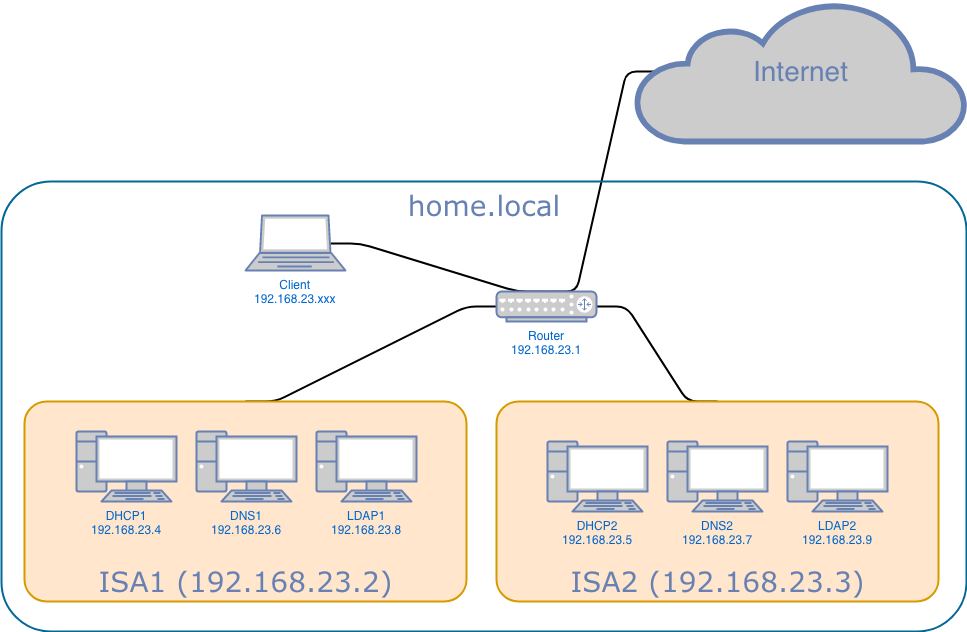
This post will explain how to setup a total of 6 jails distributed over 2 hosts, so that DHCP, DNS and LDAP can be provided into the network.

What we’d like to setup are the following servers:

Of course in an ideal world all 6 servers would be sitting on physically dispersed hardware for good load balancing. However, in our case we will use only 2 physical servers and setup 3 jails in each of server. For now we will use “regular” servers, but later want to run our setup on a single board computer such as a raspberry pi. In this post we will talk about the setup process of either of the “ISA” hosts.

ISA Host Network

First of all we need to get our network setup straight. In our example the infrastructure service appliance will be called isa1 and to the outside world have an ip address of 192.168.23.2/24 (which you can change for your configuration). We edit /etc/resolv.conf to look like this:

search          home.local
nameserver      192.168.23.1
nameserver      8.8.8.8

In the /etc/hosts file we need to put the following:

::1                     localhost isa1.home.local
127.0.0.1               localhost isa1.home.local

Next we will actually create multiple aliases for our network interface to be used by the jails later on. Every jail needs one loopback adapter and one public ip address. On top of that our router sits at 192.168.23.1/24 and we have to put that into /etc/rc.conf as well. Also, we will enable services for sshd and openntpd (openntpd being told to synchronize upon start). We will automatically start ezjail and tell the kernel to produce and persist a core dump in case of software exceptions.

ifconfig_em0="inet 192.168.23.2/24"
ifconfig_em0_alias0="inet 192.168.23.4/32"
ifconfig_em0_alias1="inet 192.168.23.6/32"
ifconfig_em0_alias2="inet 192.168.23.8/32"
defaultrouter="192.168.23.1"
cloned_interfaces="${cloned_interfaces} lo1"
cloned_interfaces="${cloned_interfaces} lo2"
cloned_interfaces="${cloned_interfaces} lo3"
sshd_enable="YES"
#ntpd_enable="YES"
#ntpd_sync_on_start="YES"
openntpd_enable="YES"
openntpd_flags="-s -v"
ezjail_enable="YES"
dumpdev="AUTO"

The network configuration we just put into /etc/rc.conf will not apply unless we reboot. As we don’t need (neither want) to do that, we can make the network adjustments ad-hoc by issuing the following commands in the shell:

service netif cloneup lo1
service netif cloneup lo2
service netif cloneup lo3
ifconfig em0 inet 192.168.23.2/24
ifconfig em0 alias0 inet 192.168.23.4/32
ifconfig em0 alias1 inet 192.168.23.6/32
ifconfig em0 alias2 inet 192.168.23.8/32

Finally we should make sure our log files and everything else relates to our time zone. Let’s execute the following to set our timezone:

tzsetup Europe/Berlin

DHCP jail

Obviously the first command that we need is for creation of the actual jail. We use ezjail and call our jail dhcpjail. We assign network interface em0 with ip address 192.168.23.4 to the outside world and use loopback adapter lo1 with ip 127.0.4.1 internally.

ezjail-admin create dhcpjail 'em0|192.168.23.4,lo1|127.0.4.1'

There is something really special about the jail or DHCP – it needs the bpf (Berkley Packet Filter) device the UDP broadcast messaging. Jails are not just a chroot-ed environment but also are restricted heavily in the resources they can use, especially the device file system (devfs) is not fully exposed. That being said, in this case we need to create a ruleset allowing bpf for our jail, so please make sure your /etc/devfs.rules file contains these lines:

[devfsrules_jail_with_bpf=6]
add include $devfsrules_hide_all
add include $devfsrules_unhide_basic
add include $devfsrules_unhide_login
add path 'bpf*' unhide

Above ruleset now shall be applied to our DHCP jail. We have to put the following lines into /usr/local/etc/ezjail/dhcpjail:

export jail_dhcpjail_devfs_ruleset="6"
export jail_dhcpjail_parameters="allow.raw_sockets allow.sysvipc"

Next we will copy our /etc/resolv.conf file into the new jail:

cp /etc/resolv.conf /usr/jails/dhcpjail/etc/

And finally we need to finetune the hosts file in the jail. Please make sure to edit the hosts file in the jail (/usr/jails/dhcpjail/etc/hosts) and not the hosts file of your host environment.

::1                     localhost dhcp1.home.local
127.0.4.1               localhost dhcp1.home.local

Last but not least – and if desired, we can start the loopback interface associated with the jail. We don’t have to do that now, but need to do it before we start the jail (note: if you reboot between now and the time you start the jail, you can skip this step, as the interface will be started as part of parsing /etc/rc.conf during boot).

service netif start lo1

DNS jail

We assign network interface em0 with ip address 192.168.23.6 to the outside world and use loopback adapter lo2 with ip 127.0.6.1 internally.

ezjail-admin create dnsjail 'em0|192.168.23.6,lo2|127.0.6.1'

Next we will copy our /etc/resolv.conf file into the new jail:

cp /etc/resolv.conf /usr/jails/dnsjail/etc/

We finetune the hosts file in the jail.

::1                     localhost dns1.home.local
127.0.6.1               localhost dns1.home.local

Again – optinally, we can start the loopback interface associated with the jail.

service netif start lo2

LDAP jail

We assign network interface em0 with ip address 192.168.23.8 to the outside world and use loopback adapter lo3 with ip 127.0.8.1 internally.

ezjail-admin create ldapjail 'em0|192.168.23.8,lo3|127.0.8.1'

Next we will copy our /etc/resolv.conf file into the new jail:

cp /etc/resolv.conf /usr/jails/ldapjail/etc/

We finetune the hosts file inside the jail.

::1                     localhost ldap1.home.local
127.0.8.1               localhost ldap1.home.local

Again – optinally, we can start the loopback interface associated with the jail.

service netif start lo3

check

Last but not least you want to start all three jails and check that they are running. Please run the following four commands:

ezjail-admin start dhcpjail
ezjail-admin start dnsjail
ezjail-admin start ldapjail
ezjail-admin list

Especially the last command will give you the output we’re looking for. It will list the jails that are installed and their status.

STA JID  IP              Hostname                       Root Directory
--- ---- --------------- ------------------------------ ------------------------
DR  3    192.168.23.8    ldapjail                       /usr/jails/ldapjail
    3    lo3|127.0.8.1
DR  2    192.168.23.6    dnsjail                        /usr/jails/dnsjail
    2    lo2|127.0.6.1
DR  1    192.168.23.4    dhcpjail                       /usr/jails/dhcpjail
    1    lo1|127.0.4.1

DHCP2, DNS2 and LDAP2 jail on ISA2

As you might have guessed, the setup is exactly the same. The only difference are the ip addresses. You can see the ip addresses in the figure up top this article.

FreeBSD tweaks for productivity

Having installed a fresh FreeBSD from scratch, you could use a couple of tools and settings for better productivity. This is what I do

For a freshly setup system there are a number of packages and config changes that will come in handy later on.

sudo

Let’s start with sudo. Login as root and execute the following command:

> pkg install sudo

Now edit type in the command visudo and find the following line:

#%wheel ALL=(ALL) ALL

You want to remove the # so that the line now reads as this:

%wheel ALL=(ALL) ALL

Now every user in the group wheel can use the sudo command.

ntp daemon

Having a precise time is extremely important. Edit the file /etc/rc.conf and make sure the following lines are in there:

ntpd_enable="YES"
ntpd_sync_on_start="YES"

openntpd

In case you want to run jails, you should not use ntpd as it will bind to all interfaces at the same time. On a “regular” system this is no problem, however as jails expect to have exclusive access to their own network interfaces, you could run into problems in your jails, as the port will be already taken by the underlying main host. Long stories short: openntpd can be setup to not bind to “any” interface. Install the package with the following command:

> pkg install openntpd

Edit the file /etc/rc.conf and make sure that ntpd is disabled, while openntpd is enabled and setup to sync on system start:

#ntpd_enable="YES"
#ntpd_sync_on_start="YES"
openntpd_enable="YES"
openntpd_flags="-s -v"

freebsd-update

The following 4 commands retrieve the latest system updates, install these and set a cron for once a day to check for further updates. At the end the system is rebooted.

> freebsd-update fetch
> freebsd-update install
> printf '@daily   root   freebsd-update   cron' >> /etc/crontab
> shutdown -r now

screen

Depending on your hardware some tasks take a little longer and you might want to logoff without terminating your tasks. Install the package for screen with the following command:

> pkg install screen

ezjail

We want to run jails eventually and need some good tool to manage those jails. Install the package for ezjail with the following command:

> pkg install ezjail

Also make sure that ezjail will be started with your host by putting the following line in the /etc/rc.conf file:
ezjail with the following command:

ezjail_enable="YES"

zsh

Having a good shell is key for productivity. We will install zsh with the following command:

> pkg install zsh

Also, you should not change the shell of the root user. Rather assign the shell to your regular user (replace YOUR_USER with your actual user name.

> chsh -s /­usr/local/bin/zsh YOUR_USER

vim lite

Everybody has his/her favorite text editor. For me it is vi, but I want at least syntax highlighting and some more. I will install vim-lite with the following command and also make an alias for vi while I’m at it.

> sudo pkg install vim-lite
> printf '\nalias vi=vim\nexport WITHOUT_X11=YES' >> ~/.zshrc
> printf '\nset background=dark\nset mouse-=a' >> ~/.vimrc